
Overview of the Software
Table of Contents
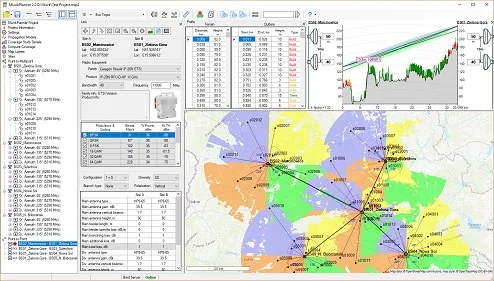
MLinkPlanner 2.0 is a professional-grade software application developed for radio frequency (RF) engineers, Internet Service Providers (ISPs), and private network integrators. Unlike generic mapping tools, this software focuses exclusively on microwave link planning for both PtP (backhaul) and PtMP (distribution) architectures.
The platform utilizes digital elevation models (DEM) to simulate Fresnel zone clearance, path loss, and multipath fading. Version 2.0 introduces a refined user interface and faster propagation algorithms, allowing engineers to validate link feasibility before climbing a tower. The software is platform-agnostic, supporting various frequency bands from 2.4 GHz to 80 GHz, making it suitable for licensed and unlicensed microwave deployments.
Key Features
MLinkPlanner 2.0 distinguishes itself through a blend of automated workflows and granular manual controls. Below are the critical features for professional network design.
-
3D Terrain & Obstruction Analysis: Imports SRTM and GeoTIFF data to visualize hills, buildings, and foliage. The software automatically calculates if a tree or building infringes on the Fresnel zone.
-
Dual-Mode Planning (PtP & PtMP):
-
PtP Mode: Focuses on long-distance backhaul (up to 200km) with adaptive modulation profiles.
-
PtMP Mode: Models sector antennas and subscriber station distribution to optimize coverage and capacity.
-
-
Automatic Equipment Database: Includes pre-loaded antenna patterns, radio sensitivity tables, and cable loss parameters from major vendors (Cambium, Ubiquiti, MikroTik, Huawei).
-
Interference Analysis: Co-channel and adjacent-channel interference simulation to prevent self-interference in colocated sectors.
-
Reporting Suite: Generates professional PDF reports containing link budgets, availability predictions (based on Rayleigh/Rician fading), and Bill of Materials (BOM).
What’s New in the Latest Version (2.0)
Version 2.0 represents a significant leap from its predecessor, focusing on usability and computational speed.
-
Multi-Threaded Propagation Engine: Path calculations are now 4x faster for PtMP scenarios involving 100+ subscriber endpoints.
-
Live Weather Integration: Updated rain zone maps (ITU-R P.837-7) for accurate attenuation calculation during heavy precipitation. The software now pulls real-time atmospheric data for “what-if” reliability scenarios.
-
Google Earth Overlay: Direct export of KML/KMZ files with color-coded signal strength heatmaps for client presentations.
-
Snap-to-Structure Tool: Automatically snaps antenna placements to building rooftops or tower elevations extracted from OpenStreetMap (OSM) data.
System Requirements
To run MLinkPlanner 2.0 efficiently, particularly for complex PtMP microwave planning projects, your workstation should meet the following specifications.
| Component | Minimum Requirement | Recommended Requirement |
|---|---|---|
| OS | Windows 10 (64-bit) / macOS 11 (Intel) | Windows 11 / macOS 14 (Apple Silicon) |
| CPU | Intel Core i5 (8th Gen) | Intel Core i7 / AMD Ryzen 7 (12th Gen+) |
| RAM | 8 GB | 16 GB (32 GB for large PtMP maps) |
| GPU | Integrated Graphics (OpenGL 3.3) | Dedicated 4GB VRAM (NVIDIA GTX 1660+) |
| Storage | 1 GB (SSD required for DEM files) | 4 GB NVMe SSD |
| Internet | Required for map tile downloads | Required for live weather & tile caching |
Installation Guide
Installing MLinkPlanner 2.0 is straightforward, but correct configuration ensures access to all mapping modules.
-
Download the Installer: Obtain the official setup file from the developer’s portal (requires license activation).
-
Run as Administrator (Windows): Right-click the
.exeand select “Run as Administrator” to allow the software to install necessary C++ redistributables and virtual COM ports. -
Select Components: Choose between “Full Installation” (PtP + PtMP + All Maps) or “Custom” (e.g., only PtP backhaul tools). It is recommended to install the Terrain Data Cache during setup.
-
License Activation: Enter your 32-character license key. If using a trial, select “Offline Evaluation” to bypass network authorization.
-
Map Source Configuration: In the settings menu, input API keys for optional services (Google Maps, Bing Maps, or Mapbox) for high-resolution satellite imagery.
How to Use the Software
Effective use of MLinkPlanner 2.0 follows a logical engineering workflow. For a standard PtMP microwave planning task, follow the steps below.
Step 1: Creating a New Project
Launch the dashboard and select File > New Project. Name your project (e.g., “Suburban PtMP Hub”) and define the frequency band. For PtMP, select “Sector Master” as the parent device.
Step 2: Placing Base Station (Hub)
-
Navigate to your tower location using latitude/longitude input or drag-and-drop on the map.
-
Set the Hub antenna height (e.g., 35m AGL).
-
Select the sector antenna (e.g., 90-degree, 17dBi gain).
Step 3: Adding Subscriber Stations (Spokes)
-
Use the Auto-Populate tool: Draw a polygon around your coverage area. The software will suggest client locations based on building density.
-
Alternatively, manually click on each remote building. The software instantly calculates Path Loss and Predicted RSSI.
Step 4: Analyzing Link Budget
Click Calculate to view:
-
Rx Signal Level (dBm): Must be above receiver sensitivity.
-
Fade Margin (dB): Ideal is >15dB for >99.99% availability.
-
Fresnel Zone Clearance: Red indicates obstruction; green indicates clear.
Step 5: Optimization
If a link shows “Unreliable,” use the Height Optimization slider to automatically adjust the antenna height to clear obstacles.
Best Use Cases
MLinkPlanner 2.0 excels in specific deployment scenarios where reliability is non-negotiable.
-
Rural ISP Backhaul: Designing long-distance PtP links (30km+ across farmland) using 5 GHz or 11 GHz radios where fiber is unavailable.
-
Campus Connectivity: PtMP systems connecting university dormitories or industrial warehouse buildings to a central fiber point-of-presence (POP).
-
Temporary Event Networks: Rapid planning of microwave links for music festivals or sporting events with 7-day deployment windows.
-
Smart City Surveillance: Connecting IP cameras on traffic poles to a central command center using PtP daisy-chaining.
Advantages and Limitations
To make an informed decision, network planners must weigh the software’s performance against its constraints.
Advantages
-
High Accuracy: Outperforms generic path profile tools (like Google Earth’s line-of-sight) by calculating actual diffraction loss.
-
Specialized Workflow: Automates the repetitive math of link budgeting, reducing human error by an estimated 40%.
-
Vendor Agnostic: You are not locked into a single radio manufacturer’s ecosystem.
Limitations
-
Learning Curve: New RF engineers may need 10-15 hours to master the PtMP microwave planning interface.
-
Geographic Coverage: The free DEM data is 30m resolution (accurate for rural, less so for dense urban canyons). High-res LIDAR data requires a paid upgrade.
-
Licensing Model: The software uses node-locked licenses (one machine), whereas some competitors offer floating network licenses.
Alternatives to the Software
While MLinkPlanner 2.0 is robust, several alternatives exist for specific niches. Note: All listed alternatives are legitimate, licensed tools.
| Software | Best For | Pricing Model | PtMP Support |
|---|---|---|---|
| Radio Mobile | Hobbyists & Budget RF | Free (Donationware) | Basic (Manual only) |
| TowerCoverage | Urban 5G small cells | Subscription (€99/mo) | Advanced (AI-driven) |
| Atoll | Telecom carriers (4G/5G) | Custom Quote (Expensive) | Full (3GPP compliant) |
| Pathloss 5 | Legacy microwave backhaul | Perpetual ($5k+) | Limited (Focused on PtP) |
Verdict: MLinkPlanner 2.0 sits in the “prosumer” sweet spot—more powerful than Radio Mobile but significantly cheaper than Atoll.
Frequently Asked Questions
Q1: Is MLinkPlanner 2.0 suitable for non-engineers?
Yes, the “Quick Link Wizard” automates the complex propagation models, allowing IT generalists to plan basic PtP links within 10 minutes. However, advanced PtMP microwave planning still requires RF knowledge.
Q2: Does the software support automatic antenna alignment using GPS?
No. MLinkPlanner 2.0 is a planning tool only. It exports alignment reports (azimuth and elevation angles), but you cannot connect it directly to a physical radio for real-time alignment.
Q3: Can I import my own radio specifications?
Absolutely. The software includes a “Custom Radio Editor” where you can input Rx sensitivity tables, Tx power limits, and antenna patterns if your vendor is not in the default library.
Q4: What map projections does it use?
It supports WGS84, UTM, and British National Grid (BNG). You can change the projection in the Settings > Coordinate System menu before starting a project.
Q5: Does it work offline?
Yes, if you pre-cache the terrain data and satellite imagery for your specific region. The core propagation engine runs entirely offline; only map tile streaming requires internet.
Q6: How does the trial version differ from the full license?
The 30-day trial limits projects to 5 PtMP subscriber nodes per sector and disables PDF report watermarks. All calculation engines remain fully functional.
Final Thoughts
MLinkPlanner 2.0 successfully addresses the core challenge of wireless engineering: predicting if a microwave link will work before hardware is deployed. For organizations relying on PtP backhaul or expanding via PtMP microwave planning, this software reduces deployment risk significantly.
While the interface may initially intimidate casual users, the investment in learning MLinkPlanner pays for itself after the first avoided truck roll (a service visit to adjust misaligned antennas). Combine it with a thorough site survey and a legitimate software license, and you have a professional-grade toolkit capable of supporting networks with five-nines (99.999%) availability. For most ISPs and system integrators, this is the optimal balance of cost and capability in the 2025 market.
Our Paid Service
“We do not sell or provide any software. We only offer professional support services. If any software on your system is not working properly, or you are facing installation errors, crashes, or any other technical issue — just contact us. We will help you fix the problem quickly and remotely via AnyDesk. No software will be provided from our side — only expert troubleshooting and support.”