
Download the progeCAD 2026 Professional v26.0.10.10 Review (The Cost-Effective AutoCAD Alternative) from this link…
Overview of the Software
Table of Contents
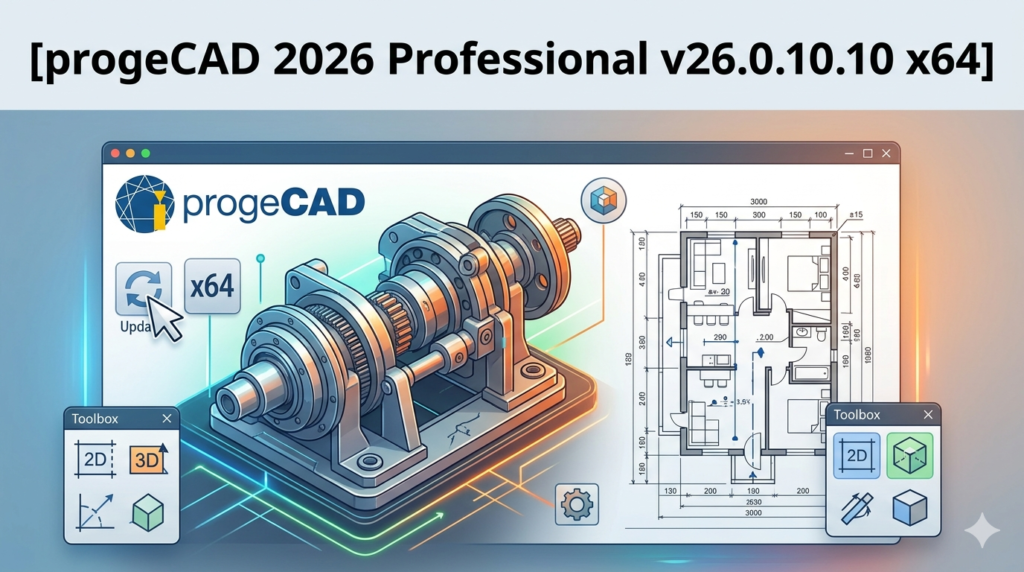
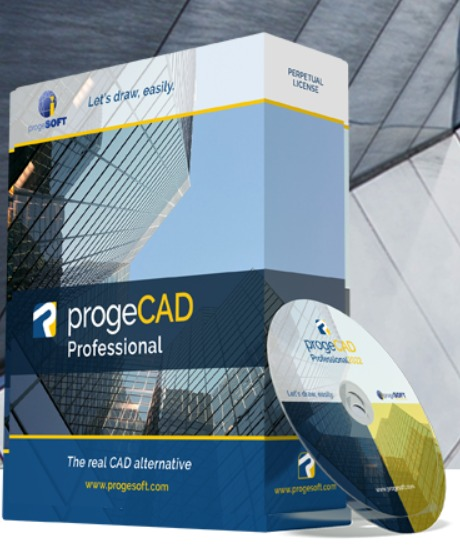
progeCAD 2026 Professional v26.0.10.10 is a powerful, DWG-compatible CAD software designed for architects, engineers, and designers who require native .DWG file support without the recurring subscription costs associated with industry-leading tools. As a perpetual license alternative, this version focuses on delivering professional-grade 2D drafting and 3D modeling capabilities on the Windows x64 platform.
This software reads and writes the native AutoCAD® DWG file format (versions R14 through 2026), ensuring seamless collaboration with colleagues and clients who use other major CAD platforms. Unlike basic free viewers, progeCAD provides a complete toolset for production-level drafting, including AutoLISP support, 3D ACIS solid modeling, and advanced rendering engines. It operates legally under a standard commercial license, making it an ideal solution for small-to-medium businesses looking to reduce overhead while maintaining full intellectual property compliance.
Key Features
progeCAD 2026 Professional includes a robust set of tools that compete directly with higher-priced alternatives. Below is a breakdown of the core functionalities:
-
Native DWG Compatibility: Work directly with .DWG, .DXF, and .DWF files without conversion or data loss, supporting versions from AutoCAD R14 to 2026.
-
2D Drafting & 3D Modeling: Complete toolset for creating technical drawings, floor plans, mechanical parts, and solid models using the ACIS 3D modeling kernel.
-
AutoLISP & ADS Support: Execute existing AutoLISP routines and ADS applications, allowing professionals to migrate their custom scripts and automation tools.
-
Point Cloud Support: Import and visualize point cloud data (LAS/LAZ formats) for surveying, renovation projects, and as-built documentation.
-
Raster to Vector Conversion: Integrated optical character recognition (OCR) tools to convert scanned drawings and PDFs into editable vector linework.
-
Rendering Engine: Produce photorealistic visualizations with integrated Lights, Materials, and Shadows using the LightWorks® rendering engine.
-
PDF Underlay & Import: Attach PDF files as underlays or import vector geometry directly from PDFs into the drawing space.
-
Customizable UI: Ribbon, toolbars, or classic menu interface options to match user preference.
What’s New in Version 26.0.10.10
The v26.0.10.10 x64 release focuses on performance optimization and user experience refinement. Key updates include:
-
Enhanced 64-bit Stability: Improved memory management for handling large-scale drawings (over 100MB) with reduced crash frequency.
-
Dark Mode Interface: A fully implemented dark theme to reduce eye strain during extended drafting sessions.
-
Dynamic Block Editing: Partial support for editing dynamic block properties (visibility states and distances) without exploding the block structure.
-
Updated Ribbon Layout: Streamlined tool tabs for architectural, mechanical, and electrical workflows.
-
Faster Save Operations: Optimized delta saving for cloud-synchronized folders (OneDrive, Google Drive, Dropbox).
System Requirements
Before installing progeCAD 2026 Professional v26.0.10.10 x64, verify your workstation meets the following specifications:
| Component | Minimum Requirement | Recommended |
|---|---|---|
| Operating System | Windows 10 (64-bit) | Windows 11 (64-bit) |
| Processor | 2.0 GHz (Dual-core) | 3.0 GHz+ (Quad-core) |
| RAM | 8 GB | 16 GB or more |
| Graphics | 1 GB VRAM (DirectX 11) | 4 GB VRAM (OpenGL 4.5) |
| Storage | 5 GB free SSD space | 10 GB free NVMe SSD |
| Display | 1920 x 1080 resolution | 2560 x 1440 or higher |
Installation Guide
Follow this step-by-step guide to install your legal copy of progeCAD 2026 Professional.
Step 1: Download the installer
Obtain the official progeCAD_2026_Professional_v26.0.10.10_x64.exe file from the authorized reseller or developer portal.
Step 2: Run as Administrator
Right-click the installer and select “Run as administrator” to ensure proper registry access.
Step 3: Accept License Agreement
Review and accept the End-User License Agreement (EULA). Verify that you are installing a licensed commercial or trial version.
Step 4: Choose Installation Type
-
Typical: Installs core features (recommended for most users).
-
Custom: Allows deselection of components (e.g., Help files, Raster-to-Vector tools).
Step 5: Activate the Software
Launch progeCAD. Enter your 25-digit product key and serial number provided upon purchase. For the trial version, select “Request a 30-day trial.”
Step 6: Complete Setup
Restart your workstation to finalize environment variables.
How to Use the Software (Basic Workflow)
To maximize efficiency in progeCAD 2026, follow this standard drafting workflow:
Setting Up a New Drawing
-
Launch progeCAD and click New (or type
NEWin the command line). -
Select a template (e.g.,
ACAD.DWTfor imperial orISO.DWTfor metric). -
Set drawing units via the
UNITScommand.
Creating Basic Geometry
-
Use
LINE,CIRCLE, andRECTANGcommands. -
Use
TRIMandEXTENDto refine intersections. -
Leverage
OSNAP(Endpoint, Midpoint, Center) for precision.
Adding Annotations
-
Use
TEXTorMTEXTfor notes. -
Use
DIMLINEARandDIMCONTINUEfor measurements. -
Modify dimension styles via the Format > Dimension Style menu.
Outputting Your Work
-
To PDF: Use
EXPORTPDFand select “High Quality Print.” -
To DWG: Use
SAVEASand select version compatibility (e.g., AutoCAD 2018).
Best Use Cases
progeCAD 2026 Professional excels in specific professional scenarios:
-
Small Architectural Firms: Creating floor plans, elevations, and permit sets without paying per-seat monthly fees.
-
Mechanical Parts Design: Designing 2D CNC cutting profiles and basic 3D solid models for fabrication.
-
Facility Management: Using the point cloud import to overlay new designs on existing building scans.
-
Educational Institutions: Teaching CAD fundamentals where students require native DWG export for portfolio compatibility.
-
Freelance Drafters: Maintaining a professional, legally compliant tool for contract work with variable income.
Advantages and Limitations
Advantages (Pros)
-
Perpetual License: Pay once, own the software. No subscription fees.
-
Native DWG Support: Zero translation errors when exchanging files with AutoCAD users.
-
Low Resource Footprint: Runs efficiently on older Windows workstations compared to cloud-based CAD.
-
AutoLISP Compatibility: Retains value for firms with decades of custom automation scripts.
-
Royalty-Free Distribution: Redistribute your viewer to clients without additional licensing.
Limitations (Cons)
-
Learning Curve: The interface differs subtly from AutoCAD; muscle memory for certain commands (e.g.,
CLASSICMENUBAR) may require adjustment. -
Rendering Speed: Complex photorealistic renders take longer than dedicated rendering software like Blender or V-Ray.
-
No Native Mac Version: Requires virtual machine or dual-boot for macOS users (Windows x64 only).
-
3D Surface Tools: Advanced freeform surfacing is less robust than SolidWorks or Rhino 3D.
Alternatives to progeCAD 2026 Professional
When evaluating CAD software, consider these legitimate alternatives based on your budget and workflow:
| Software | License Model | DWG Native | Best For | Starting Price |
|---|---|---|---|---|
| progeCAD 2026 | Perpetual | Yes | Cost-sensitive professionals | $299 (One-time) |
| AutoCAD | Subscription | Yes | Enterprise & full compatibility | $1,690/year |
| DraftSight | Subscription | Yes | Former AutoCAD users | $299/year |
| NanoCAD | Freemium | Yes | Basic 2D drafting | Free (Limited) / $240/year |
| LibreCAD | Free (GPL) | No (DXF only) | Hobbyists & open-source enthusiasts | $0 |
Frequently Asked Questions (FAQ)
Q1: Is progeCAD 2026 fully compatible with AutoCAD 2026 DWG files?
A: Yes. progeCAD 2026 Professional reads and writes the native DWG format up to AutoCAD 2026 version without conversion, preserving all vector geometry, layers, and blocks.
Q2: Can I use my old AutoLISP routines from AutoCAD?
A: Absolutely. The software includes an AutoLISP interpreter that supports the vast majority of legacy LISP routines and ADS applications developed for AutoCAD.
Q3: Does progeCAD offer a free trial before purchase?
A: Yes. The developer provides a fully functional 30-day trial version. No payment information is required to test the software with your own DWG files.
Q4: What happens when a new AutoCAD version is released?
A: progeCAD typically releases a new major version annually. Your v26 license will not read future DWG formats (e.g., AutoCAD 2027), but you can always export to an older DWG version from the other software.
Q5: Is technical support included with the perpetual license?
A: The standard perpetual license includes 90 days of complimentary technical support. Extended maintenance plans (1 or 3 years) are available for purchase, which also include version upgrades.
Q6: Can I install this on multiple computers?
A: The single-user license permits installation on two computers (e.g., one office desktop and one laptop) provided both are used exclusively by the same person.
Q7: Does progeCAD support 3D printing file formats?
A: Yes. You can export 3D solid models as STL (Stereolithography) files, which are compatible with most 3D slicing software (Cura, PrusaSlicer, etc.).
Q8: How do I migrate my custom tool palettes from AutoCAD?
A: Copy your .xtp and .atc files to the %APPDATA%\progeCAD\2026\Professional\en-US\Support folder and use the CUSTOMIZE command to import them.
Final Thoughts
progeCAD 2026 Professional v26.0.10.10 x64 successfully delivers on its promise as a cost-effective, legally compliant alternative to subscription-based CAD. For individual professionals and small teams who prioritize DWG fidelity and AutoLISP support over cloud collaboration features, this software provides exceptional value.
While it lacks some of the generative AI and real-time collaboration tools found in newer SaaS products, its stability, low system requirements, and perpetual licensing model make it a strategic asset for long-term project management. Before committing, download the official 30-day trial to verify compatibility with your specific workflow. For most 2D drafting and basic 3D modeling tasks, progeCAD is not just an alternative—it is a financially prudent solution.
Premium Software Support Service
If you need professional help with software installation, setup, or technical configuration, our team is available to assist you.
Contact & Support
For quick assistance and latest updates, connect with us using the links below:
🔹 Direct Telegram Support
https://t.me/PlayoutKing
🔹 Official Telegram Updates Group
https://t.me/yourgroup
Service Policy
- Remote testing available through AnyDesk before confirmation.
• Verify the setup and performance before completing the order.
• Support available for single or multiple systems.
• Step-by-step guidance to ensure smooth installation and working environment.
Our goal is to provide reliable technical assistance so your software runs smoothly without interruptions.