


Overview of the Software
Table of Contents
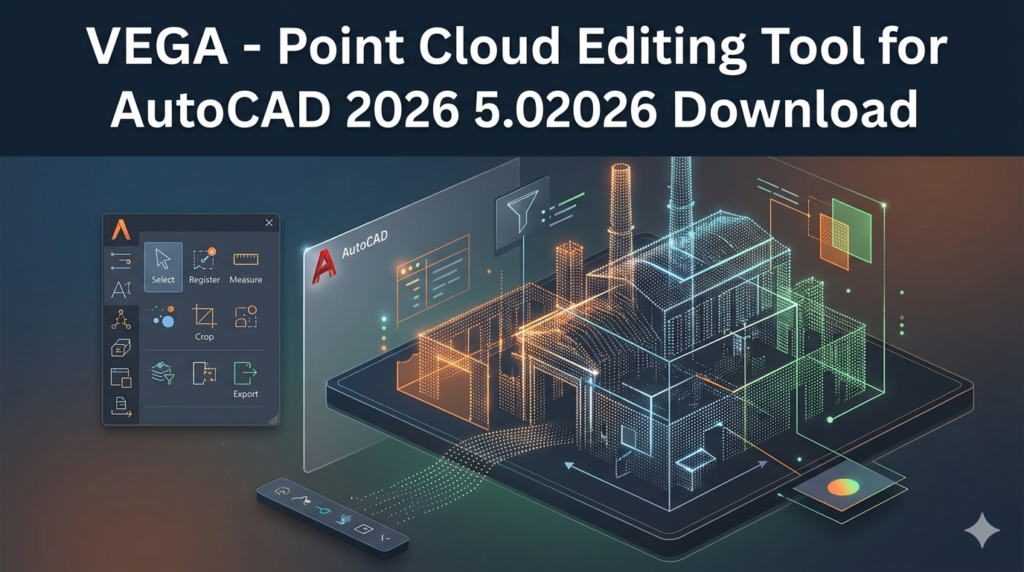
VEGA – Point Cloud Editor is a professional-grade AutoCAD plugin designed to process, clean, and model 3D laser scan data directly inside Autodesk AutoCAD 2026. Instead of switching between dedicated point cloud software and your CAD environment, VEGA brings powerful editing tools directly into the familiar AutoCAD interface.
For engineers, surveyors, and BIM professionals, point cloud data—containing millions of real-world measurement points—can be overwhelming. VEGA solves this by providing filtering, classification, and modeling tools that transform raw scan data into usable CAD geometry. Whether you are working on renovation projects, plant design, or infrastructure modeling, this tool accelerates the scan-to-CAD workflow while maintaining high accuracy.
As a Platinum-level Autodesk Partner in Israel (in collaboration with TeamCAD), VEGA meets rigorous standards for compatibility and performance, ensuring users receive stable updates and professional support.
Key Features of VEGA Point Cloud Editor
-
Direct AutoCAD Integration: Operates as a native plugin, eliminating the need for external point cloud software.
-
Advanced Filtering & Cleaning: Remove noise, outliers, and unwanted scan points with one-click tools.
-
Point Cloud Classification: Automatically classify points into categories (ground, vegetation, buildings, pipes).
-
TIN & Surface Generation: Create 3D surfaces, terrain models, and sections using triangulation.
-
Reverse Engineering Tools: Convert point clouds into editable solids, meshes, or polylines.
-
Volume & Cut/Fill Calculations: Measure earthwork quantities directly from scan data.
-
Slicing & Cross-Sectioning: Extract precise 2D profiles from 3D point clouds.
-
Elevation Comparison: Compare as-built scans against design models to detect deviations.
What’s New in the Latest Version (v5.0 for AutoCAD 2026)
The 2026 release introduces several performance and usability enhancements:
-
Optimized Memory Management: Handles point clouds exceeding 500 million points without crashing.
-
AI-Assisted Classification: Machine learning models automatically detect walls, pipes, and ground points.
-
Real-Time Slicing: Generate cross-sections instantly without reprocessing the entire dataset.
-
Enhanced Revit Interoperability: Export cleaned point clouds directly to Autodesk Revit for BIM workflows.
-
GPU Acceleration: Faster rendering and editing responsiveness on compatible graphics hardware.
System Requirements
Before installing, ensure your workstation meets these specifications:
| Component | Minimum Requirement | Recommended |
|---|---|---|
| Operating System | Windows 10 (64-bit) | Windows 11 Pro |
| AutoCAD Version | AutoCAD 2024 – 2026 | AutoCAD 2026 |
| CPU | Intel Core i5 (8th gen) | Intel Core i7/i9 or AMD Ryzen 7 |
| RAM | 16 GB | 32 GB or more |
| GPU | 2 GB VRAM (DirectX 11) | NVIDIA Quadro/GeForce RTX with 4GB+ |
| Storage | 10 GB free SSD space | NVMe SSD |
| Point Cloud Format Support | LAS, LAZ, RCS, RCP, PCG, XYZ, E57 | Same |
Installation Guide
Follow these steps to install VEGA inside AutoCAD 2026:
-
Purchase & Download: Obtain the official installer from the authorized distributor or Autodesk App Store.
-
Close AutoCAD: Ensure no AutoCAD instances are running to avoid file locking issues.
-
Run Installer: Launch the
.exeor.msifile with administrator privileges. -
Select AutoCAD Version: Choose AutoCAD 2026 from the list of detected installations.
-
Complete Installation: Follow the on-screen prompts. The plugin will register itself automatically.
-
Launch AutoCAD: Open AutoCAD 2026. The VEGA ribbon or toolbar should appear.
How to Use the Software (Step-by-Step Workflow)
Step 1 – Import Point Cloud Data
-
Navigate to the VEGA Ribbon > Import.
-
Select your file format (LAS, LAZ, E57, RCP, etc.).
-
Adjust import settings (decimation, coordinate system).
Step 2 – Clean & Filter
-
Use Noise Removal to eliminate stray points.
-
Apply Statistical Outlier Filter for dense scans.
-
Draw a clipping box to isolate the region of interest.
Step 3 – Classify Points
-
Run Automatic Classification (ground, vegetation, building).
-
Manually reclassify misidentified points using brush tools.
Step 4 – Generate Geometry
-
Select Surface from Points to create a TIN mesh.
-
Use Extract Section to produce 2D polylines for drafting.
-
For reverse engineering, use Fit Primitive (cylinder, plane, sphere).
Step 5 – Export or Draft
-
Export cleaned clouds as RCP/RCS for Revit.
-
Directly draft AutoCAD entities over the point cloud reference.
Best Use Cases
VEGA excels in professional scenarios where real-world accuracy is critical:
| Use Case | Benefit |
|---|---|
| Renovation & Retrofitting | Model existing structures without original blueprints. |
| Industrial Plant Design | Create accurate as-built models of piping and equipment. |
| Road & Terrain Mapping | Generate cross-sections and volume calculations for earthworks. |
| Heritage Documentation | Preserve historical sites via detailed 3D scans. |
| Quality Control (As-Built vs. Design) | Overlay scan data onto CAD models to detect deviations. |
Advantages and Limitations
Advantages (Pros)
-
Seamless AutoCAD Integration: No context switching between applications.
-
Handles Large Datasets: Optimized for millions to billions of points.
-
Automation Reduces Manual Work: AI classification saves hours of hand-editing.
-
Precision Measurement: Sub-centimeter accuracy for engineering requirements.
Limitations (Cons)
-
Requires Powerful Hardware: Not suitable for low-end laptops or integrated graphics.
-
Steep Learning Curve for Beginners: Point cloud concepts require training.
-
AutoCAD License Required: VEGA does not include AutoCAD itself.
-
No Mac Version: Windows-only plugin.
Alternatives to VEGA (Comparison)
| Software | Platform | Best For | Key Difference |
|---|---|---|---|
| CloudCompare | Windows/Mac/Linux (Open Source) | Free point cloud processing | No direct CAD integration. |
| Autodesk ReCap Pro | Windows/SaaS | Reality capture & cloud hosting | Subscription-based; slower for editing. |
| Leica Cyclone 3DR | Windows | High-end surveying | More expensive; advanced analysis. |
| Undet for AutoCAD | AutoCAD Plugin | Scan-to-BIM | Better for architecture; weaker for terrain. |
| VEGA (this tool) | AutoCAD Plugin | General engineering & terrain | Best AutoCAD-native editing speed. |
Frequently Asked Questions (FAQ)
Is VEGA compatible with AutoCAD 2026?
Yes. Version 5.0 is specifically optimized for AutoCAD 2026, with backward compatibility to 2024.
Do I need a separate license for point cloud processing?
VEGA includes all point cloud editing tools in one license. No additional modules are required for standard filtering, classification, or surface generation.
Can I use VEGA without an internet connection?
Yes. After online activation, VEGA operates fully offline. Only license validation or updates require internet access.
Does VEGA support colorized point clouds from LiDAR scanners?
Yes. The plugin retains RGB and intensity attributes from LAS/LAZ files, allowing true-color visualization.
How does VEGA compare to AutoCAD’s native point cloud tools?
AutoCAD’s native tools only allow basic clipping and snap. VEGA adds classification, noise removal, surface modeling, and volume calculations.
Can I try VEGA before purchasing?
Most authorized distributors offer a 14-day fully functional trial. Contact your local Autodesk reseller for a trial license.
What file formats can I export for Revit?
You can export cleaned point clouds as RCP (Recap Project) files, which link directly into Revit for BIM modeling.
Is training available?
Yes. TeamCAD (the developer) provides certified training, documentation, and technical support for enterprise customers.
Final Thoughts
VEGA – Point Cloud Editor for AutoCAD 2026 is not merely a viewer—it is a complete editing and modeling environment inside your existing CAD workspace. For professionals who regularly work with laser scan data, the ability to clean, classify, and generate surfaces without leaving AutoCAD translates directly into hours saved and fewer errors.
While the hardware requirements are significant, the return on investment comes from automation features like AI-assisted classification and GPU-accelerated rendering. Compared to generic point cloud tools, VEGA’s deep integration with AutoCAD’s drafting engine makes it the most efficient choice for civil engineers, surveyors, and plant designers.
Premium Software Support Service
If you need professional help with software installation, setup, or technical configuration, our team is available to assist you.
Contact & Support
For quick assistance and latest updates, connect with us using the links below:
🔹 Direct Telegram Support
https://t.me/PlayoutKing
🔹 Official Telegram Updates Group
https://t.me/yourgroup
Service Policy
- Remote testing available through AnyDesk before confirmation.
• Verify the setup and performance before completing the order.
• Support available for single or multiple systems.
• Step-by-step guidance to ensure smooth installation and working environment.
Our goal is to provide reliable technical assistance so your software runs smoothly without interruptions.