

Download Hasleo Backup Suite Technician v5.6.2.1 (The Free Windows Disaster Recovery Powerhouse) from this link…

Overview of Hasleo Backup Suite Technician
Table of Contents
Hasleo Backup Suite Technician v5.6.2.1 is a robust, free disk imaging and cloning solution designed specifically for Windows operating systems. Developed by Hasleo Software (formerly the EasyUEFI Development Team), this tool has garnered attention for its comprehensive feature set that rivals paid competitors, making it a go-to solution for IT technicians and home users alike . This latest version focuses on refining the core backup engine, improving WinPE emergency disk creation, and enhancing the overall stability of backup and restore operations.
Unlike many “freemium” tools that restrict core functions, the Technician version remains entirely free while offering system backup, disk cloning, file recovery, and scheduled backups. With over 15 million users reported, the suite is built to protect data against system crashes, hardware failures, and ransomware attacks by creating exact images of your drives .
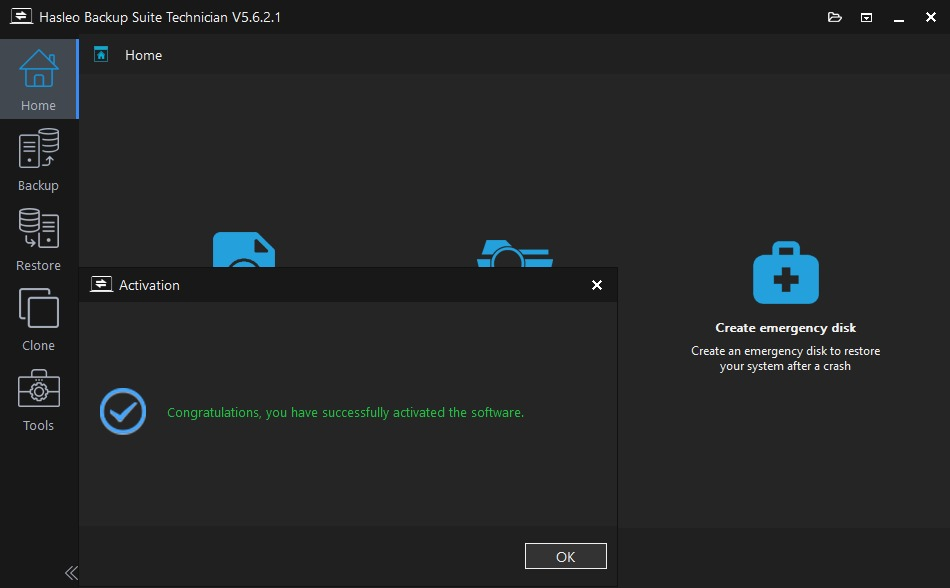
Screenshot
Key Features
Hasleo Backup Suite v5.6.2.1 comes packed with features that cover the entire data protection lifecycle. Below is a detailed breakdown of its core capabilities.
Backup and Restore Functionality
-
System Backup & Restore: Creates an exact image of the Windows operating system and all boot-related partitions. This ensures a complete recovery after a critical failure without needing to reinstall applications or drivers .
-
Disk/Partition Backup: Select specific volumes or entire hard drives for backup. This is ideal for protecting sensitive data stored on separate partitions .
-
File/Folder Backup: Allows for granular selection of individual files and directories, moving beyond simple file copy to create versioned backups.
-
Universal Restore (Hardware Independent): A critical feature for technicians; it allows you to restore a Windows system to a computer with different hardware (different motherboard, chipset, etc.) without triggering boot failures .
Cloning and Migration Tools
-
OS Migration to SSD/HDD: Transfer your Windows installation to a new SSD or larger hard drive without reinstalling. The software handles the partition layout and boot code automatically .
-
Disk/Partition Clone: Create a 1:1 duplicate of any drive for exact data mirroring or forensic purposes.
-
MBR/GPT Conversion: Seamlessly convert disk partition styles during a restore or clone operation, ensuring compatibility with modern UEFI firmware .
Advanced Backup Strategies
-
Backup Schemes (Full/Differential/Incremental): Maximize storage efficiency by implementing different backup modes. You can perform a full backup once, followed by faster differential or incremental backups that only capture changes .
-
Scheduled Automation: Automate tasks based on daily, weekly, monthly, or specific event triggers (like user logon or USB connection) .
-
Image Retention Policies: Automatically delete old backup images according to your rules, preventing the destination drive from filling up .
Security and Utility Tools
-
AES 256-Bit Encryption: Secure sensitive backup images with industry-standard encryption to prevent unauthorized access .
-
Image Mounting & Exploration: Mount backup images as virtual drives in Windows Explorer to browse and recover specific files without performing a full restore .
-
WinPE Emergency Media Builder: Create a bootable USB or ISO based on Windows PE to rescue systems that fail to boot .
-
Drive Wiper: Securely erase all data on a hard drive to ensure privacy when repurposing or disposing of hardware .
What’s New in Version 5.6.2.1
While Hasleo maintains a rapid development cycle, version 5.6.2.1 focuses on stability and performance enhancements. Based on the latest release notes and forum discussions , here are the key updates in this iteration:
-
Performance Optimizations: Improved the speed of incremental and differential backups when dealing with large volumes of small files.
-
WinPE Builder Updates: Enhanced driver injection for newer storage controllers (NVMe and RAID), ensuring that the emergency disk can see all internal drives during recovery.
-
Bug Fixes: Resolved specific errors related to “unsupported file system” during disk clone operations on dynamic disks.
-
User Interface Refinements: Minor adjustments to the task management interface for better clarity when handling multiple scheduled jobs.
System Requirements
To run Hasleo Backup Suite Technician v5.6.2.1 efficiently, your system should meet the following specifications :
| Component | Requirement |
|---|---|
| Operating System | Windows Vista / Server 2008 or later (including Windows 11, 10, 8.1, 7). Fully supports 32-bit (x86), 64-bit (x64), and ARM64 architectures. |
| Processor | Intel Pentium CPU 1GHz or equivalent |
| Memory (RAM) | 1 GB minimum (2 GB or more recommended for large disk images) |
| Disk Space | 500 MB for installation (additional space required for storing backup images) |
| Supported File Systems | FAT12, FAT16, FAT32, NTFS, ReFS, Ext2/3/4 (limited support) |
| Other | CD/DVD burner or USB port for creating emergency media |
Installation Guide
Installing Hasleo Backup Suite is a straightforward process. Follow these steps to get started safely.
-
Download the Software: Visit the official Hasleo website. Navigate to the Hasleo Backup Suite section and download the “Technician” or “Free” version installer for your system architecture (x64, x86, or ARM64) .
-
Run the Installer: Right-click the downloaded
.exefile and select “Run as administrator” to ensure proper driver installation. -
Follow the Wizard: The installation wizard will guide you through the license agreement and destination folder selection. The software does not bundle third-party adware, keeping the process clean.
-
Initial Launch: Upon completion, launch the application. The main dashboard will display your current disk configuration and available backup tasks.
How to Use the Software
Here are three primary use cases for Hasleo Backup Suite, ranging from basic system protection to advanced recovery.
1. Performing a System Backup
-
Step 1: On the main dashboard, click “Backup” and select “System Backup” .
-
Step 2: The software automatically detects the system reserved partitions and the Windows partition. Select a destination drive (preferably an external or secondary internal drive) to store the image.
-
Step 3: Click “Schedule” in the bottom right. Set your desired frequency (Daily, Weekly) and backup method (Full/Incremental). Name the task and save it.
2. Creating a WinPE Emergency Disk
-
Step 1: Insert a blank USB drive (at least 1GB) into your PC.
-
Step 2: In Hasleo Backup Suite, click on “Tools” (bottom left) and select “Create Emergency Disk” .
-
Step 3: Select your USB drive from the list. The tool will download the necessary Windows PE files and make the drive bootable .
-
Step 4: Once completed, boot your computer from this USB to access the Hasleo recovery environment if Windows fails to start.
3. Cloning a Disk to Upgrade to an SSD
-
Step 1: Connect your new SSD to the computer (via SATA or USB-to-SATA adapter).
-
Step 2: In the main menu, click “Clone” and select “Disk Clone” .
-
Step 3: Select your current HDD as the Source Disk and the new SSD as the Destination Disk.
-
Step 4: Check the option “Fit partitions to entire disk” to automatically scale the partitions to the new SSD’s size. Click “Proceed” to start the clone.
Best Use Cases
Different tools excel in different scenarios. Here is where Hasleo Backup Suite fits best within the software ecosystem.
-
For SMBs and IT Technicians: The Technician version allows for free commercial use, making it a cost-effective tool for repairing client PCs, performing data migrations, and setting up bare-metal recovery plans.
-
Home Users Upgrading Hardware: Its intuitive cloning wizard is ideal for consumers moving from a slow HDD to a fast SSD without the technical headache of reinstalling Windows .
-
Disaster Recovery Planning: By combining scheduled system backups with a WinPE boot disk, users can ensure minimal downtime in the event of a ransomware attack or hard drive failure .
-
Disk Imaging on ARM Devices: With specific support for ARM64 Windows installations, it is a rare free option for users on devices like the Surface Pro X .
Advantages and Limitations
Understanding the pros and cons helps set realistic expectations for this powerful tool .
Advantages
-
Completely Free: No watermarks, no time-limited trials, and no paywalls for core features like incremental backups or encryption .
-
High Speed: Users and reviewers consistently note that its imaging engine is one of the fastest available, significantly reducing backup windows .
-
Comprehensive Features: Offers features (like differential backups and disk cloning) that other “free” tools often reserve for paid tiers .
-
Universal Restore: A rare feature in free software, allowing OS recovery on dissimilar hardware .
Limitations
-
Support Model: Being free, support is limited to community forums and email. Response times can be slow, and there is no live chat or phone support .
-
No Native Cloud Backup: The software lacks direct integration with cloud storage providers (like Google Drive or Backblaze). Backups must be saved to local or network drives.
-
Interface Aesthetics: The UI is functional but considered “dated” or “spartan” compared to modern competitors like Acronis or EaseUS .
Alternatives to the Software
If Hasleo Backup Suite does not perfectly fit your workflow, several excellent alternatives are available, each with specific strengths .
| Software | Best For | Key Difference |
|---|---|---|
| Macrium Reflect | Reliability & Enterprise Features | Widely regarded as the gold standard for imaging, but the free version is being phased out . |
| AOMEI Backupper | Ease of Use & Interface Design | Offers a similar feature set with a more polished interface; free version is robust . |
| MiniTool ShadowMaker | Integrated Partition Management | Combines backup with powerful partition editing tools in one suite . |
| Veeam Agent for Windows | Server & Business Environments | Excellent for backing up to NAS devices and network shares; free version is very powerful . |
| Clonezilla | Technical/Network Deployments | Open-source, extremely powerful, but utilizes a text-based interface (steep learning curve) . |
Frequently Asked Questions
1. Is Hasleo Backup Suite Technician really free for commercial use?
Yes. Unlike many “free” editions that restrict use to home users only, the Technician version is explicitly free for both personal and commercial use without any feature limitations .
2. Can I restore a backup to a computer with different hardware?
Absolutely. Hasleo Backup Suite includes a Universal Restore feature. When restoring an image, the software injects the necessary drivers for the new hardware, allowing Windows to boot on the target machine .
3. How do I recover individual files from a backup without restoring the whole disk?
You can mount the backup image as a virtual drive. Open Hasleo, go to “Tools” , select “Mount Image” , and choose your backup file. It will appear in File Explorer, allowing you to copy specific files .
4. Does v5.6.2.1 support Windows 11 and secure boot?
Yes. This version fully supports Windows 11, including systems with UEFI firmware and Secure Boot enabled. The WinPE emergency disk created by the tool is also compatible .
5. Why does the backup take up so much space? Can I reduce it?
The initial backup is a “Full” backup, which copies all selected data. To save space, you can set up a backup strategy using Incremental or Differential backups. Additionally, you can adjust the Compression Level to “High” in the backup options to create smaller (though slower to create) image files .
6. My computer won’t boot. How do I use Hasleo to recover it?
You need the WinPE Emergency Disk created beforehand. Insert the bootable USB, enter your BIOS boot menu (usually F12 or Esc), boot from the USB, and you will be presented with the Hasleo recovery environment to restore your latest system image .
Final Thoughts
Hasleo Backup Suite Technician v5.6.2.1 stands as a testament to what free software can achieve. It successfully bridges the gap between high-end paid utilities and limited free tools by offering enterprise-grade features like universal restore, robust encryption, and flexible scheduling at no cost. While the support model and interface may not appeal to everyone, the raw performance and reliability of its imaging engine make it a top contender for anyone serious about data protection. For technicians, small businesses, and home users alike, it provides a safety net that is both powerful and accessible.
Premium Software Support Service
If you need professional help with software installation, setup, or technical configuration, our team is available to assist you.
Contact & Support
For quick assistance and latest updates, connect with us using the links below:
🔹 Direct Telegram Support
https://t.me/PlayoutKing
🔹 Official Telegram Updates Group
https://t.me/yourgroup
Service Policy
- Remote testing available through AnyDesk before confirmation.
• Verify the setup and performance before completing the order.
• Support available for single or multiple systems.
• Step-by-step guidance to ensure smooth installation and working environment.
Our goal is to provide reliable technical assistance so your software runs smoothly without interruptions.