
Overview of ElumTools 2026.5.0.3
Table of Contents
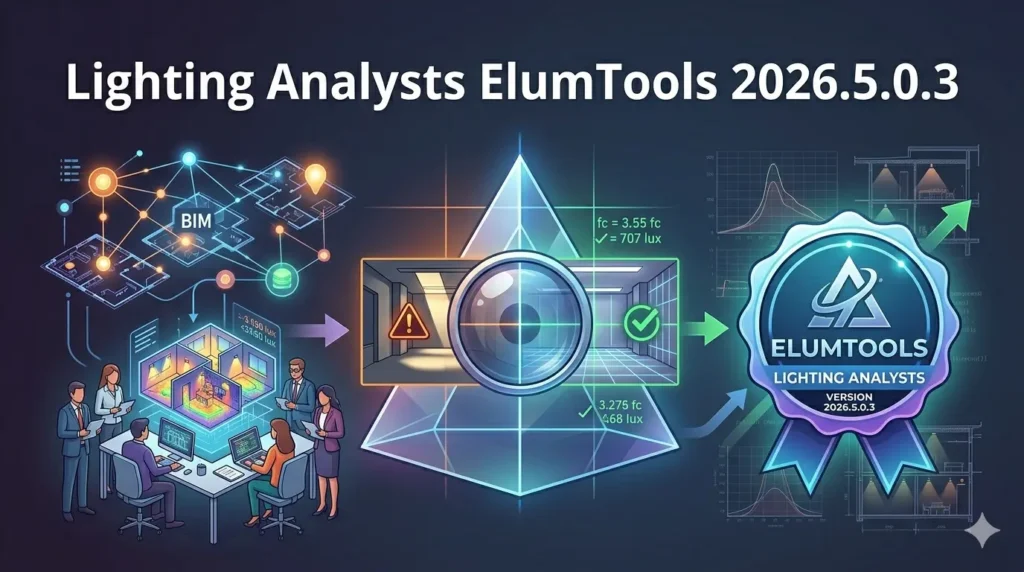
ElumTools is a high-fidelity lighting calculation engine developed by Lighting Analysts, the same team behind the industry-standard AGi32 software. Unlike standalone applications, ElumFunctions as a seamless extension of Revit. It harnesses the existing BIM geometry—rooms, spaces, materials, and surfaces—to run point-by-point illuminance calculations and luminance rendering.
The 2026 generation continues the companys commitment to “in-the-box” analysis, meaning there is no file translation or geometry loss. It supports both interior lighting designs (offices, schools, warehouses) and exterior applications (sports fields, roadways, parking lots). The software utilizes ray tracing and radiosity methods to simulate how light interacts with surfaces, providing results that are both legally defensible and visually accurate.
Key Features of ElumTools
ElumTools distinguishes itself through deep integration and specialized analytical power. Here are the core functionalities that make it essential for Revit users:
-
Native Revit Integration:
-
Performs calculations directly on the Revit model.
-
No need to export to
.dwgor.dxffiles, which eliminates synchronization errors. -
Reads Revit materials to understand surface reflectances automatically.
-
-
Multiple Calculation Engines:
-
General Mode: Mixed direct and reflected light for standard interior/exterior work.
-
Emergency Mode: Dedicated “Direct light only” calculation to meet building codes for egress paths.
-
Horticultural Mode: Computes PPFD (Photosynthetic Photon Flux Density) for plant growth lighting designs.
-
-
Advanced Viewing & Analytics:
-
Calculation Viewer: Offers rendering, isolines, and spatial maps.
-
Pseudocolor & Grayscale: Visualize illuminance or luminance intensity instantly.
-
Mesh Overlay: Inspect radiosity element meshes to verify calculation accuracy.
-
-
Material Mapping:
-
Maps Revit categories to specific surface reflectances (ceilings, walls, floors) to ensure real-world accuracy.
-
-
Calculation Point Masking:
-
Advanced options to exclude specific model elements (like furniture or obstructions) from calculation points, allowing for more realistic “as-built” scenarios.
-
What’s New in the Latest Version (2026.5.0.3)
Keeping pace with Autodesks release cycle, ElumTools ensures version-to-version compatibility, though specific patch notes for 2026.5.0.3 generally focus on stability and Revit interoperability based on historical update patterns. Key updates inherent to the 2026 generation include:
-
Enhanced 4K Monitor Support: Ensures the UI scales correctly on high-resolution displays.
-
Calculation Point Naming Synchronization: Automatically ties calculation grid names to Revit Room or Space names.
-
Sticky Viewer Settings: The calculation viewer now saves your custom preferences (font size, color scales, isoline settings) between sessions.
-
Improved Multi-User Worksharing: Better handling of Extensible Storage elements to prevent conflicts when multiple users sync their Revit models.
System Requirements
Because ElumTools runs inside Revit, its minimum requirements mirror Revit’s, but with a focus on processing power for ray tracing calculations. For optimal performance, exceed the suggested hardware.
Minimum Specifications (Satisfactory Performance) :
-
Operating System: Windows 10 (64-bit) or Windows 11.
-
Processor: Quad-Core CPU @ 2.30 GHz+.
-
Memory: 4+ GB RAM (ElumTools uses Revit’s memory space, so 8GB+ is recommended for large projects).
-
Graphics: Support for OpenGL 3.3, 512+ MB Graphics Memory.
Recommended Specifications (High Performance) :
-
Processor: 6+ Core Processor @ 2.60 GHz+.
-
Memory: 8+ GB RAM (Required for complex exterior point-by-point calculations).
-
Graphics: OpenGL 3.3 support, 1024+ MB Memory.
-
Software:
.NET Framework v 4.8.
Version Locking :
-
Crucial Note: ElumTools installers are specific to the Revit major version. ElumTools 2026 works exclusively with Revit 2026. Ensure you download the correct build for your Revit year.
Installation Guide
Installing ElumTools is straightforward, but requires administrative privileges.
-
Check Compatibility: Verify your Revit version matches the installer (e.g., 2026.x).
-
Close Revit: Ensure all Revit instances are closed to allow the installer to write the necessary add-in files.
-
Run Installer: Execute the downloaded
.msior.exefile. -
License Activation:
-
ElumTools uses a subscription-based licensing system (cloud or local).
-
Upon first launch, enter your Lighting Analysts credentials or point to your license server.
-
-
Verify Installation: Open Revit. The “ElumTools” tab should appear on the Ribbon.
How to Use the Software
Executing a lighting analysis in ElumTools follows a logical workflow within Revit:
-
Model Preparation:
-
Ensure Revit Rooms/Spaces are placed and bounded correctly.
-
Enable “Volume Computations” in Revit (ElumTools requires this to understand geometry).
-
-
Material Mapping:
-
Navigate to the ElumTools Ribbon > Material Mapping.
-
Assign reflectances (e.g., Ceiling 80%, Wall 50%) to Revit material names.
-
-
Insert Luminaires:
-
Place lighting fixture families. ElumTools automatically validates if the family has a valid photometric web (
.iesfile) attached.
-
-
Define Calculation Grid:
-
Select a Room or Area.
-
Click “Add Calculation Points” to specify the grid spacing (e.g., 2ft x 2ft).
-
-
Calculate:
-
Click “Calculate Active View”.
-
ElumTools processes the geometry, surface interactions, and light distribution.
-
-
View Results:
-
The Calculation Viewer opens. Switch between Illuminance (Light falling on a surface) and Luminance (Light reflecting off a surface) modes.
-
Best Use Cases
ElumTools is universally useful for any project requiring defensible lighting metrics, but it excels in specific scenarios:
-
LEED and Energy Compliance: Verify Lighting Power Density (LPD) directly within the Revit schedule.
-
Healthcare & Education: Ensure precise foot-candle levels for task lighting in classrooms and surgical suites without over-lighting.
-
Industrial Warehouses: Calculate vertical illuminance on racking faces, which is difficult to do manually.
-
Sports Lighting: Model exterior floodlighting for soccer or baseball fields, accounting for pole-mounted fixtures.
-
Horticulture: Designing indoor grow facilities using PPFD metrics rather than traditional foot-candles.
Advantages and Limitations
Advantages
-
Workflow Efficiency: Eliminates the “round-trip” of exporting to Dialux or AGi32. Changes to the Revit walls or ceiling grid instantly propagate to the calculation model.
-
Accuracy: Utilizes the same robust calculation engine as AGi32, a recognized standard in forensic lighting.
-
Material Intelligence: Directly reads BIM material data, speeding up the setup time significantly compared to standalone software.
Limitations
-
Visualization Quality: While excellent for data, the rendering realism is not on par with dedicated visualization tools like 3ds Max or Enscape.
-
Complex Geometry: Very complex curved surfaces or highly detailed facades can slow down calculation times compared to simplified CAD programs.
-
Revit Dependency: You must purchase and maintain a Revit license to use ElumTools; it is not a standalone application.
Alternatives to ElumTools
While ElumTools is the market leader for internal Revit calculations, several alternatives exist depending on your budget and workflow:
| Software | Best For | Key Difference |
|---|---|---|
| AGi32 | Forensic & Complex Exterior | Standalone gold standard. More flexible for irregular sites but requires import/export. |
| Dialux evo | Free & Daylight | Completely free. Strong daylight control but lacks deep Revit BIM data usage. |
| ReluxDesktop | International Standards | Free of charge. Excellent for tunnels and sensors, but not native to Revit. |
| Visual Lighting | Controls Integration | Strong for lighting controls design (dimming/switching), easier learning curve. |
Frequently Asked Questions
Q: Is ElumTools a standalone program?
No, ElumTools is strictly an add-in plugin for Autodesk Revit (2021-2026 versions). It does not open files independently.
Q: Does ElumTools work with Revit LT?
Generally, no. ElumTools is designed for the full version of Revit, as Revit LT lacks the API (Application Programming Interface) access required for third-party calculation extensions.
Q: How do I know if my light fixture has a valid .ies file?
ElumTools includes a Luminaire Family Validation tool. It scans your project and flags any fixtures missing photometric web files before the calculation runs, preventing errors.
Q: Can ElumTools calculate emergency lighting?
Yes. The “Emergency” mode calculates direct illumination only (ignoring reflected light), which is required by life safety codes for egress paths.
Q: How does the licensing work?
ElumTools operates on a subscription model. Users can use a floating license via the cloud (Multi-user subscription) or a local license (Single-user).
Q: Does ElumTools handle daylight?
Yes. It includes specific commands for daylight calculations, though historically, exterior daylight penetration requires specific view setup to avoid performance hits.
Final Thoughts
Lighting Analysts ElumTools 2026.5.0.3 is the definitive solution for Revit users who refuse to compromise on lighting quality. By bridging the gap between BIM modeling and photometric science, it transforms Revit from a drafting tool into a true engineering analysis platform.
While it requires a learning curve regarding material mapping and radiosity meshes, the time saved by not exporting models to AGi32 or Dialux is substantial. For the professional lighting engineer or electrical designer embedded in the Autodesk ecosystem, ElumTools is not just an add-on; it is an essential extension of Revit.
Our Paid Service
“We do not sell or provide any software. We only offer professional support services. If any software on your system is not working properly, or you are facing installation errors, crashes, or any other technical issue — just contact us. We will help you fix the problem quickly and remotely via AnyDesk. No software will be provided from our side — only expert troubleshooting and support.”