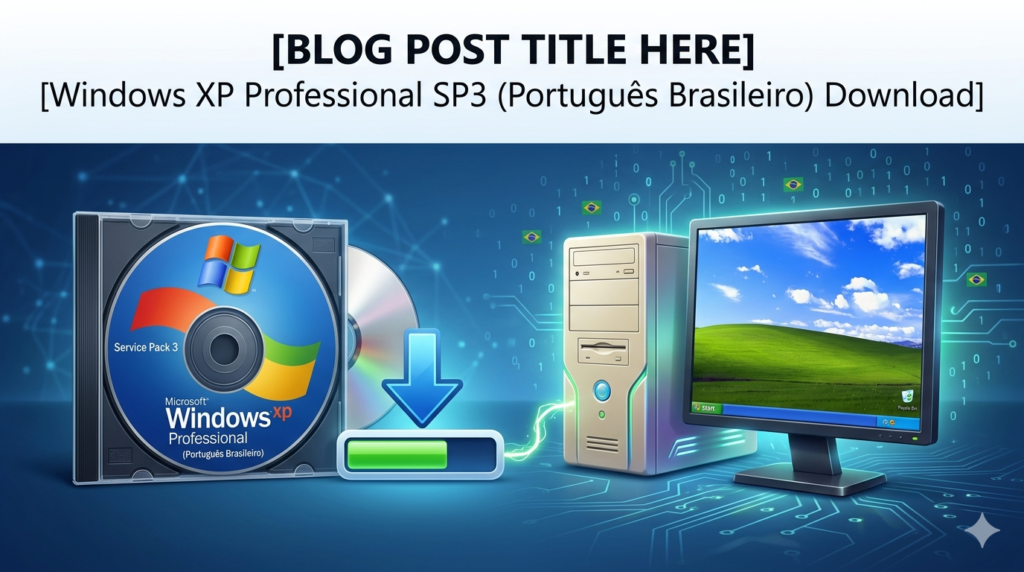


Download the Windows XP Professional SP3 (Brazilian Portuguese) (Complete Guide for Legacy Systems) from this link…

Overview of Windows XP Professional SP3 (Brazilian Portuguese)
Table of Contents
Released by Microsoft in April 2008, Service Pack 3 (SP3) was the final major update for the Windows XP operating system. The Brazilian Portuguese variant (Português Brasil) was specifically localized for Brazil, offering a fully translated interface, keyboard layouts (ABNT2), and regional settings.
Although Microsoft ended official support in April 2014, this version is still used today in isolated environments, legacy industrial machines, point-of-sale (POS) systems, and for running classic software that does not function on modern Windows 10 or 11.
Key Features of Windows XP Professional SP3
Unlike Home Edition, the Professional version includes advanced networking and security features suited for small businesses and power users.
-
Remote Desktop Protocol (RDP): Allows remote access to the PC from another Windows machine.
-
Encrypting File System (EFS): Provides file-level encryption for sensitive data.
-
Access Control Lists (ACLs): Granular permission settings for files and folders.
-
Offline Files and Folders: Synchronizes network files for offline use.
-
Multilingual User Interface (MUI) Support: Enables switching between languages (including Brazilian Portuguese).
-
Improved Firewall: SP3 enabled the Windows Firewall by default for better out-of-box security.
What’s New in the Latest Version (SP3)
Service Pack 3 did not introduce major new visual features but consolidated a decade of updates. Key improvements include:
-
Security Updates: Over 1,100 hotfixes and security patches.
-
Network Access Protection (NAP): Enforces health requirements for clients connecting to the network.
-
Black Hole Router Detection: Prevents network attacks from malicious routers.
-
Product Activation Changes: Reduced the need to re-activate after hardware changes.
-
Brazilian Portuguese Specifics: Updated dictionaries, spell-checking for Microsoft Office 2007, and localized error messages.
System Requirements
Before obtaining a legitimate copy of Windows XP Professional SP3, ensure your hardware meets these minimum specifications. *Note: Modern computers (post-2018) likely lack drivers for XP.*
| Component | Minimum Requirement | Recommended |
|---|---|---|
| Processor | Intel Pentium 233 MHz | Intel Pentium III 1.0 GHz or higher |
| RAM | 64 MB | 512 MB (1 GB for better performance) |
| Hard Disk Space | 1.5 GB (NTFS) | 5 GB or more |
| Graphics | Super VGA (800 x 600) | 1024 x 768 or higher |
| Optical Drive | CD-ROM or DVD-ROM (for installation media) | DVD-ROM |
Important compatibility note: Windows XP SP3 does not support UEFI BIOS (requires Legacy BIOS mode) or NVMe SSDs without third-party drivers.
Legitimate Installation Guide
You must own a valid product key for Windows XP Professional SP3. Microsoft no longer sells keys, but legitimate keys may be found on old computer stickers (COA labels) or through volume licensing agreements.
Step-by-step installation:
-
Obtain the ISO file: Acquire the official
Windows_XP_Professional_SP3_Brazilian_Portuguese.isofrom a trusted, legal source (e.g., Microsoft Volume Licensing Service Center for enterprise users). -
Burn or create bootable media:
-
Burn the ISO to a CD-R at low speed (4x–8x) to avoid errors.
-
Or use Rufus (legacy version) to create a bootable USB drive – ensure target system supports USB boot.
-
-
Backup your data: This process will erase the target hard drive.
-
Boot from media: Insert the CD/USB, restart the PC, and press the boot menu key (e.g., F12, ESC, F2).
-
Begin setup: Press any key when prompted. The blue text-mode setup will load.
-
Partitioning: Delete existing partitions (if clean installing) and create a new one using NTFS (quick format).
-
Regional settings: Select Portuguese (Brazil) as the locale and keyboard layout.
-
Enter product key: Type your valid 25-character product key (found on your COA sticker).
-
Computer name & admin password: Set a strong administrator password.
-
Finalize: After reboot, complete the out-of-box experience (OOBE). Set your time zone to UTC-03:00 (Brasília) .
How to Use the Software (Post-Installation)
After installing Windows XP Professional SP3 in Brazilian Portuguese, follow these steps to secure and configure your system.
Essential First Steps (for networked machines)
-
Enable the firewall: Go to Painel de Controle > Conexões de Rede > Avançado and enable the Internet Connection Firewall.
-
Disable unnecessary services: Turn off Server and Print Spooler if not needed.
-
Install an antivirus: Legacy versions of Avast, AVG, or ClamWin still support XP SP3.
-
Do not use Internet Explorer 8: It is unsafe. If you need the internet, use a modern browser fork like Mypal or K-Meleon.
-
Create a restricted user account: Do not use the Administrator account for daily tasks.
Navigating the Brazilian Portuguese Interface
-
Menu Iniciar (Start Menu) – Contains Todos os Programas.
-
Meu Computador (My Computer) – Access drives and system properties.
-
Painel de Controle (Control Panel) – System configuration (Exibir em: Clássico for advanced view).
-
Atalho de teclado útil:
Windows + Pause/Breakopens System Properties directly.
Best Use Cases (Legitimate Scenarios)
| Use Case | Why Windows XP SP3 Works |
|---|---|
| Industrial CNC Machines | Many milling, laser, and 3D printers rely on XP-only PCI parallel port drivers. |
| Legacy Gaming (2001–2008) | DirectX 9.0c games run natively without compatibility layers. |
| Offline POS Systems | Older cash registers and barcode scanners have stable XP drivers. |
| VM Sandbox Testing | Run XP in a virtual machine (VirtualBox/VMware) to test legacy software safely. |
| Digital Archives | Access databases or media stored in obsolete formats (e.g., Access 97). |
Advantages and Limitations
Advantages
-
Low hardware footprint: Runs smoothly on 512 MB of RAM.
-
Native DOS support: Runs 16-bit applications via NTVDM (unavailable on 64-bit Windows 10/11).
-
Predictable interface: No forced updates or telemetry.
-
Legacy driver availability: Supports ISA, parallel, and serial ports natively.
Limitations
-
No security updates: Unpatched vulnerabilities (e.g., EternalBlue) make internet connection dangerous.
-
Software incompatibility: Modern browsers, Office 365, and many cloud apps do not run.
-
Hardware driver obsolescence: No drivers for Ryzen, Intel 7th-gen+, USB 3.0, or NVMe.
-
Brazilian Portuguese specific: Some newer ABNT2 keyboards may have limited multimedia key support.
Alternatives to Windows XP Professional SP3
If you need legacy functionality but want better security, consider these alternatives:
| Alternative | Best For | Legacy App Support |
|---|---|---|
| Windows 10 LTSC 2021 | Industrial systems needing long-term stability | Moderate (compatibility mode) |
| Linux (Q4OS or antiX) | Reviving old hardware with a XP-like theme (Trinity DE) | Wine or virtualized XP |
| ReactOS | Open-source XP clone (alpha stage – testing only) | Limited driver support |
| Windows XP Mode (Win 7 Pro) | Running XP apps inside Windows 7 virtual machine | Excellent (native VM) |
| Puppy Linux (BionicPup) | Extremely old PCs with <256 MB RAM | No – requires lightweight apps |
Frequently Asked Questions (FAQ)
1. Can I still download Windows XP Professional SP3 in Brazilian Portuguese legally in 2024?
Yes, if you have a valid Volume Licensing agreement with Microsoft or a retail CD key. Microsoft removed public ISO downloads, but enterprise customers can access them via the Volume Licensing Service Center. For personal users with a legitimate COA sticker, archive.org hosts the original ISO (check SHA-1 hashes against MSDN).
2. Will Windows XP SP3 run on my modern PC?
Generally, no. Modern CPUs lack XP drivers, especially for chipset, USB 3.0, and graphics. The best option is to run XP inside a virtual machine (VirtualBox or VMware) on Windows 10/11.
3. Is it safe to connect Windows XP SP3 to the internet?
Not recommended. Without security patches, a fresh XP SP3 installation connected to the internet is infected within minutes by automated malware. Only use XP on an air-gapped network (no physical connection to the internet).
4. What is the difference between Windows XP Professional and Home Edition (Brazilian Portuguese)?
Professional includes Remote Desktop, EFS (encryption), dynamic disk support, and the ability to join a Windows domain. Home Edition lacks these business-focused features.
5. How do I change the language from English to Brazilian Portuguese on Windows XP?
You need the MUI pack. If you installed the English version, you cannot simply switch to Portuguese – you must reinstall using the Brazilian Portuguese specific ISO. Language packs are not full localizations.
6. What should I do if I lost my Windows XP product key?
Check your computer case for a Certificate of Authenticity (COA) sticker. If the sticker is damaged or lost, Microsoft no longer issues replacement keys for XP. The only legal option is to purchase a second-hand PC with a valid COA.
7. Can I update Windows XP SP3 to a newer version for free?
No. Microsoft’s free upgrade paths started with Windows 7 to 10. You must perform a clean installation of Windows 10/11 (which requires a new license) – but check hardware compatibility first.
Final Thoughts
Windows XP Professional SP3 (Brazilian Portuguese) is a historical artifact that remains useful for offline, legacy, and virtualized environments. Its stability and low resource requirements are unmatched for specific industrial and retro-computing tasks. However, for daily browsing or financial transactions, this OS is dangerously obsolete.
Our recommendation: Preserve XP for what it does best – running old software and hardware. Install it on a dedicated, offline machine or inside a virtual machine. Never use it as a primary or internet-connected system. By respecting its limitations and following this guide, you can safely leverage the legacy of Windows XP without compromising security.
Premium Software Support Service
If you need professional help with software installation, setup, or technical configuration, our team is available to assist you.
Contact & Support
For quick assistance and latest updates, connect with us using the links below:
🔹 Direct Telegram Support
https://t.me/PlayoutKing
🔹 Official Telegram Updates Group
https://t.me/yourgroup
Service Policy
- Remote testing available through AnyDesk before confirmation.
• Verify the setup and performance before completing the order.
• Support available for single or multiple systems.
• Step-by-step guidance to ensure smooth installation and working environment.
Our goal is to provide reliable technical assistance so your software runs smoothly without interruptions.