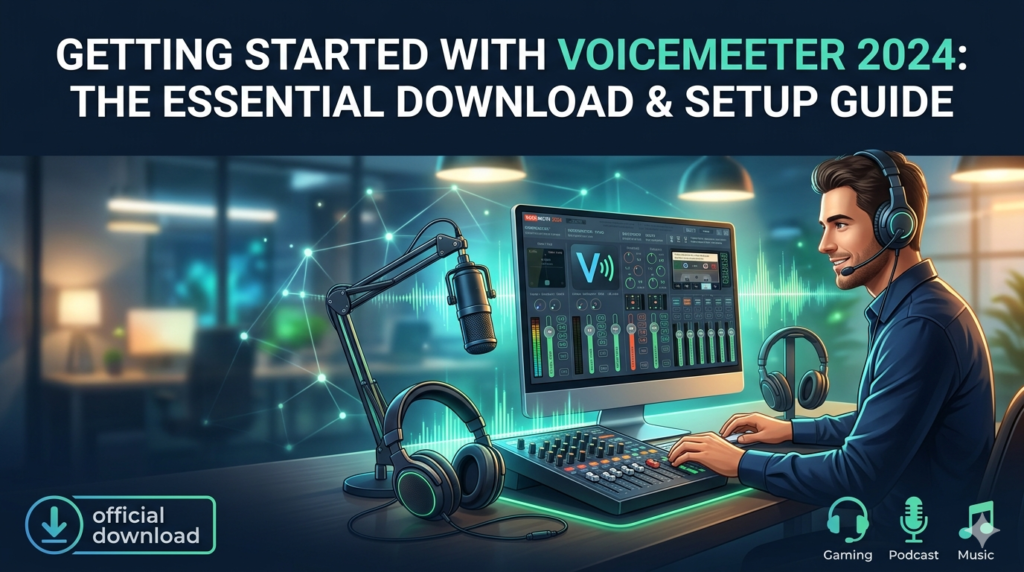


Download the Voicemeeter 5.0 (The Ultimate Virtual Audio Mixer for Windows) from this link…

Overview of Voicemeeter
Table of Contents
In the complex world of digital audio, managing sound from multiple applications can be a significant challenge. Whether you are a podcaster needing to mix a microphone with system audio, a gamer who wants to hear game sound and Discord chat through the same headset, or a musician routing software instruments, Voicemeeter emerges as the definitive software solution. Developed by VB-Audio Software, Voicemeeter is a powerful virtual audio mixer that operates as a virtual audio device, allowing users to route and manage audio signals between applications, hardware inputs, and outputs in real-time.
Unlike traditional hardware mixers, Voicemeeter exists entirely within your Windows environment. It acts as the central hub for all your computer’s sound, giving you unprecedented control over volume, balance, and signal flow. This article provides an in-depth look at Voicemeeter (specifically version 5.0), its key features, installation process, and how it can transform your audio workflow for streaming, content creation, and professional communication.
Key Features of Voicemeeter
Voicemeeter’s reputation as an industry-standard tool is built on a robust set of features that cater to both beginners and audio professionals.
1. Virtual Audio Mixing Console
At the heart of Voicemeeter is its software-based mixing console. It provides a centralized interface where you can control multiple audio channels simultaneously. Each channel is equipped with standard mixer controls, including:
-
Volume Faders: Precisely adjust the level of each audio source.
-
Mute/Solo: Quickly isolate or silence specific channels.
-
Pan/Balance: Control the stereo positioning of your audio.
-
3D Sound Processing: Apply basic reverb and spatial effects to enhance the listening experience.
This console allows you to create a perfectly balanced audio mix before it reaches your speakers, headphones, or recording software.
2. Advanced Virtual Audio Routing
The core functionality of Voicemeeter lies in its sophisticated routing capabilities. It creates virtual input and output devices that you can select within any application (like your web browser, Zoom, or OBS Studio). You can route audio from:
-
Physical Inputs: Microphones and instruments connected to your sound card.
-
Software Outputs: Music from a player, game audio, or notification sounds.
-
Virtual Cables: Additional VB-Audio virtual cables can be integrated for even more complex signal paths.
This allows you, for example, to send your microphone and computer music to a Zoom call, while simultaneously recording the mixed audio and your microphone’s raw feed into Audacity.
3. Intuitive and Customizable User Interface
Despite its technical depth, Voicemeeter is designed with an intuitive user interface. The main window presents a clear, console-like layout where each channel strip is clearly labeled. The color-coded faders and buttons make navigation quick, allowing you to make adjustments on the fly without digging through complex menus. The interface is also skinnable, allowing users to customize its appearance.
4. Low-Latency ASIO Support
For musicians and producers, latency is the enemy of creativity. Voicemeeter offers native compatibility with ASIO drivers, the industry standard for low-latency audio performance on Windows. By integrating ASIO, Voicemeeter ensures that real-time processing—such as applying effects to a live vocal or monitoring a virtual instrument—remains tight and responsive, with minimal delay.
5. Macro Buttons for Automation
Voicemeeter includes a powerful macro button system that allows users to automate complex tasks. With a single click, you can trigger a series of actions, such as muting your microphone, changing an audio route, and adjusting a fader to a preset level. This is invaluable for streamers who need to switch between “BRB” screens and live commentary seamlessly.
What’s New in Voicemeeter Version 5.0
The latest iteration of Voicemeeter brings several enhancements focused on performance and user experience. Key updates include:
-
Improved Audio Engine: Enhanced stability and reduced CPU usage for smoother performance.
-
Updated User Interface: Refreshed graphics and improved high-DPI display scaling for modern monitors.
-
Enhanced Macro Functionality: More complex and reliable macro button actions.
-
Better MME/KS/WDM Support: Improved compatibility with older hardware and legacy audio APIs.
System Requirements
Before installation, ensure your system meets the following requirements for optimal performance:
-
Operating System: Microsoft Windows 7, 8, 8.1, 10, or 11 (both 32-bit and 64-bit versions).
-
Processor: 1.5 GHz CPU or faster (multi-core recommended for complex setups).
-
RAM: 1 GB or more.
-
Hard Disk Space: 50 MB for installation.
-
Sound Card: Any Windows-compatible sound card (integrated or dedicated). An ASIO-compatible sound card is recommended for low-latency recording.
Installation Guide
Installing Voicemeeter is a straightforward process. Follow this step-by-step guide to get started.
-
Download: Visit the official VB-Audio Software website to download the latest version of Voicemeeter. There are three main versions: Voicemeeter Standard (Basic), Voicemeeter Banana (Extended), and Voicemeeter Potato (Extensive). Choose the one that fits your needs.
-
Run the Installer: Locate the downloaded
.exefile and run it. You may be prompted by Windows User Account Control; click “Yes” to allow the installer to make changes. -
Follow the Prompts: The installation wizard will guide you through the process. It is recommended to accept the default installation settings.
-
Restart (Recommended): Once the installation is complete, restart your computer to ensure all drivers are properly registered.
-
Set Default Devices: After restarting, right-click the sound icon in your system tray and open “Sounds.” Under the “Playback” tab, you will see new devices like “Voicemeeter Input.” Set this as your default device. Do the same for “Recording” devices, setting “Voicemeeter Output” as the default if you want all microphone inputs to be processed by the mixer.
How to Use Voicemeeter for Basic Audio Mixing
Once installed, here is a simple workflow to get you mixing audio:
-
Launch Voicemeeter: Open the application from your desktop or start menu. You will see the main mixing console.
-
Route System Audio: In Windows Sound settings, set your default playback device to “Voicemeeter Input.” Now, all music, videos, and games will be routed into the first hardware input channel on the Voicemeeter console (usually HARDWARE INPUT 1).
-
Route Your Microphone: In an application like Discord or Zoom, select “Voicemeeter Output” as your microphone. This sends your voice into the Voicemeeter console (usually HARDWARE INPUT 2).
-
Control the Mix: In the Voicemeeter console, you will see the levels for your system audio and your microphone. Use the faders (A1, A2, A3) to balance the volume between them.
-
Choose Your Output: At the top right of the console, select your physical speakers or headphones as the A1 output device. You will now hear a perfectly mixed blend of your game and your voice.
Best Use Cases for Voicemeeter
Voicemeeter’s flexibility makes it suitable for a wide range of applications.
-
Live Streaming (Twitch/YouTube): Streamers use Voicemeeter to mix game audio, microphone, alerts, and background music, sending a polished, final mix to their broadcast software (like OBS) while listening to a separate monitor mix.
-
Podcasting and Content Creation: Podcasters can use it to manage multiple remote guests, apply filters to their microphone, and record clean, separate audio tracks for post-production.
-
Virtual Meetings and Remote Work: For professionals on Zoom or Microsoft Teams, Voicemeeter ensures crystal-clear communication by allowing independent volume control of all meeting participants and your own microphone.
-
Music Production: Musicians utilize its ASIO capabilities to route software instruments and effects with ultra-low latency, integrating their digital audio workstation with other software.
Advantages and Limitations
| Advantages | Limitations |
|---|---|
| Powerful and Flexible: Offers routing capabilities found in expensive hardware mixers. | Initial Learning Curve: The interface and concepts can be overwhelming for complete beginners. |
| Cost-Effective: The standard version is free, with advanced versions (Banana, Potato) available via a “pay what you want” model. | Windows Only: Currently, there is no native version for macOS or Linux. |
| Low Resource Usage: Despite its power, it is optimized to run efficiently without hogging CPU. | Driver Complexity: Conflicts can occasionally arise with other audio drivers or applications that try to take exclusive control of the sound card. |
| Regular Updates: The developer, Vincent Burel, consistently updates the software, adding features and fixing bugs. |
Alternatives to Voicemeeter
While Voicemeeter is a market leader, several alternatives exist depending on your specific needs.
-
Steelseries Sonar: A free, modern alternative integrated into the Steelseries GG software. It offers a sleek interface and powerful game-specific audio profiles, but it is primarily designed for gamers using Steelseries hardware.
-
Audio Router: A lightweight, open-source tool for Windows that allows you to manually route application audio to different output devices. It lacks the mixing console and effects of Voicemeeter but is excellent for simple routing tasks.
-
Loopback (macOS): The go-to professional virtual audio solution for macOS users. It provides a very polished interface for routing audio between applications, though it is a paid application.
-
Jack Audio: A powerful, open-source, cross-platform solution for professional audio routing. It is highly complex and geared more towards musicians and researchers than everyday users.
Frequently Asked Questions
1. Is Voicemeeter really free?
Yes, the standard version of Voicemeeter is completely free. The more advanced versions, Voicemeeter Banana and Voicemeeter Potato, are “Donationware,” meaning you can pay what you want to unlock them.
2. Is Voicemeeter safe to download and install?
Yes, it is completely safe when downloaded from the official VB-Audio website. It is a legitimate piece of software widely used by professionals worldwide. Avoid downloading it from third-party sites.
3. Why can’t I hear any sound after installing Voicemeeter?
This is a common initial issue. You likely haven’t set your physical speakers/headphones as the A1 output device in the top-right corner of the Voicemeeter window. You also need to ensure that “Voicemeeter Input” is selected as your default playback device in Windows Sound settings.
4. What is the difference between Voicemeeter, Banana, and Potato?
The versions offer increasing numbers of input and output channels.
-
Voicemeeter (Standard): 3 inputs / 3 outputs.
-
Voicemeeter Banana: 5 inputs / 5 outputs.
-
Voicemeeter Potato: 8 inputs / 8 outputs.
Choose based on the complexity of your audio setup.
5. Can I use Voicemeeter to record my microphone and computer audio separately?
Absolutely. This is one of its primary strengths. By routing your microphone to one virtual output and your computer audio to another, you can set your recording software to capture these as two distinct audio tracks for independent editing later.
Final Thoughts
Voicemeeter stands as a testament to the power of software-defined audio. It transforms a standard Windows PC into a professional-grade audio mixing studio, offering a level of control that was once only possible with expensive physical hardware. While it presents a slight learning curve for newcomers, the investment in time is rewarded with immense flexibility and power. Whether you are a seasoned streamer, a budding podcaster, or a remote worker seeking better audio clarity, Voicemeeter provides the tools you need to achieve a polished, professional sound.
Premium Software Support Service
If you need professional help with software installation, setup, or technical configuration, our team is available to assist you.
Contact & Support
For quick assistance and latest updates, connect with us using the links below:
🔹 Direct Telegram Support
https://t.me/PlayoutKing
🔹 Official Telegram Updates Group
https://t.me/yourgroup
🔹 WhatsApp Community Group
https://chat.whatsapp.com/yourlink
Service Policy
- Remote testing available through AnyDesk before confirmation.
• Verify the setup and performance before completing the order.
• Support available for single or multiple systems.
• Step-by-step guidance to ensure smooth installation and working environment.
Our goal is to provide reliable technical assistance so your software runs smoothly without interruptions.