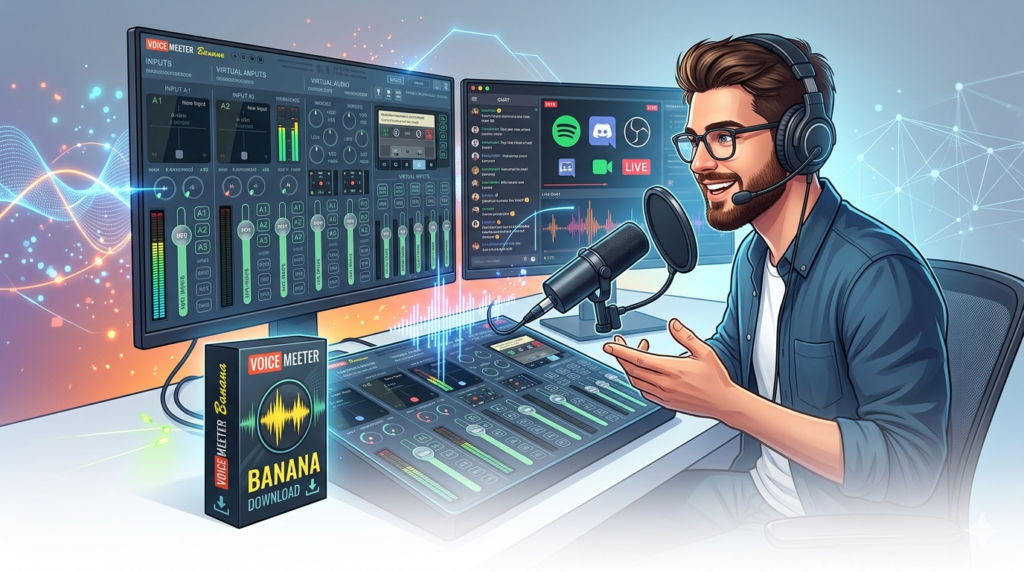


Download the Voicemeeter Banana (The Ultimate Virtual Audio Mixer Guide) from this link…

Overview of the Software
Table of Contents
In the world of professional audio production and live streaming, managing multiple sound sources can be a complex challenge. Voicemeeter Banana is a powerful virtual audio mixer developed by Vincent Burel, designed to solve this problem by acting as a comprehensive audio routing hub. It functions as a virtual audio device, allowing users to connect, mix, and manage audio from various hardware inputs (like microphones and instruments) and software applications (like games, browsers, and DAWs) in real-time.
This software sits between your physical hardware and your applications, giving you unprecedented control over your audio workflow. Whether you are a podcaster, gamer, musician, or live streamer, Voicemeeter Banana provides a flexible, studio-quality solution that elevates your audio capabilities far beyond what standard Windows sound settings can offer.
Key Features
Voicemeeter Banana is distinguished by its robust feature set, which is more advanced than the original Voicemeeter (often called Voicemeeter Standard). Its “Banana” designation signifies its expanded capabilities, offering three physical inputs and three virtual outputs, making it a true audio hub.
-
Multi-Channel Mixing Console: The core of Voicemeeter Banana is its virtual mixing console. It provides five input channels (three physical inputs and two virtual inputs) and five output busses (two physical outputs and three virtual outputs). Each channel strip is equipped with a full suite of controls, including:
-
Gain (Trim): Adjusts the input level of the audio source.
-
Equalizer (EQ): A built-in 3-band parametric EQ to shape the tone of each input.
-
Compressor: A dynamic processor to control the dynamic range and add punch to audio.
-
Gate: A noise gate to reduce background noise when a source isn’t active.
-
Pan/Balance: Controls the stereo positioning of the audio.
-
A/B Button: Allows you to route the input channel to two different output busses independently.
-
-
Virtual Audio Routing (The “Patch Bay”): This is the software’s defining feature. Voicemeeter Banana creates a virtual “patch bay” that allows you to route audio between applications and hardware with incredible flexibility. For example, you can:
-
Route your browser’s audio (YouTube, Spotify) directly into a streaming software like OBS.
-
Send your microphone audio to a voice chat app (like Discord) while simultaneously using it for a podcast recording.
-
Create separate audio mixes for yourself (e.g., game audio and voice) and for your stream audience (e.g., game audio, voice, and music).
-
-
Intuitive User Interface (UI): Despite its advanced functionality, the interface is designed for efficiency. The visual layout mimics a traditional hardware mixer, with clearly labeled faders, knobs, and buttons. The color-coded channels and meters provide immediate visual feedback, making it accessible for beginners while offering the depth professionals need.
-
ASIO (Audio Stream Input/Output) Driver Support: Voicemeeter Banana includes a native Virtual ASIO driver. This is critical for low-latency audio processing, a non-negotiable requirement for musicians using Digital Audio Workstations (DAWs) or for live performances where any delay is disruptive. It enables seamless integration with professional audio software.
-
Built-in Effects and Macros: The software features a built-in effects panel with a reverb and a “voice effects” section (pitch shifter, etc.). More powerful is its Macro Buttons system, which allows users to create custom scripts to automate complex tasks, such as muting a microphone, changing audio routing with a single key press, or launching external applications.
What’s New in the Latest Version
The development of Voicemeeter Banana is ongoing, with updates focusing on stability, performance, and feature refinement. Recent updates have included:
-
Enhanced Macro Buttons: Expanded functionality and more flexible scripting capabilities for advanced automation.
-
Improved Stability and Performance: Optimizations for the audio engine to reduce CPU usage and prevent audio dropouts, especially on multi-core processors.
-
Updated Driver Compatibility: Ensures seamless operation with the latest Windows updates (Windows 10 and 11) and improved compatibility with a wider range of hardware interfaces.
-
User Interface Refinements: Minor adjustments to the UI for better clarity and ease of use, such as improved text scaling for high-DPI monitors.
System Requirements
Before installing Voicemeeter Banana, ensure your system meets these requirements:
-
Operating System: Microsoft Windows 7, 8, 10, or 11 (32/64-bit).
-
Processor: 1.5 GHz or higher (2.0 GHz or more recommended for heavy routing and ASIO usage).
-
RAM: 2 GB minimum (4 GB or more recommended).
-
Audio Hardware: A built-in audio chipset or a dedicated sound card/audio interface.
-
Software: .NET Framework 4.0 or higher (usually pre-installed on modern Windows systems).
Installation Guide
Installing Voicemeeter Banana is a straightforward process, but it requires a system restart to install its virtual drivers.
-
Download: Visit the official VB-Audio website to download the latest version of Voicemeeter Banana. Always download software from the official developer source to ensure file integrity and security.
-
Run the Installer: Locate the downloaded
.exefile, right-click it, and select “Run as administrator.” This is crucial for the driver installation. -
Follow the Prompts: Accept the license agreement and follow the simple installation wizard.
-
Restart: Once the installation is complete, you must restart your computer. This allows Windows to recognize and enable the new virtual audio devices.
-
Post-Installation: After restarting, you will find Voicemeeter Banana in your Start Menu. Launch it. You may also need to set “Voicemeeter Input” as your default playback device and “Voicemeeter Output” as your default recording device in the Windows Sound Control Panel.
How to Use the Software
Understanding the basic signal flow is key to using Voicemeeter Banana effectively. Here’s a simple setup guide:
-
Set Hardware Inputs:
-
Hardware Input 1 (usually your microphone): Select your physical microphone from the dropdown menu (e.g., “Microphone (USB Audio Device)”).
-
Hardware Input 2 & 3: Select other hardware sources like a music player line-in or a gaming console.
-
-
Configure Virtual Inputs:
-
Virtual Inputs (Voicemeeter AUX, etc.): These receive audio from software applications. In your application’s settings (e.g., OBS, Discord, a web browser), set its audio output to “Voicemeeter Input” or “Voicemeeter AUX”.
-
-
Adjust Your Mix:
-
Use the faders on the mixing console to adjust the volume of each input.
-
Click the A or B buttons at the top of each channel strip to send that channel’s audio to the desired output bus.
-
A typically sends audio to your main speakers/headphones.
-
B typically sends audio to a streaming application like OBS.
-
-
-
Set Your Outputs:
-
A1 (Main Hardware Out): Select your primary playback device (e.g., your headphones).
-
A2 & A3: Select additional outputs, such as a second pair of speakers or an audio interface for a separate recording feed.
-
-
Test and Fine-Tune: Play audio through your sources and use the meters to ensure levels are healthy (peaking between -18dB and -6dB). Engage the EQ, compressor, or gate on your microphone channel to improve its sound quality.
Best Use Cases
Voicemeeter Banana’s flexibility makes it an invaluable tool across a wide range of industries and activities.
-
Podcasting and Content Creation: For podcasters, Voicemeeter Banana acts as a central audio hub. It allows you to host remote guests (via Discord or Skype) by routing their audio through the mixer, apply live processing to your own microphone, and mix in sound effects or intro music—all before sending a clean, final mix to your recording software.
-
Live Streaming on Twitch and YouTube: For streamers, it provides the ultimate control. You can create two distinct audio mixes: one for yourself (e.g., game audio with your voice) and a separate, professional mix for your audience (e.g., game audio, your voice, music, and alerts). This separation prevents you from hearing your own alerts twice and allows you to monitor your stream mix perfectly.
-
Music Production and Virtual Instruments: Musicians use Voicemeeter Banana to route audio between different applications without needing complex hardware. You can route a virtual instrument from a DAW into a live looping software, add effects, and record the result, all with the low latency provided by the Virtual ASIO driver.
-
Professional Conferencing: In a work-from-home setting, Voicemeeter Banana can dramatically improve call quality. You can route your microphone through the compressor and gate for a professional sound, and use macro buttons to instantly mute/unmute or switch between your headset and speakers without navigating software menus.
Advantages and Limitations
Advantages
-
Exceptional Flexibility: Unrivaled control over audio routing between hardware and software.
-
Professional-Grade Processing: Built-in EQ, compressor, and gate on every channel allow for polished audio without external plugins.
-
Low Latency: Virtual ASIO driver support enables real-time audio processing for music and performance.
-
Free for Personal Use: Voicemeeter Banana is donationware, offering its full feature set for free, with an option to donate to the developer.
Limitations
-
Steep Learning Curve: The sheer number of features can be overwhelming for new users. The concept of virtual routing requires time and experimentation to fully understand.
-
Windows Only: Voicemeeter Banana is not natively available for macOS or Linux.
-
Resource Consumption: While optimized, complex routing with multiple effects and high sample rates can consume a noticeable amount of CPU resources on older machines.
Alternatives to the Software
Depending on your needs, several alternatives offer similar functionality:
| Software | Key Feature | Best For |
|---|---|---|
| Voicemeeter Potato | An even more advanced version with 5 physical inputs, 5 virtual inputs, and 3 physical outputs. | Users who have outgrown Banana and need more channels for complex setups. |
| VB-CABLE Virtual Audio Cable | A simpler, single virtual audio cable for basic application-to-application routing. | Users who need a simple, one-to-one routing solution without the mixing console. |
| OBS Studio | Open-source software for streaming and recording. It includes powerful audio mixing and routing capabilities. | Users whose primary need is live streaming or recording, and want an all-in-one solution. |
| SonoBus | A high-quality, low-latency network audio streaming tool, often used for remote music collaboration and podcasting. | Musicians and podcasters who need to transmit high-quality audio over the internet with others. |
Frequently Asked Questions
Q1: Is Voicemeeter Banana really free?
Yes, Voicemeeter Banana is donationware. You can download and use its full feature set for free. If you find it valuable, the developer, Vincent Burel, encourages users to make a donation to support continued development.
Q2: I can’t hear any sound after installation. What should I do?
This is a common issue. First, restart your computer. Then, go to the Windows Sound Control Panel. Under the “Playback” tab, set “Voicemeeter Input” as your Default Device. Under the “Recording” tab, set “Voicemeeter Output” as your Default Device. Finally, in Voicemeeter Banana, ensure your speakers or headphones are selected as A1 and that the A1 button is enabled on the channels you want to hear.
Q3: Can I use Voicemeeter Banana with Discord?
Yes. In Discord’s Voice & Video settings, set your Input Device to “Voicemeeter Output” and your Output Device to “Voicemeeter Input.” This allows Discord to receive your processed microphone audio and allows you to route Discord call audio through your mixer.
Q4: Is it possible to use Voicemeeter Banana on a Mac?
No, Voicemeeter Banana is exclusively designed for the Windows operating system. Mac users can explore alternatives like Loopback or Audio Hijack from Rogue Amoeba.
Q5: Will using this software introduce audio delay (latency)?
Voicemeeter Banana is designed for low latency. When used correctly, any delay is typically imperceptible (under 10ms). For music production, using the Virtual ASIO driver will provide the lowest possible latency. Latency can increase if you have complex routing chains or an underpowered CPU.
Q6: Why is there a humming or buzzing sound on my microphone?
This is likely a ground loop or electrical interference. Check that your microphone is properly connected. Voicemeeter Banana includes a “Gain” knob at the top of the input channel. Lowering this and increasing your microphone’s physical gain can sometimes reduce noise. Using the built-in noise gate can also effectively eliminate background hum when you are not speaking.
Q7: Can I record the output of Voicemeeter Banana?
Absolutely. Any software that can record an audio input can record from Voicemeeter. Simply set your recording software (like Audacity or OBS) to use “Voicemeeter Output” (for the main mix) or “Voicemeeter AUX” (for a separate mix) as its audio input source.
Final Thoughts
Voicemeeter Banana stands as a pillar of innovation in the audio mixing and virtual routing landscape. Its combination of a powerful multi-channel mixing console, unparalleled virtual routing capabilities, and professional-grade audio processing makes it an indispensable asset for a diverse range of users—from podcasters and live streamers to musicians and remote workers.
While its feature set may present a learning curve, the investment in understanding its workflow pays dividends in the form of total audio control and professional-quality results. As a robust, donation-supported tool for Windows, Voicemeeter Banana continues to empower users to achieve studio-level audio management, solidifying its position as a go-to choice for anyone serious about their sound.
Premium Software Support Service
If you need professional help with software installation, setup, or technical configuration, our team is available to assist you.
Contact & Support
For quick assistance and latest updates, connect with us using the links below:
🔹 Direct Telegram Support
https://t.me/PlayoutKing
🔹 Official Telegram Updates Group
https://t.me/yourgroup
Service Policy
- Remote testing available through AnyDesk before confirmation.
• Verify the setup and performance before completing the order.
• Support available for single or multiple systems.
• Step-by-step guidance to ensure smooth installation and working environment.
Our goal is to provide reliable technical assistance so your software runs smoothly without interruptions.