

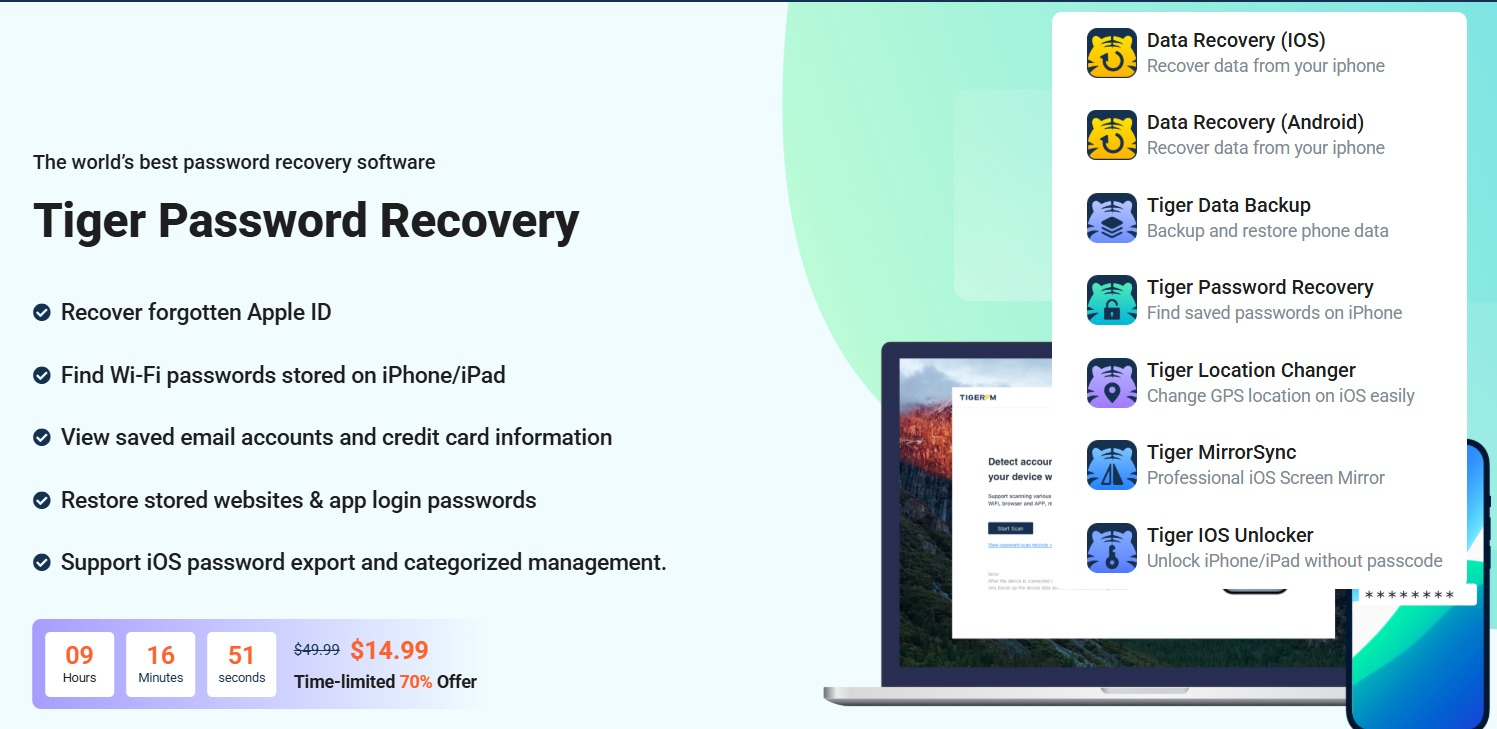
Download Tiger Data Recovery (iOS) for Windows (Complete Guide & Review) from this link…

Overview of Tiger Data Recovery (iOS)
Table of Contents
Losing valuable data from an iPhone or iPad—whether precious photos, important contacts, or critical messages—can be a stressful experience. Tiger Data Recovery (iOS) is a dedicated software solution designed to alleviate this stress. This powerful tool for Windows PC provides a reliable and user-friendly way to recover lost or accidentally deleted data directly from iOS devices, iCloud backups, or iTunes backups.
This software caters to both beginners and professionals, offering a comprehensive suite of features to ensure that critical files are never permanently lost. Whether due to accidental deletion, a system crash, a failed iOS update, or even a lost device, Tiger Data Recovery (iOS) provides a robust safety net for your digital life.
Key Features
Tiger Data Recovery (iOS) distinguishes itself through a combination of powerful features designed to maximize recovery success while maintaining user control. Its key features include:
-
Three Comprehensive Recovery Modes: Provides the flexibility to recover data directly from an iOS device, from an existing iTunes backup, or from an iCloud account.
-
Wide-Ranging Data Type Support: Capable of recovering more than 24 distinct data types, including standard files like photos and videos, as well as app-specific data from communication platforms.
-
Selective Data Preview and Recovery: Before committing to a recovery, users can preview the scan results. This allows for granular selection, enabling the restoration of only specific files—like a single photo or a particular WhatsApp chat—without affecting other data on the device.
-
iTunes Backup Preview: One of the most valuable features is the ability to preview the contents of iTunes backup files. This ensures users know exactly what they will be restoring before initiating the process, providing clarity and preventing unwanted data overwrites.
-
Direct Computer Backup: Recovered data is not just restored to the device. The software allows users to save recovered files directly to their Windows PC. This creates an extra layer of security, providing a permanent archive of the retrieved data.
-
Simple 3-Step Workflow: The entire process is streamlined into three user-friendly steps: Connect, Scan, and Recover. This intuitive design makes advanced data recovery accessible to everyone, regardless of technical expertise.
What’s New in the Latest Version
The latest iteration of Tiger Data Recovery (iOS) focuses on enhanced performance and compatibility. Key updates include:
-
Expanded iOS Support: Full compatibility with the latest iOS versions, ensuring seamless operation with the newest iPhone and iPad models.
-
Optimized Scanning Algorithms: Faster scan times for both direct device and backup recovery, reducing wait times for users.
-
Improved Preview Functionality: A more robust and faster preview system that allows for clearer viewing of recoverable files, including high-resolution images and long message histories.
-
Enhanced Stability: Under-the-hood improvements to ensure a stable and crash-free recovery process, even when dealing with large backup files.
System Requirements
To ensure optimal performance, your Windows PC should meet the following system requirements:
| Requirement | Minimum | Recommended |
|---|---|---|
| Operating System | Windows 11, 10, 8.1, 7 | Windows 11 / 10 |
| Processor | 1 GHz Processor | 2.4 GHz Processor or higher |
| RAM | 2GB | 4GB or more |
| Hard Disk Space | 200MB | 200MB or more (for installation and temporary files) |
| Additional | iTunes installed (for iTunes backup recovery) | An active internet connection (for iCloud recovery) |
Installation Guide
Installing Tiger Data Recovery (iOS) on your Windows PC is a straightforward process. Follow these steps:
-
Download the Installer: Visit the official Pocketech website and download the Tiger Data Recovery (iOS) installation file.
-
Run the Installer: Locate the downloaded file (e.g.,
Tiger_Data_Recovery_Setup.exe) and double-click it to begin. -
Grant Permissions: If prompted by Windows User Account Control, click “Yes” to allow the installer to make changes to your device.
-
Follow the Setup Wizard: The installation wizard will guide you. You may need to accept the End User License Agreement (EULA) and choose an installation folder.
-
Complete Installation: Click “Install” and wait for the process to finish. Once complete, you can choose to launch the software immediately.
How to Use the Software
Recovering your data is a simple three-step process:
Step 1: Connect and Select Mode
Launch the software on your Windows PC. Connect your iPhone or iPad to the computer using a USB cable. From the main screen, choose your desired recovery mode:
-
Recover from iOS Device: For direct recovery from your connected device.
-
Recover from iTunes Backup: To extract data from an existing iTunes backup.
-
Recover from iCloud Backup: To download and recover data from your iCloud account.
Step 2: Scan for Lost Data
-
For Device Recovery: Click “Start Scan.” The software will analyze your device, which may take a few minutes depending on the amount of data.
-
For Backup Recovery: Select the relevant backup file from the list and click “Start Scan.”
Step 3: Preview and Recover
After the scan is complete, all recoverable data will be displayed in a categorized list. You can:
-
Preview: Click on any item (e.g., a photo, a contact, a message) to preview its contents and ensure it is the correct file.
-
Select: Check the boxes next to the specific files you wish to recover.
-
Recover: Click the “Recover” button and choose your output destination. You can restore directly to your device or, preferably, save the selected files to a folder on your computer.
Best Use Cases
Tiger Data Recovery (iOS) is the ideal solution for a variety of common data loss scenarios:
-
Accidental Deletion: Quickly restore photos or videos you recently deleted from your “Recently Deleted” album.
-
iOS Update Failure: Recover data that was lost after a failed or interrupted iOS system update.
-
Factory Reset: Retrieve crucial information after a device was accidentally wiped.
-
Lost or Stolen Device: Access data from a prior iTunes or iCloud backup of a device that is no longer in your possession.
-
Data Migration: Selectively extract specific files (like WhatsApp chats or notes) from an old backup to transfer them to a new device.
-
Jailbreak Data Loss: Recover files that may have become corrupted or lost after a jailbreak attempt.
Advantages and Limitations
Advantages
-
High Success Rate: Employs advanced recovery technology to effectively retrieve data from a wide range of loss scenarios.
-
User-Friendly Interface: The intuitive 3-step process makes professional-grade recovery accessible to all skill levels.
-
Selective Recovery: The ability to preview and choose specific files for recovery is a major advantage, offering unparalleled control.
-
Versatile Data Support: Supports over 24 data types, covering essential files and third-party app data.
-
Flexible Backup Options: Three recovery modes ensure a path to recovery regardless of whether you have a local backup or not.
Limitations
-
Windows Only: The software is designed for Windows PCs, which means Mac users will need access to a Windows environment.
-
Cost for Full Recovery: While the software may offer a free scan and preview, a licensed version is required to actually recover and export the data.
-
iTunes Dependency: For iTunes backup recovery, a recent version of iTunes must be installed and configured on the same PC.
Alternatives to the Software
While Tiger Data Recovery (iOS) is a powerful tool, users may also consider these reputable alternatives:
| Software | Primary Platform | Key Differentiator |
|---|---|---|
| Dr.Fone – Data Recovery (iOS) | Windows, Mac | Comprehensive toolkit with system repair features. |
| iMobie PhoneRescue for iOS | Windows, Mac | Focuses on recovering the most important data types for iOS. |
| Tenorshare UltData for iOS | Windows, Mac | Known for high success rate in recovering lost data after jailbreak. |
| Apple’s Native Solutions | iCloud/iTunes | Free but offer less granularity (restore entire backup only). |
Frequently Asked Questions
1. Can Tiger Data Recovery (iOS) recover data without a backup?
Yes, the “Recover from iOS Device” mode allows you to scan the device itself to find and recover deleted files, even if you don’t have an iCloud or iTunes backup.
2. Does the software work with the latest iPhone models and iOS version?
Yes, the software is regularly updated to support the latest iOS versions and all recent iPhone and iPad models, including the iPhone 15 series.
3. Is it safe to use? Will it damage my iOS device?
Absolutely. The software performs read-only operations on your device and backups. It does not alter, modify, or overwrite existing data on your iPhone or iPad, making it completely safe to use.
4. What types of data can I recover?
You can recover over 24 types of data, including Photos, Videos, Contacts, Messages, iMessages, Call History, Notes, Reminders, Safari Bookmarks, and app data from WhatsApp, Line, and Viber.
5. Can I recover only specific files, or do I have to restore everything?
You can selectively recover individual files. After the scan, you can preview each file and choose exactly which ones you want to restore, saving them to your computer.
6. My iTunes backup is password-protected. Can I still recover from it?
Yes, the software will prompt you to enter the iTunes backup password. Once provided, it can decrypt the backup and scan its contents for recoverable data.
7. What if my device is in a boot loop or not recognized by iTunes?
For devices in a non-functional state, the “Recover from iTunes Backup” mode is the recommended approach. The software can extract data from a backup even if the device itself is unusable.
Final Thoughts
Tiger Data Recovery (iOS) for Windows stands out as a reliable, effective, and user-friendly solution for iOS data recovery. Its strength lies in its balance of powerful features—like the three recovery modes and selective restore—with a simple, accessible interface. Whether you are a casual user who accidentally deleted a cherished photo or a professional needing to recover critical business contacts, this software provides a trustworthy path to data restoration. By offering the ability to preview data and save recovered files directly to your computer, it ensures you maintain complete control over the process, making it a valuable tool for anyone looking to secure their digital information.
Premium Software Support Service
If you need professional help with software installation, setup, or technical configuration, our team is available to assist you.
Contact & Support
For quick assistance and latest updates, connect with us using the links below:
🔹 Direct Telegram Support
https://t.me/PlayoutKing
🔹 Official Telegram Updates Group
https://t.me/yourgroup
Service Policy
- Remote testing available through AnyDesk before confirmation.
• Verify the setup and performance before completing the order.
• Support available for single or multiple systems.
• Step-by-step guidance to ensure smooth installation and working environment.
Our goal is to provide reliable technical assistance so your software runs smoothly without interruptions.