


Overview of StationPlaylist Studio Pro
Table of Contents
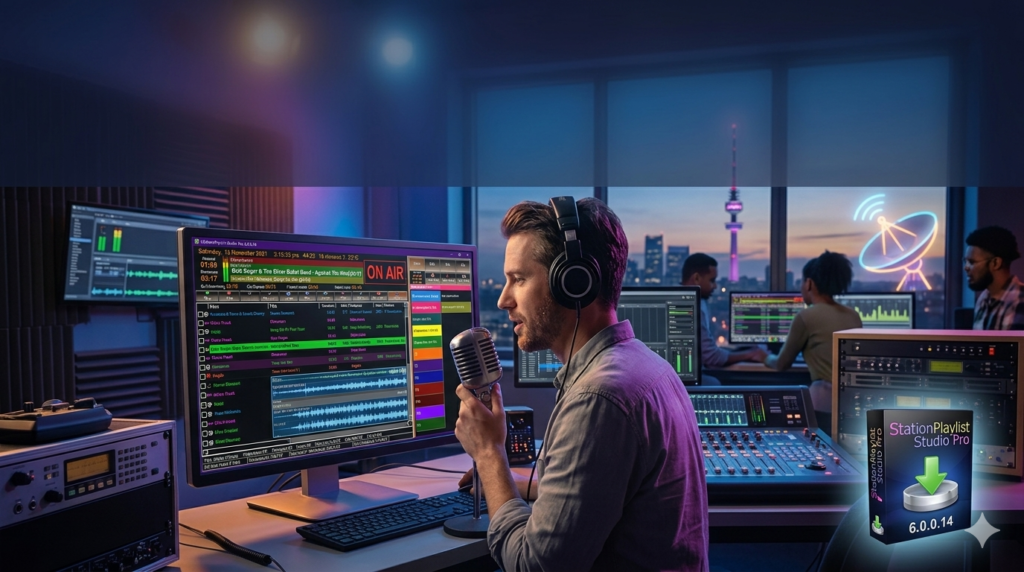
In the fast-paced world of radio broadcasting, delivering a seamless and professional audio experience requires robust and reliable tools. StationPlaylist Studio Pro 6.0.0.14 stands as a leading radio automation software solution, trusted by professionals ranging from small internet broadcasters to large FM stations. This powerful software serves as the operational hub for your studio, allowing you to manage music libraries, schedule programming, integrate live shows, and broadcast with pristine audio quality.
Built for efficiency, Station Playlist Studio Pro transforms complex broadcast workflows into manageable tasks. By combining an intuitive user interface with deep technical capabilities, it empowers DJs, station managers, and podcasters to focus on content creation while the software handles the intricacies of playout scheduling and automation. This latest version, 6.0.0.14, continues to refine the user experience, ensuring broadcasters have access to cutting-edge tools for an increasingly competitive audio landscape.
Key Features
StationPlaylist Studio Pro distinguishes itself through a comprehensive feature set designed to cover every aspect of the broadcast chain. It is engineered to provide total control, from the music database to the final audio processor.
-
Advanced Playlist Management: At the core of the software is its powerful playlist engine. Users can create dynamic playlists using rules-based automation, such as “Smart Grids,” which automatically select songs based on tempo, genre, or artist separation. This ensures a musically coherent and engaging flow without constant manual intervention.
-
Seamless Live Assist and Automation: The software excels in both live and automated environments. In Live Assist mode, it acts as a sophisticated player, allowing on-air talent to trigger carts, jingles, and songs with hotkeys or mouse clicks. In fully Automated mode, it reliably runs the station 24/7 based on a pre-defined schedule, perfect for overnight or syndicated programming.
-
Professional Voice Tracking: This feature allows talent to pre-record voice breaks that are intelligently inserted between tracks. It gives the impression of a live DJ, even when the content is scheduled hours or days in advance. This is essential for stations looking to maintain a personal touch without requiring a live body in the studio at all times.
-
Integrated Audio Processing Suite: To achieve a competitive “loudness” and clarity, the software includes a suite of built-in audio processing tools. Broadcasters can apply real-time compression, limiting, equalization (EQ), and leveling to ensure consistent volume across all source material, from classic tracks to modern hits.
-
Remote and Distributed Broadcasting Capabilities: StationPlaylist Studio Pro supports remote voice tracking and can be controlled over a network. This allows station staff and talent to contribute to the broadcast from different physical locations, offering immense flexibility for modern, distributed teams.
-
Comprehensive Logging and Reporting: The software meticulously logs every second of the broadcast. These logs are crucial for generating playlists for royalty reporting (e.g., to performance rights organizations like ASCAP, BMI, or SOCAN), verifying commercial airings for clients, and analyzing listener engagement trends.
-
Instant Playback and Cart Wall: The “Instant Playback” feature acts as a digital cart wall, providing immediate access to jingles, sound effects, and liners. This is indispensable for live shows, allowing for spontaneous and interactive broadcasting.
What’s New in Version 6.0.0.14
The 6.0.0.14 iteration of StationPlaylist Studio Pro focuses on stability, performance enhancements, and quality-of-life improvements. While the core workflow remains familiar to long-time users, this update ensures a smoother and more reliable broadcasting experience. Key updates include optimized audio engine performance for reduced CPU load on older systems, refinements to the database handling for larger music libraries, and critical bug fixes that enhance overall system stability during extended, unattended broadcasts.
System Requirements
To run StationPlaylist Studio Pro 6.0.0.14 effectively, your system should meet the following specifications. Adhering to these recommendations ensures smooth playback and prevents audio dropouts.
| Component | Minimum Requirement | Recommended Specification |
|---|---|---|
| Operating System | Windows 7 or newer | Windows 10 or Windows 11 (64-bit) |
| Processor | 1 GHz Intel or AMD CPU | Multi-core Intel Core i5 or higher |
| RAM | 1 GB | 4 GB or more for large libraries |
| Sound Card | Any Windows-compatible sound card | Professional multi-output sound card (e.g., from M-Audio or Creative Labs) for separate monitoring and broadcast feeds |
| Hard Disk | 500 MB for installation; additional space for music | SSD for faster database and music access |
| Other | Internet connection for registration and updates | Network-attached storage (NAS) for shared music libraries across multiple workstations |
Installation Guide
Installing StationPlaylist Studio Pro is a straightforward process. Follow these steps to get your broadcast software up and running:
-
Download the Installer: Visit the official StationPlaylist website and download the latest version of StationPlaylist Studio Pro 6.0.0.14.
-
Run the Executable: Locate the downloaded .exe file and double-click it to begin. If prompted by User Account Control, click “Yes” to allow the installer to make changes.
-
Follow the Setup Wizard:
-
Accept the license agreement.
-
Choose the destination folder for the application (the default is usually fine).
-
Select the components you wish to install (Studio and its necessary drivers).
-
-
Configure Audio Hardware: Upon first launch, the software will prompt you to configure your audio devices. It is critical to assign the correct sound card outputs for your Program Output (what goes to the transmitter/stream) and your Monitor Output (what you hear in the studio).
-
Enter License Information: Input your license key to unlock the Pro features. If you are trialing the software, you can select the demo mode to explore the full feature set for a limited time.
-
Build Your Music Database: Use the “Music” tab to point the software to the folders where your audio files are stored. The software will scan and import your library, reading metadata (ID3 tags) to populate the database.
How to Use the Software
Mastering StationPlaylist Studio Pro involves understanding its primary modules, which are accessible via the main tabs.
1. Building a Playlist:
Navigate to the Music tab. Here, you can search your library by artist, title, or genre. Create a new playlist by simply dragging tracks from the search results into the PFL (Pre-Fade Listen) list or directly into the main log. Use “Smart Grids” to have the software auto-fill time slots based on your rules, such as “play a 70s rock song followed by a current hit.”
2. Going Live (Live Assist Mode):
Switch to the On Air tab.
-
The Queue area holds the upcoming tracks.
-
The Cart Wall at the bottom displays buttons for your jingles and sweepers. Click a cart to play it instantly over the current track (if “Start Next” is active) or as a live insert.
-
Use the Start Next button to control whether the next item in the queue plays automatically or waits for your manual cue.
3. Scheduling Automated Broadcasts:
Open the SPL (StationPlaylist Scheduler) application, which is included with the suite.
-
Create a clock or a schedule grid.
-
Drag and drop content categories (Music, Commercials, News) into the time slots.
-
Link the categories to specific playlists or folders in your music database.
-
The scheduler will generate a log for the specified date and time, which the Studio player will follow automatically when left in automation mode.
Best Use Cases
StationPlaylist Studio Pro is versatile enough to handle a variety of broadcasting environments:
-
Terrestrial FM/AM Radio Stations: For full-power stations requiring reliable, 24/7 automation with complex scheduling, logging, and compliance reporting.
-
Internet Radio Stations: Perfect for webcasters who need a professional sound but operate with a smaller budget. The voice tracking and remote features allow for a global team.
-
Community Radio: Its intuitive interface is ideal for stations that rely on volunteers, as new users can be trained quickly on the basics of live assist.
-
Background Music Systems: Retail stores, restaurants, and businesses can use the automation features to schedule and play licensed background music with automated announcements.
-
Podcast Production: While primarily a broadcast tool, producers can use its voice tracking and mixing capabilities to pre-record and assemble podcast episodes with a professional radio feel.
Advantages and Limitations
Understanding the strengths and potential drawbacks of the software helps in making an informed decision.
Advantages:
-
Professional-Grade Audio Engine: The built-in processing (limiter, compressor, EQ) delivers a polished, broadcast-ready sound, eliminating the need for expensive outboard hardware.
-
Highly Reliable Automation: The software is renowned for its stability, capable of running for weeks or months without crashing, which is non-negotiable for professional broadcasting.
-
Flexible Remote Capabilities: The ability to voice track and control the system remotely is a major asset for modern stations with remote talent.
-
Detailed Reporting: Generates comprehensive logs essential for legal compliance and business analytics.
Limitations:
-
Steeper Learning Curve for Advanced Features: While basic playback is simple, mastering the scheduler, scripting, and advanced automation rules requires a dedicated time investment.
-
User Interface Aesthetics: The interface is highly functional but can feel dated compared to some modern, design-focused competitors.
-
Platform Limitation: It is exclusively a Windows-based application, which may not fit into studios running on macOS or Linux ecosystems.
Alternatives to the Software
While StationPlaylist Studio Pro is a market leader, several alternatives cater to different needs and budgets.
-
Rivendell: An open-source, enterprise-grade radio automation system. It is extremely powerful and free but requires significant technical expertise (Linux-based) to install and maintain. Best for stations with dedicated IT staff.
-
RadioDJ: A popular free alternative for Windows. It offers a wide range of features similar to StationPlaylist but has a different workflow and community-driven support.
-
MegaSeg: A leading alternative for macOS users. It combines powerful automation with a sleek, modern interface designed for both radio and in-store environments.
-
Mixxx: A free, open-source DJ software that, while primarily for live mixing, can be adapted for simple radio streaming. It is less suited for complex automation and scheduling.
-
SAM Broadcaster: A direct competitor to StationPlaylist, offering similar features for automation, streaming, and live assist, with a strong focus on internet radio.
Frequently Asked Questions
1. Is StationPlaylist Studio Pro free to use?
StationPlaylist offers a trial version that allows you to test all Pro features for a limited time or with limited playback duration. To use it without restrictions for commercial broadcasting, you must purchase a license.
2. Can I run a radio station with just this software and a computer?
Yes, essentially. With StationPlaylist Studio Pro, a computer, a reliable internet connection (for streaming), and the legal rights to the music you play, you have a complete broadcast solution. You may need additional hardware like a microphone and mixer for live shows.
3. What audio file formats does the software support?
It supports a wide range of popular formats, including MP3, AAC, M4A, FLAC, Ogg Vorbis, and uncompressed WAV files, giving you flexibility in your music library management.
4. How do I report the music I’ve played to royalty organizations?
The software automatically generates detailed logs of your broadcast. You can export these logs in various formats (CSV, text, etc.) and use them to create the reports required by your local performance rights organization.
5. Can I use StationPlaylist Studio Pro for podcasting?
While its primary function is live broadcasting, its Voice Tracking feature is excellent for creating pre-recorded radio-style shows that can be distributed as podcasts. You would record the show using the software and then export or save the final mix.
6. Does it support external hardware controllers?
Yes, StationPlaylist Studio Pro is compatible with various MIDI controllers and external hardware surfaces. This allows you to control playback, start carts, and cue music with physical buttons and faders for a more tactile studio experience.
Final Thoughts
StationPlaylist Studio Pro 6.0.0.14 remains a cornerstone of the radio broadcasting industry for good reason. It strikes an exceptional balance between powerful, automated functionality and the hands-on control required for live, engaging radio. Its robust audio engine, reliable scheduling, and flexible remote tools make it a worthy investment for anyone serious about professional audio broadcasting, from local internet streams to major market FM stations.
While newcomers may need time to master the full depth of the scheduler and automation rules, the core playback and live assist features are accessible enough to get a station on air quickly. For broadcasters seeking a trusted, feature-rich, and legally compliant solution to manage their audio content, StationPlaylist Studio Pro stands out as a top-tier choice that continues to power the airwaves worldwide.
Premium Software Support Service
If you need professional help with software installation, setup, or technical configuration, our team is available to assist you.
Contact & Support
For quick assistance and latest updates, connect with us using the links below:
🔹 Direct Telegram Support
https://t.me/PlayoutKing
🔹 Official Telegram Updates Group
https://t.me/yourgroup
Service Policy
- Remote testing available through AnyDesk before confirmation.
• Verify the setup and performance before completing the order.
• Support available for single or multiple systems.
• Step-by-step guidance to ensure smooth installation and working environment.
Our goal is to provide reliable technical assistance so your software runs smoothly without interruptions.