

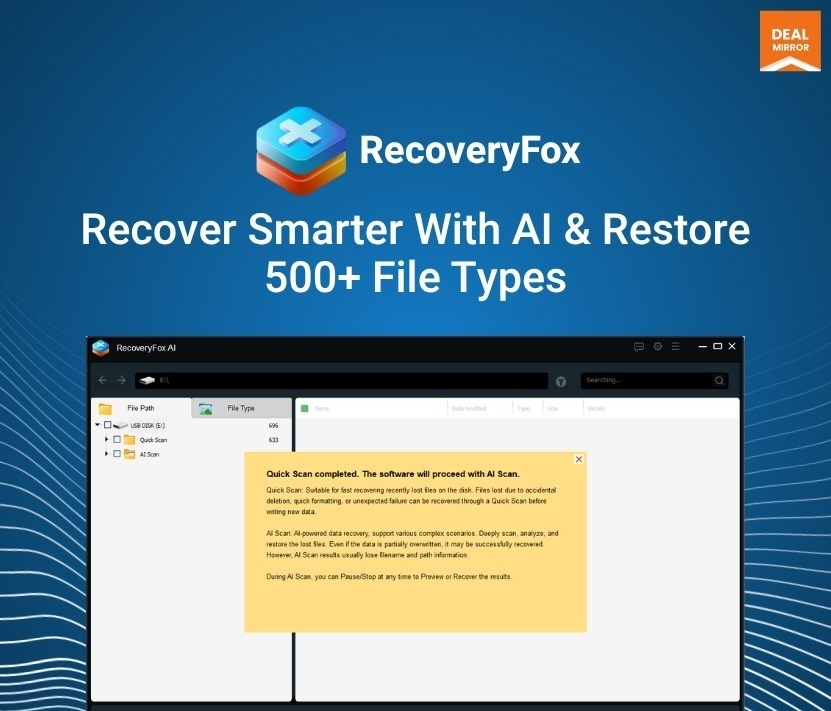
Download RecoveryFox AI 1.0 (Comprehensive Guide to Smart Data Recovery Software) from this link…

Overview of RecoveryFox AI
Table of Contents
Data loss is a critical issue that can strike any computer user, from accidental deletion to complex logical drive failures. RecoveryFox AI 1.0 is a smart, AI-assisted data recovery software designed to address this challenge. It combines an intuitive user interface with advanced scanning algorithms to help users retrieve lost files without requiring deep technical expertise.
Unlike traditional recovery tools that rely solely on basic file signatures, RecoveryFox AI utilizes intelligent data reconstruction to identify and reassemble fragmented data. This makes it a reliable solution for restoring valuable digital assets, whether you are a home user trying to recover family photos or a professional needing to restore critical work documents.
Key Features
RecoveryFox AI distinguishes itself through a robust set of features designed for efficiency and compatibility. Below are the core functionalities that define the software:
-
AI-Powered Data Reconstruction: The software employs complex algorithms to accurately identify lost data fragments and rebuild them into complete, usable files. This increases the success rate for files that have been deleted for an extended period or are heavily fragmented.
-
Wide File Type Compatibility: The tool supports a vast array of file formats. Users can recover:
-
Documents: PDF, DOCX, XLSX, PPTX, and more.
-
Media: Photos (JPEG, PNG, RAW), videos (MP4, MOV, AVI), and audios (MP3, WAV).
-
Archives: ZIP, RAR, and other compressed files.
-
Specialized Data: RAW images from professional cameras, presets, and system files.
-
-
Multi-File System Support: The software is natively compatible with major file systems, ensuring it works across various storage devices. Supported file systems include NTFS, exFAT, and FAT32.
-
Versatile Device Compatibility: It seamlessly supports internal hard drives (HDD/SSD), external hard drives, USB flash drives, and memory cards across different brands.
What’s New in Version 1.0
As the initial release, RecoveryFox AI 1.0 introduces a refined approach to data recovery by prioritizing user experience and scan accuracy. Key highlights of this version include:
-
Simplified Workflow: The process is streamlined into three steps: Select Location, Scan, and Recover. This eliminates confusing settings that often complicate data recovery for beginners.
-
Enhanced Preview Functionality: Before committing to the recovery process, users can preview files to verify their integrity. This ensures that users do not waste time recovering corrupted or unwanted files.
-
Optimized Scanning Speed: Advanced algorithms have been implemented to scan storage devices quickly without sacrificing the depth of the search for lost partitions or deleted files.
System Requirements
To ensure optimal performance and stability, your system should meet the following requirements before installing RecoveryFox AI 1.0.
| Component | Minimum Requirement |
|---|---|
| Operating System | Windows 11, 10, 8.1, 8, 7 (64-bit & 32-bit) |
| Processor | Intel or AMD processor, 1 GHz or faster |
| RAM | 2 GB (4 GB recommended for large-scale recovery) |
| Storage Space | 200 MB free space for installation |
| Supported Drives | HDD, SSD, USB Drives, SD Cards, External Drives |
Installation Guide
Installing RecoveryFox AI is a straightforward process designed to get you scanning for lost data as quickly as possible.
-
Download the Installer: Visit the official software provider’s website to download the official setup file for RecoveryFox AI 1.0. Always ensure you are downloading from a trusted source to maintain software integrity.
-
Run the Executable: Locate the downloaded file (usually in your “Downloads” folder) and double-click it to launch the installation wizard.
-
Follow the Wizard:
-
Select your preferred language.
-
Read and accept the End User License Agreement (EULA).
-
Choose the destination folder for the installation (default is recommended).
-
-
Complete Installation: Click “Install” and wait for the process to finish. Once done, you may choose to launch the software immediately.
How to Use the Software
RecoveryFox AI is built on a three-step workflow that prioritizes simplicity and control. Here is how to navigate the data recovery process:
Step 1: Select Location
Launch the software. You will be presented with a dashboard displaying all available drives and storage devices connected to your system. Click on the specific location (e.g., C: drive, external hard drive, or a specific folder) from which you lost data.
Step 2: Scan
Click the “Scan” button. The software will initiate a deep scan of the selected location. Depending on the size of the drive and the extent of data loss, this process may take a few minutes to an hour. You can pause or stop the scan at any time if you find the files you need early.
Step 3: Preview and Recover
Once the scan is complete, the results are categorized by file type (Documents, Photos, Video, etc.). Utilize the preview feature to check the health of the files. Select the specific files or folders you wish to restore, click “Recover,” and choose a safe destination to save them. Crucial: Always save recovered files to a different drive than the one you are scanning from to avoid overwriting lost data.
Best Use Cases
RecoveryFox AI is designed to handle a variety of common data loss scenarios, making it a versatile tool for different user needs:
-
Accidental Deletion: Recovering files that were deleted and subsequently removed from the Recycle Bin.
-
Formatting Errors: Restoring data after accidentally formatting a hard drive, USB stick, or memory card.
-
Virus Attacks: Retrieving files that were quarantined, hidden, or removed by malware or ransomware.
-
Partition Loss: Recovering data from drives that have become RAW, lost their partition table, or show as “unallocated space” in Disk Management.
-
Corrupted Media: Salvaging photos and videos from corrupted SD cards used in cameras or drones.
Advantages and Limitations
A balanced assessment helps users understand exactly what to expect from the software.
Advantages
-
User-Friendly Interface: The minimalistic and intuitive design makes it accessible for non-technical users.
-
High Recovery Success: The AI-powered reconstruction is particularly effective at recovering fragmented files that other tools might miss.
-
Preview Capability: Allows users to verify file quality before committing to the recovery, saving time and storage space.
-
Broad Compatibility: Supports a wide range of file types and storage devices.
Limitations
-
No Guarantee of 100% Recovery: While highly effective, no software can guarantee the recovery of all data, especially if the data has been physically overwritten.
-
Operating System Limitation: Currently, the software is only available for Windows. Users on macOS or Linux would need to look for alternative solutions.
Alternatives to the Software
While RecoveryFox AI offers a strong feature set, it’s helpful to consider alternatives based on specific needs:
| Software | Key Focus | Best For |
|---|---|---|
| Recuva | Free basic recovery | Users looking for a free, simple tool for recently deleted files. |
| EaseUS Data Recovery Wizard | Comprehensive recovery | Professionals needing a feature-rich tool with partition recovery. |
| Stellar Data Recovery | Advanced file repair | Users who need both recovery and repair tools for corrupted photos/videos. |
| Disk Drill | Data protection | Users who want proactive protection features like Recovery Vault. |
Frequently Asked Questions
1. Is RecoveryFox AI safe to use?
Yes, RecoveryFox AI is safe. It operates in a read-only mode during scanning, meaning it does not modify or overwrite the data on your drive, ensuring the original data remains intact.
2. Can I recover files that I deleted a long time ago?
RecoveryFox AI’s advanced algorithms are designed to locate data that has been deleted for extended periods, provided the space on the storage device has not been overwritten by new data.
3. What should I do to maximize my chances of recovery?
Stop using the affected drive immediately. Continuing to use a drive with lost data increases the risk of overwriting the deleted files, making them permanently unrecoverable.
4. Does RecoveryFox AI work with external drives and SD cards?
Yes, the software is natively compatible with external hard drives, USB flash drives, and SD cards formatted with NTFS, exFAT, or FAT32 file systems.
5. How long does a scan usually take?
Scan time varies based on the size of the storage device. A small USB drive may take a few minutes, while a 1TB hard drive with deep fragmentation may take over an hour.
6. Can I try the software before I decide to purchase?
Yes, a free version is typically available that allows you to scan and preview files to verify if they are recoverable before committing to the full recovery process.
Final Thoughts
Data loss can be a stressful experience, but having the right tool makes the recovery process manageable. RecoveryFox AI 1.0 stands out as a reliable, intelligent, and user-friendly solution for Windows users. By combining a simplified interface with powerful AI-driven reconstruction algorithms, it effectively bridges the gap between basic recovery tools and complex enterprise software.
Whether you are dealing with accidental deletions, formatting mishaps, or corrupted drives, RecoveryFox AI provides a safe and efficient path to restoring your digital files. Its focus on the three-step workflow—Select, Scan, Recover—ensures that even novice users can navigate data recovery with confidence. For anyone seeking a robust and legally compliant data recovery tool, RecoveryFox AI is a strong contender worth considering.
Premium Software Support Service
If you need professional help with software installation, setup, or technical configuration, our team is available to assist you.
Contact & Support
For quick assistance and latest updates, connect with us using the links below:
🔹 Direct Telegram Support
https://t.me/PlayoutKing
🔹 Official Telegram Updates Group
https://t.me/yourgroup
Service Policy
- Remote testing available through AnyDesk before confirmation.
• Verify the setup and performance before completing the order.
• Support available for single or multiple systems.
• Step-by-step guidance to ensure smooth installation and working environment.
Our goal is to provide reliable technical assistance so your software runs smoothly without interruptions.