
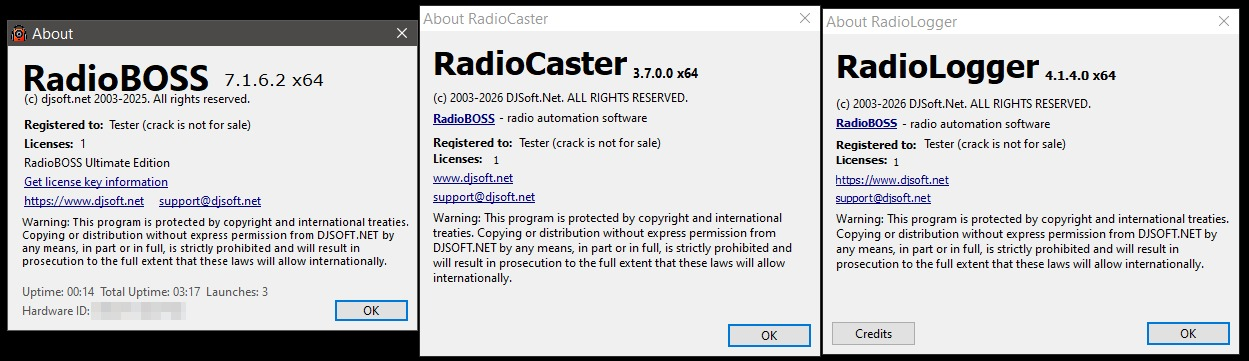
Download the RadioBOSS 7.1.6.2, RadioCaster 3.70 & RadioLogger 4.14 (Complete Broadcasting Suite) Software from this link…

Overview of the Broadcasting Suite
Table of Contents
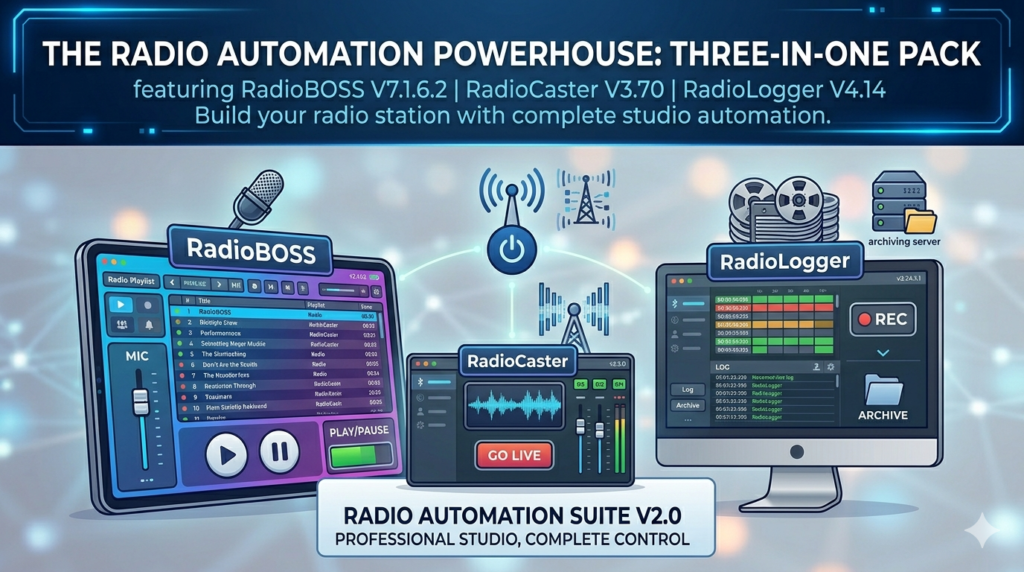
In the competitive world of internet and FM radio broadcasting, reliability and automation are critical. The combination of RadioBOSS 7.1.6.2, RadioCaster 3.70, and RadioLogger 4.14 forms a professional “All-in-One Pack” designed for radio stations, podcasters, and venue owners.
This ecosystem allows users to automate playlists, manage live broadcasts, encode audio streams, and log all played content for compliance. Unlike disparate tools, this suite integrates seamlessly to provide a turnkey solution for 24/7 broadcasting. The primary function of this pack is to replace manual mixing with automated scheduling while ensuring legal adherence to royalty tracking via RadioLogger.
Key Features of the Software Pack
RadioBOSS 7.1.6.2 (Playout Automation)
-
Advanced Scheduling: Plan music, commercials, and jingles weeks in advance.
-
Crossfading & Mixing: Intelligent beat-matching and silence detection.
-
Remote Control: Manage broadcasts via smartphone or web browser.
-
Voice Tracking: Pre-record announcements between songs.
RadioCaster 3.70 (Streaming Encoder)
-
Multi-Protocol Support: Stream via Icecast, Shoutcast, or Azure.
-
Source Relay: Rebroadcast existing streams to new servers.
-
Sound Processing: Built-in compressor, limiter, and AGC for loudness normalization.
RadioLogger 4.14 (Compliance Logging)
-
24/7 Recording: Scheduled recording of output streams.
-
Tamper-Proof Logs: Proves which songs played at specific times for royalty agencies.
-
Silence Detection: Alerts operators to dead air.
What’s New in the Latest Versions
While these versions focus on stability, the 7.1.6.x branch of RadioBOSS introduced improved AAC streaming stability and a modernized UI scaling for 4K monitors. RadioCaster 3.70 refined its FLAC streaming capability for lossless audio, and RadioLogger 4.14 optimized disk usage to prevent dropped samples during long recording sessions.
System Requirements
To run this suite effectively, ensure your hardware meets these specifications:
| Component | Minimum Requirement | Recommended |
|---|---|---|
| OS | Windows 10 (64-bit) | Windows 11 or Server 2022 |
| Processor | Intel Core i3 (2nd gen) | Intel Core i5 (8th gen) or AMD Ryzen 5 |
| RAM | 4 GB | 8 GB (16 GB for heavy voice tracking) |
| Storage | 500 MB for software + 100 GB for logs | 1 TB SSD for audio library & logs |
| Sound Card | Any Windows-compatible | ASIO-compatible interface |
| Network | 1 Mbps stable upload | 5+ Mbps dedicated upload |
Installation Guide
-
Download the authorized installer from the official DJSoft website.
-
Disable Antivirus Temporarily (to prevent false positives on network drivers).
-
Run as Administrator: Right-click
setup.exeand select “Run as Administrator.” -
Install in order: RadioBOSS first (handles core drivers), then RadioCaster, then RadioLogger.
-
Configure Firewall: Allow private network access for all three apps to permit streaming.
-
Activate License: Enter the valid serial key provided upon purchase (no cracks or patches are required or supported).
How to Use the Software
Setting Up RadioBOSS for Automation
-
Load Music Library: Drag MP3, FLAC, or WAV files into the “Music Library” tab.
-
Create Playlist: Use the “Playlist Generator” (Pro) to rotate based on BPM and artist separation.
-
Schedule Events: Go to Tools > Scheduler to set time anchors (e.g., “Top of hour news”).
Configuring RadioCaster for Streaming
-
Connect to RadioBOSS: Set “Input” to “RadioBOSS” (virtual cable) or “Line In.”
-
Server Details: Enter your streaming provider’s IP, Port, and Mount Point.
-
Encode: Select MP3 (128 kbps for music) or AAC (64 kbps for talk).
-
Start Stream: Click the red “On Air” button.
Operating RadioLogger for Compliance
-
Target Source: Select “Stereo Mix” or “RadioBOSS Output.”
-
Schedule Recordings: Set it to record during live shows only, or 24/7.
-
Export Logs: Generate a CSV report showing Filename and Timestamp for audit.
Best Use Cases
-
Community Radio Stations: Automate overnight music while logging everything for FCC-like compliance.
-
Retail Stores: Schedule background music loops without paying a live DJ.
-
Podcast Networks: Use RadioCaster to simulcast a recording session to YouTube Live.
-
Sports Venues: Use RadioLogger to prove licensed music was only played during timeouts.
Advantages and Limitations
Advantages
-
Cost Efficiency: The pack is cheaper than buying separate playout, encoder, and logger tools.
-
Low Latency: Direct virtual cable routing reduces lag compared to hardware mixers.
-
SQL Database Integration: Allows for dynamic playlists based on listener requests.
Limitations
-
Windows Only: No native macOS or Linux support (requires Wine).
-
No Cloud Native UI: Must be installed on a local PC or VPS; no web-based dashboard.
-
Learning Curve: The scheduler is powerful but complex for absolute beginners.
Alternatives to the Software
| Feature | This Pack | StationPlaylist (SPL) | Azuracast (Open Source) |
|---|---|---|---|
| Cost | One-time fee | Subscription | Free (Self-hosted) |
| Ease of Use | Moderate | High (Simpler UI) | Moderate (Linux required) |
| Logging Built-in | Yes (Logger) | No (Add-on) | Yes |
| Remote Access | Yes (Web) | Yes (Web) | Yes (Native Web) |
| Best For | Professional Windows users | Small FM stations | Tech-savvy streamers |
Frequently Asked Questions (FAQ)
Q1: Can I use RadioCaster without RadioBOSS?
Yes. RadioCaster 3.70 works as a standalone encoder. You can feed it audio from a hardware mixer or any Windows application.
Q2: Does RadioLogger identify songs automatically (Audio Fingerprinting)?
No. Version 4.14 logs filenames played from RadioBOSS. For automatic identification of unknown tracks, you need a separate PAD server or Shazam integration.
Q3: Is this pack compatible with Windows 11?
Yes. Full compatibility was confirmed in version 7.1.6.2 and later. Ensure you install the latest audio drivers.
Q4: How do I migrate my old playlist from Excel to RadioBOSS?
Save your Excel sheet as a .csv. In RadioBOSS, go to File > Import > CSV Playlist. Map the “Artist” and “Title” columns manually.
Q5: Will RadioLogger slow down my broadcasting computer?
No. It uses very low CPU (approx. 2%) by writing raw PCM/WAV to disk before compressing, prioritizing broadcast stability over recording compression.
Q6: Does this software support royalty-free music libraries?
Absolutely. You can import any library (e.g., Epidemic Sound, Artlist). RadioLogger helps you prove you only played royalty-free tracks to avoid false copyright claims.
Final Thoughts
The RadioBOSS 7.1.6.2, RadioCaster 3.70, and RadioLogger 4.14 pack remains a gold standard for broadcasters who need granular control. While it lacks the cloud-native feel of newer SaaS products, its reliability on local hardware is unmatched.
For a station manager who needs to prove compliance, automate music, and maintain a stable stream 24/7, this suite offers the best return on investment. Optimization Tip: Pair this software with a dedicated SSD for logs and a backup internet line to achieve 99.99% uptime.
Premium Software Support Service
If you need professional help with software installation, setup, or technical configuration, our team is available to assist you.
Contact & Support
For quick assistance and latest updates, connect with us using the links below:
🔹 Direct Telegram Support
https://t.me/PlayoutKing
🔹 Official Telegram Updates Group
https://t.me/yourgroup
Service Policy
- Remote testing available through AnyDesk before confirmation.
• Verify the setup and performance before completing the order.
• Support available for single or multiple systems.
• Step-by-step guidance to ensure smooth installation and working environment.
Our goal is to provide reliable technical assistance so your software runs smoothly without interruptions.