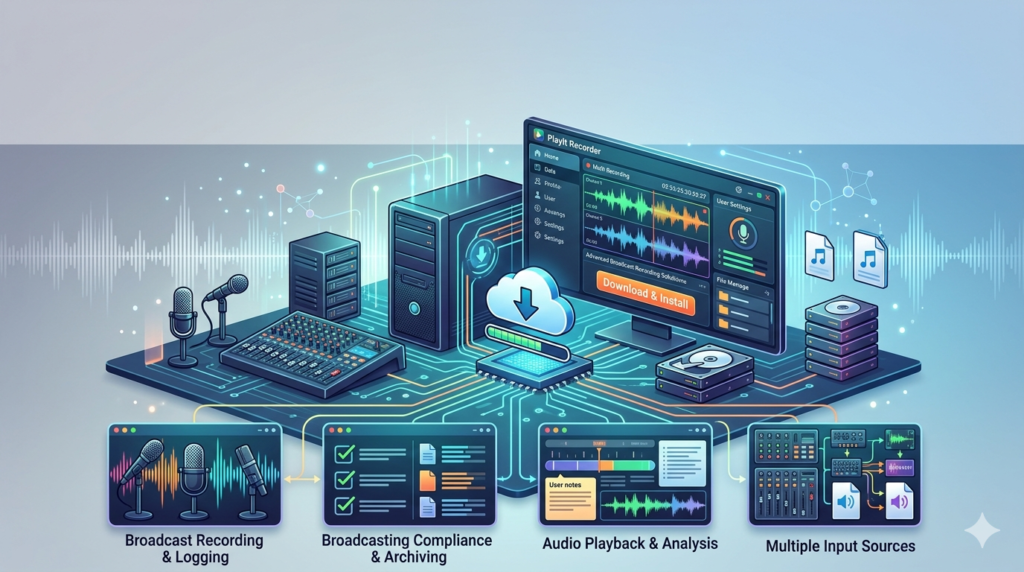


Download the PlayIt Recorder Review (Features, Setup, and Best Use Cases) from this link…

Overview of the Software
Table of Contents
PlayIt Recorder, developed by PlayIt Software, is a professional-grade audio recording and playback tool designed for broadcasters, podcasters, musicians, and content creators. Unlike basic recording apps, PlayIt Recorder offers customizable settings, real-time monitoring, and an intuitive interface — all without requiring a steep learning curve.
Whether you need to capture live radio shows, record voiceovers, or archive streaming audio, PlayIt Recorder provides a reliable and legal solution for Windows-based systems.
Key Features
-
User-friendly interface – Clean layout with clearly labeled controls for recording, playback, and editing.
-
Multi-source recording – Capture audio from microphones, line-in devices, streaming services, and system sound.
-
Customizable audio settings – Adjust sample rate (up to 192 kHz), bit depth (16-bit or 24-bit), and choose from MP3, WAV, or WMA formats.
-
Playback speed control – Slow down or speed up recordings for transcription or detailed analysis.
-
Basic editing tools – Trim, cut, and normalize audio without external software.
-
Scheduled recording – Set start/stop times for automated capture of online broadcasts or meetings.
What’s New in the Latest Version (2024)
The 2024 release of PlayIt Recorder introduces:
-
Improved low-latency recording engine
-
Direct export to MP3 with variable bitrate support
-
Dark mode interface
-
Enhanced VU meters for precise level monitoring
-
Bug fixes for Windows 11 compatibility
System Requirements
| Component | Minimum Requirement |
|---|---|
| OS | Windows 10 or 11 (64-bit) |
| Processor | 1.5 GHz dual-core |
| RAM | 2 GB (4 GB recommended) |
| Storage | 100 MB free space |
| Sound Card | Any Windows-compatible audio device |
Installation Guide
-
Download the official installer from the PlayIt Software website.
-
Run the
.exefile and accept the user agreement. -
Choose installation folder or use default (
C:\Program Files\PlayIt Recorder). -
Complete setup and launch the application.
-
Enter your license key if purchased, or start the free trial.
How to Use the Software
Step 1: Select Audio Source
Go to Settings > Audio Input and choose your microphone, line-in, or “Stereo Mix” to record system audio.
Step 2: Adjust Recording Quality
Set sample rate (44.1 kHz for podcasts, 48 kHz for video) and format (WAV for lossless, MP3 for smaller files).
Step 3: Start Recording
Click the red Record button. Monitor levels to avoid clipping.
Step 4: Playback and Edit
Use the transport controls to review. Trim silence or cut mistakes using the built-in editor.
Step 5: Export
Save your file in MP3, WAV, or WMA format. Add metadata like title and artist if needed.
Best Use Cases
-
Radio broadcasting – Record live shows or syndicated content for replay.
-
Podcasting – Capture remote interviews via system audio.
-
Music practice – Record rehearsals to review technique.
-
Voiceover work – Produce clean narration for videos or e-learning.
-
Meeting transcription – Record Zoom, Teams, or Skype calls (with consent).
Advantages and Limitations
Advantages
-
Very low CPU usage
-
No watermark in trial version
-
Scheduled recording is reliable
-
Works with virtual audio cables
Limitations
-
Windows only (no macOS or Linux version)
-
No cloud storage integration
-
Limited effects (no noise reduction or compression)
-
Basic editing only — advanced users may still need Audacity or Adobe Audition
Alternatives to the Software
| Software | Platform | Best For | Price |
|---|---|---|---|
| Audacity | Win/Mac/Linux | Free, advanced editing | Free |
| OBS Studio | Win/Mac/Linux | Streaming + recording | Free |
| Adobe Audition | Win/Mac | Professional post-production | Subscription |
| Sound Forge | Windows | Mastering and restoration | Paid |
Frequently Asked Questions
Is PlayIt Recorder completely free?
No. PlayIt Recorder offers a free trial with full features for a limited time. After that, a one-time license purchase is required.
Can I record streaming audio from Spotify or YouTube?
Yes, if your sound card supports “Stereo Mix” or “Loopback” recording. However, respect copyright laws when redistributing recorded content.
Does PlayIt Recorder work on Windows 11?
Yes, the 2024 version is fully compatible with Windows 10 and 11.
Can I schedule recordings while away from my computer?
Yes. Use the Scheduler feature to set start/stop times. The PC must remain on and unlocked.
What audio formats are supported for export?
MP3, WAV, WMA, OGG, and FLAC.
Is there a portable version?
No. PlayIt Recorder requires installation.
Final Thoughts
PlayIt Recorder 2024 is a solid, easy-to-use tool for anyone needing reliable audio capture on Windows. It doesn’t try to be a full DAW (digital audio workstation), but it excels at quick, high-quality recordings with minimal setup. For podcasters, broadcasters, and students, it offers excellent value — especially with the new 2024 performance improvements.
Premium Software Support Service
If you need professional help with software installation, setup, or technical configuration, our team is available to assist you.
Contact & Support
For quick assistance and latest updates, connect with us using the links below:
🔹 Direct Telegram Support
https://t.me/PlayoutKing
🔹 Official Telegram Updates Group
https://t.me/yourgroup
Service Policy
- Remote testing available through AnyDesk before confirmation.
• Verify the setup and performance before completing the order.
• Support available for single or multiple systems.
• Step-by-step guidance to ensure smooth installation and working environment.
Our goal is to provide reliable technical assistance so your software runs smoothly without interruptions.