

Download the Mosaic Multiviewer 3.2.30 (Professional Video Monitoring & Display Solution) Software from this link…

Overview of Mosaic Multiviewer
Table of Contents
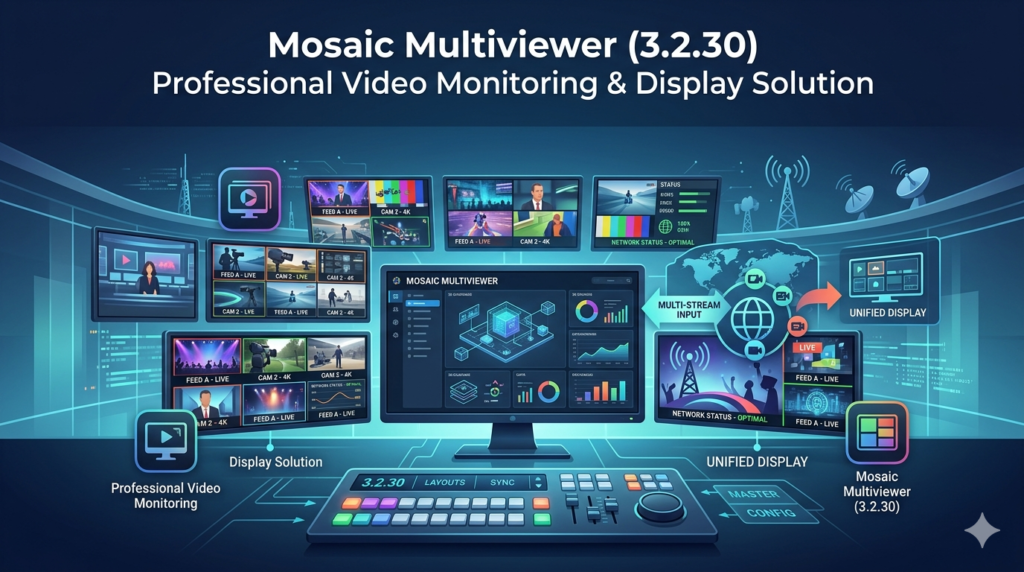
Mosaic Multiviewer is an advanced, professional-grade software solution designed for broadcast, production, and media monitoring environments. Its core function is to display multiple live video sources simultaneously within a structured, customizable grid on a single screen or across multiple displays. This allows broadcast engineers, production teams, and media operators to oversee numerous feeds—from cameras, media servers, and IP streams—in real-time, ensuring continuous visual oversight.
Unlike basic video switching tools, this solution combines visual monitoring with intelligent alarm notifications and flexible configurations. The primary purpose of Mosaic Multiviewer is to centralize the view of many video channels, significantly reducing operator load and enhancing situational awareness. Whether in a broadcast control room, a central operations center (COC), or a streaming workflow, it helps teams prevent video or audio issues before they impact the viewer experience.
Key Features of Mosaic Multiviewer
MultiViewer Grid and Layout Configurations
The software supports multiple video sources arranged in a user-defined grid. Each feed appears as a distinct tile on the output display. Operators can choose from standard preset layouts (e.g., 2×2, 3×3, 4×4) or design fully custom arrangements. This flexibility ensures that critical video streams remain visible and logically organized during live broadcasts or continuous monitoring sessions.
Broad Support for Video Formats and Inputs
Modern Mosaic Multiviewer systems ingest feeds from a wide range of video formats and input protocols. Supported standards typically include:
-
IP Streaming Formats: SRT, RTSP, RTMP, HLS, MPEG-TS, UDP, DASH.
-
Traditional Signals: HDMI or SDI (when supported by specialized capture hardware).
This flexibility allows seamless integration into both legacy broadcast infrastructures and modern IP-based workflows.
Real-Time Monitoring with Audio and Alerts
Built-in real-time monitoring tools are a cornerstone of the solution. Features include:
-
Visual Indicators: VU meters and audio level overlays.
-
Smart Alerts: Notifications for video loss, audio loss, black screen, or signal degradation.
-
Status Dashboards: Network-wide oversight accessible via web views or remote clients.
These indicators are displayed directly within each tile, enabling rapid issue identification without manual source checking.
Cloud-Native and Scalable Deployment
Many modern Mosaic Multiviewer configurations support cloud or hybrid deployment. Using infrastructure like Amazon Web Services (AWS) with GPU acceleration, organizations can launch scalable multiviewers that handle real-time processing and multiscreen distribution. This is critical for global broadcasters, OTT providers, and remote production teams needing on-demand monitoring without extensive on-site hardware.
What’s New in Mosaic Multiviewer Version 3.2.30
Version 3.2.30 introduces several enhancements focused on performance and user experience:
-
Improved GPU Decoding Pipeline: Reduced latency for high-resolution feeds (up to 4K).
-
Web-Based Layout Editor Enhancements: Added drag-and-drop overlays for clocks, source labels, and dynamic audio meters.
-
Enhanced Alarm Logic: New conditional alerts for signal jitter and packet loss in IP streams (SRT/RTMP).
-
API Integration Updates: Smoother interoperability with video switchers, LED display processors, and graphics engines.
System Requirements
To ensure optimal performance, verify your system meets these recommendations:
| Component | Minimum Requirement | Recommended Specification |
|---|---|---|
| OS | Windows 10 / macOS 11 / Linux Ubuntu 20.04 | Windows 11 / macOS 13+ / Ubuntu 22.04 |
| Processor | Intel Core i5 (6th gen) | Intel Core i7/i9 or AMD Ryzen 7 (12th gen+) |
| GPU | Dedicated GPU with 2GB VRAM (DirectX 12) | NVIDIA RTX series with 6GB+ VRAM |
| RAM | 8 GB | 16 GB or 32 GB |
| Network | 1 Gbps Ethernet | 10 Gbps Ethernet for multi-4K streams |
| Storage | 500 MB (software only) | SSD with 10 GB for caching/logs |
Installation Guide
Follow these steps for a standard installation of Mosaic Multiviewer 3.2.30:
-
Download the Installer: Obtain the official setup file from the authorized vendor portal.
-
Verify System Compatibility: Ensure your GPU drivers are updated for hardware acceleration.
-
Run as Administrator: Right-click the installer and select “Run as administrator” (Windows) or use standard sudo commands (Linux/macOS).
-
Accept License Terms: Read and accept the End-User License Agreement (EULA).
-
Choose Installation Path: Select the destination folder (default is recommended).
-
Select Components: Choose which input protocol modules (e.g., SDI, SRT, NDI) to install.
-
Complete Installation: Follow the on-screen prompts and restart the system if prompted.
How to Use Mosaic Multiviewer
Initial Configuration
-
Launch the application and open the Source Manager.
-
Add video inputs by specifying protocol (e.g., RTSP://192.168.1.101/stream1) or selecting a local capture device.
-
Assign each source a unique label and color code for easy identification.
Building a Multiview Layout
-
Navigate to the Layout Editor.
-
Select a grid preset (e.g., 4×4) or create a custom aspect ratio.
-
Drag and drop each video source into a tile.
-
Add overlays: clock, source label, audio VU meter, or alarm indicator.
-
Save the layout as a preset (e.g., “Sports_Quad_View”).
Monitoring and Alerts
-
Watch the mosaic grid for any red border indicators (signal loss) or yellow overlays (audio issues).
-
Click any tile to temporarily solo that source on a secondary output.
-
Use the Alarm Log panel to review historical signal degradation events.
Best Use Cases
-
Broadcast Control Rooms: Operators monitor multiple camera feeds, graphics channels, and remote contributions on a single reference display.
-
OTT Platform Monitoring: Stream health teams oversee dozens of HLS/DASH streams for buffering or bitrate drops.
-
Sports Production: Simultaneously view 16+ camera angles, replay feeds, and telestration outputs during live events.
-
Newsroom Operations: Journalists and directors maintain visual confirmation on breaking news feeds, satellite trucks, and studio cameras.
-
Compliance Recording: Legal and QC teams use the multiviewer to monitor multiple channels for broadcast regulation adherence.
Advantages and Limitations
Advantages
-
Centralized Oversight: Reduces need for multiple physical monitors.
-
Low Latency: GPU-accelerated pipeline ensures real-time monitoring.
-
Protocol Agnostic: Supports both legacy SDI and modern IP streams (SRT, RTMP, HLS).
-
Highly Customizable: Drag-and-drop editor with extensive overlay options.
Limitations
-
Hardware Dependent: High-input-count layouts (e.g., 16+ 4K streams) require a powerful dedicated GPU.
-
Learning Curve: Advanced alarm configuration requires understanding of broadcast signal terminology.
-
Licensing Cost: Professional features are locked behind a subscription or perpetual license (no free tier for commercial use).
Alternatives to Mosaic Multiviewer
| Software | Primary Focus | Key Difference |
|---|---|---|
| vMix | Live production & switching | Includes multiviewer as part of a broader switcher/streaming tool. |
| OBS Studio | Free streaming/recording | Basic multiview (studio mode) but lacks advanced alarms and IP protocol support. |
| BirdDog Multiview | NDI-centric monitoring | Optimized for NDI streams but less support for SRT/RTMP. |
| AJA BRIDGE LIVE | Hardware/software hybrid | Focuses on conversion; multiview is a secondary feature. |
| Telestream Prism | QC and analysis | More focused on waveform/vectorscope analysis than multi-source layout. |
Frequently Asked Questions (FAQ)
Q1: What video protocols does Mosaic Multiviewer 3.2.30 support?
A: It supports SRT, RTSP, RTMP, HLS, MPEG-TS, UDP, DASH, and hardware inputs like HDMI/SDI (with compatible capture cards).
Q2: Can I deploy Mosaic Multiviewer in the cloud?
A: Yes. Version 3.2.30 is cloud-native and can run on GPU-accelerated instances from AWS, Google Cloud, or Azure for scalable, remote monitoring.
Q3: Does the software include audio monitoring?
A: Yes. Each tile can display real-time VU meters, and the system can trigger alarms for audio loss or out-of-spec loudness levels.
Q4: What are the licensing options for professional broadcast use?
A: Licenses are typically sold as perpetual (perpetual node-locked) or annual subscription. Contact an authorized reseller for enterprise pricing.
Q5: Can I integrate Mosaic Multiviewer with my existing video switcher?
A: Yes. It offers API integration with major production equipment, including video switchers, LED processors, and graphics engines.
Q6: How low is the monitoring latency?
A: With GPU acceleration and optimized decoding, end-to-end latency is typically under 50-100 milliseconds for IP streams, depending on network conditions.
Q7: Is there a free or trial version available?
A: Some vendors offer a time-limited trial (e.g., 30 days) with full features. No legally available “free cracked” or “unlocked” versions exist.
Final Thoughts
Mosaic Multiviewer 3.2.30 stands out as a professional, reliable, and highly flexible solution for any media environment requiring real-time oversight of multiple video sources. Its combination of broad protocol support, cloud-native scalability, and granular alarm features makes it suitable for everything from traditional broadcast control rooms to modern OTT monitoring dashboards.
While the software requires a legitimate license and capable hardware for high-input-count layouts, the investment is justified by the operational efficiency, reduced equipment sprawl, and proactive issue detection it enables. For teams serious about broadcast quality and situational awareness, Mosaic Multiviewer delivers a trustworthy, high-performance monitoring backbone.
Premium Software Support Service
If you need professional help with software installation, setup, or technical configuration, our team is available to assist you.
Contact & Support
For quick assistance and latest updates, connect with us using the links below:
🔹 Direct Telegram Support
https://t.me/PlayoutKing
🔹 Official Telegram Updates Group
https://t.me/yourgroup
Service Policy
- Remote testing available through AnyDesk before confirmation.
• Verify the setup and performance before completing the order.
• Support available for single or multiple systems.
• Step-by-step guidance to ensure smooth installation and working environment.
Our goal is to provide reliable technical assistance so your software runs smoothly without interruptions.