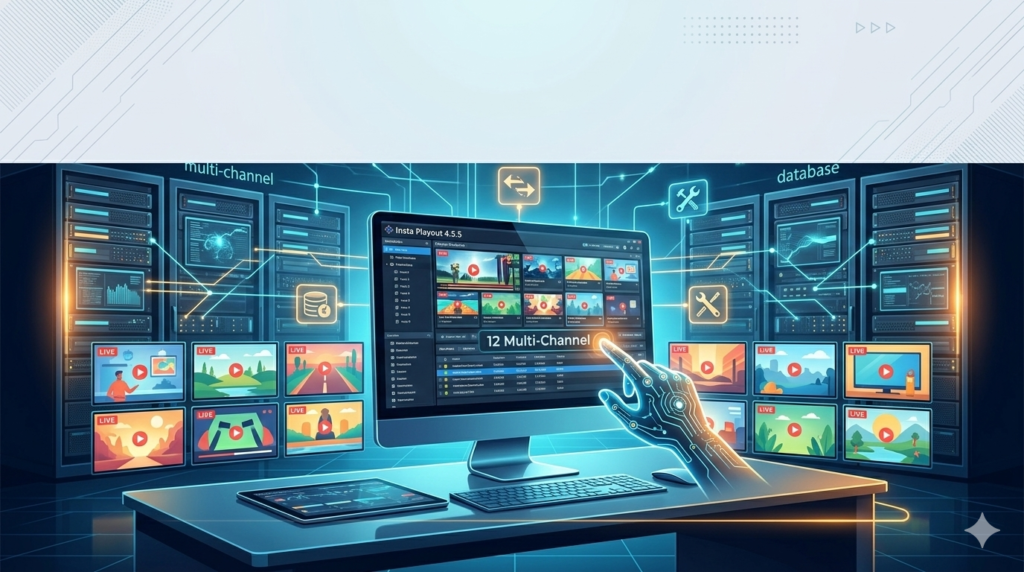


Download the Insta Playout 4.5.5 (Comprehensive Broadcast Automation Software)
14 day Trial from this link…

Overview of Insta Playout Software
Table of Contents
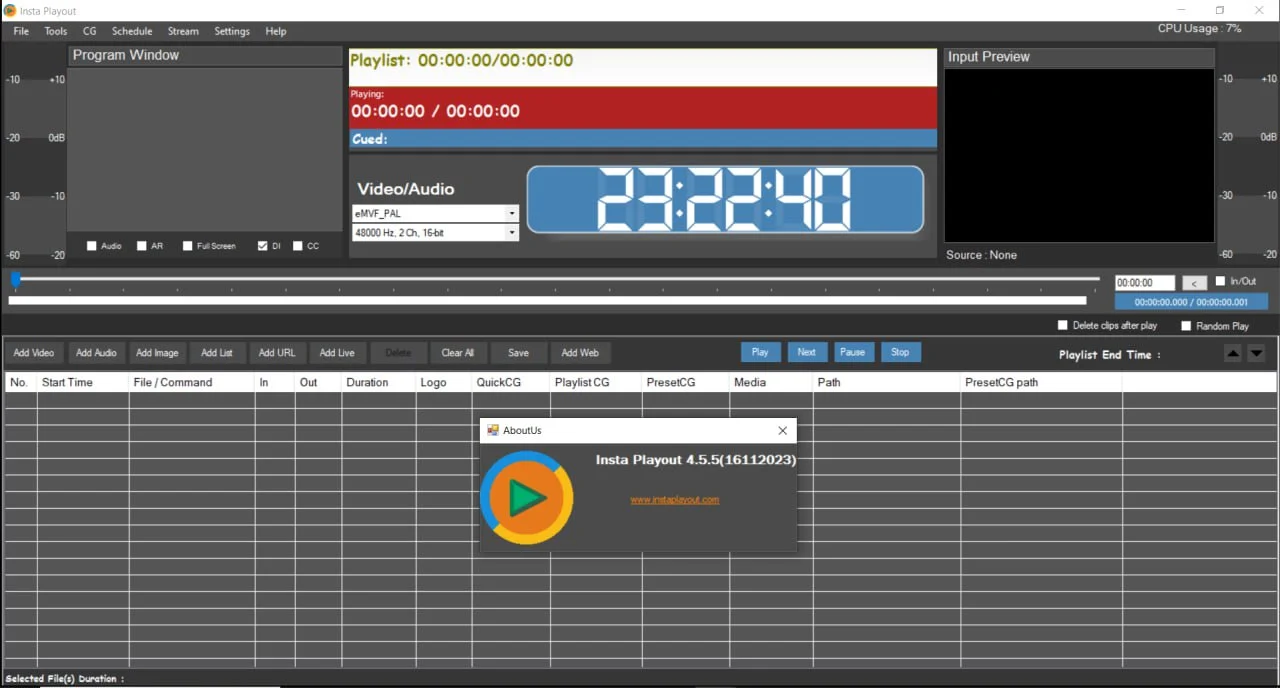
Insta Playout 4.5.5 is a professional broadcast automation solution designed to streamline the scheduling, management, and playout of media content. Whether you operate a television channel, a web-based streaming service, or a corporate media network, Insta Playout serves as a centralized hub for your entire broadcast workflow. By operating on standard Windows-based computing systems, it offers a cost-effective and flexible alternative to traditional, hardware-dependent playout servers. This software empowers broadcasters to transition seamlessly between pre-recorded clips, live feeds, and internet streams, ensuring a polished and professional viewer experience.
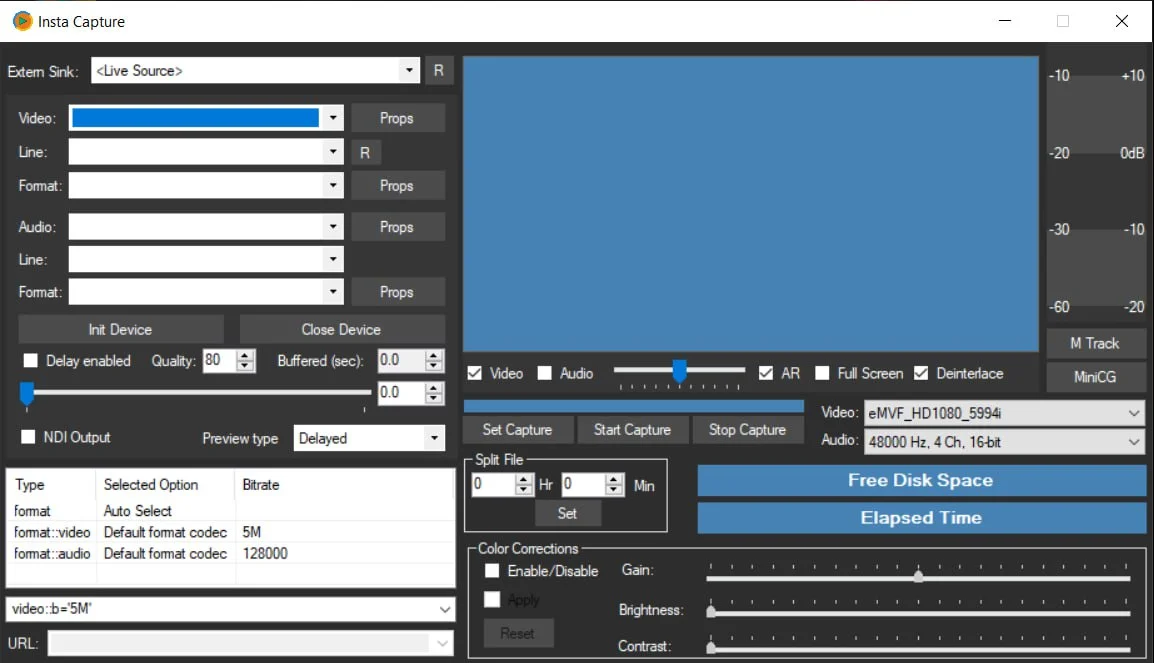
Screenshot
Key Features
Insta Playout provides a comprehensive suite of tools for playlist management and broadcast automation. Its feature set is designed to give operators granular control over their content with maximum efficiency.
-
Intuitive Playlist Creation & Management: Create, save, and load multiple playlists. The software supports drag-and-drop functionality for easy clip organization directly within the playlist.
-
Dynamic Playout Control: Play, pause, and stop clips on demand. Insert video clips into a live playlist in real-time without any flicker or disruption to the output.
-
Advanced Playback Options: Configure clips to automatically delete after play, set the last frame to freeze, or enable loop playback for specific segments.
-
Precision Editing Tools: Trim clips directly within the software and split clips into smaller segments based on specific durations or cut points.
-
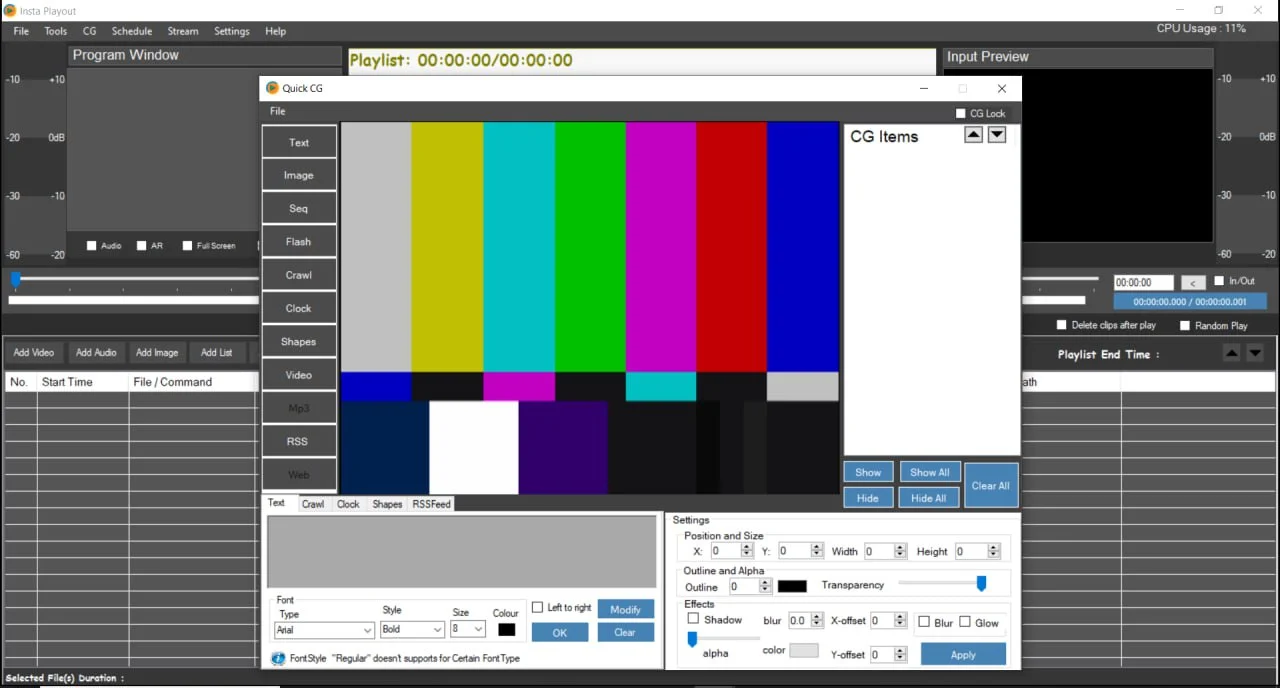
Graphics & Logo Overlay: Automate the on/off control of channel logos and CG (Character Generator) overlays for a professional look.
-
Multi-Format Support: Seamlessly mix and match various file formats within the same playlist, eliminating the need for time-consuming file conversions.
-
Streaming Input & Output:
-
Stream Out: Output your playout as RTMP, RTSP, or UDP streams, compatible with major streaming platforms and CDNs.
-
Stream In: Ingest streams via RTMP, UDP, or HLS, allowing you to incorporate live remote feeds into your programming.
-
-
Direct Platform Streaming: Stream content directly to popular social platforms like YouTube and Facebook, as well as other RTMP-compatible services.
-
Efficient Clip Management: Easily copy and paste clips within the playlist, or use group selection to move multiple clips up or down the broadcast order.
What’s New in Version 4.5.5 (Updated November 2023)
The latest version of Insta Playout focuses on stability, performance, and enhanced compatibility to meet the demands of modern broadcasting. While retaining its core functionality, version 4.5.5 introduces key refinements:
-
Enhanced Playlist Stability: Improved playlist handling ensures smoother transitions and prevents crashes during extended, automated broadcast sessions.
-
Refined YouTube URL Support: Enhanced reliability when adding and playing YouTube URLs as input sources, with better handling of format changes.
-
Performance Optimizations: The software has been optimized for lower CPU usage, ensuring smoother playback, especially on systems with the minimum recommended specifications.
-
Bug Fixes: Addressed minor user-interface glitches and improved the accuracy of the “Start time” and “End time” displays for playlist items.
System Requirements
To ensure optimal performance and stability with Insta Playout 4.5.5, your system should meet or exceed the following specifications:
| Component | Minimum Requirement | Recommended Requirement |
|---|---|---|
| Operating System | Windows 7, 8.1, 10, or 11 | Windows 10 or 11 (64-bit) |
| Processor (CPU) | Intel Core i5 or equivalent AMD | Intel Core i7 or equivalent (or higher) |
| System Memory (RAM) | 8 GB | 16 GB or more |
| Graphics Card | DirectX 11 compatible graphics card | Dedicated GPU with 2GB+ VRAM |
| Storage | SSD with at least 10 GB free space | Fast SSD for high-resolution media |
| Network | Broadband internet connection | Stable, high-bandwidth connection for streaming |
Installation Guide
Installing Insta Playout is a straightforward process. Follow these steps to get the software up and running on your Windows PC.
-
Download the Installer: Obtain the official Insta Playout 4.5.5 setup file from a trusted software provider or the developer’s official website. Ensure you download the correct version (32-bit or 64-bit) for your operating system.
-
Run the Installer: Locate the downloaded
.exefile and double-click it to run. If prompted by User Account Control, click “Yes” to allow the installer to make changes. -
Follow the Setup Wizard: The installation wizard will guide you through the process. You can typically accept the default installation directory and components unless you have specific preferences.
-
Complete Installation: Click “Install” or “Finish” once the process is complete. An icon for Insta Playout will be created on your desktop.
-
Launch and Configure: Open the software. You will need to enter your license key to activate the full feature set. After activation, navigate to the settings menu to configure your video/audio output devices and streaming presets.
How to Use the Software
Getting started with Insta Playout is easy, even for beginners. Here’s a simple guide to creating and playing your first playlist.
-
Create a New Playlist: Click the “New Playlist” button or navigate to file > new. A blank playlist window will appear.
-
Add Media: You can add clips in several ways:
-
Drag and Drop: Drag video or audio files directly from your Windows File Explorer into the playlist window.
-
Import Files: Use the “Add File(s)” button to browse and select media from your hard drive.
-
Add Stream: Use the “Add Stream” option to input an RTMP, UDP, or HLS URL.
-
Add YouTube URL: Paste a supported YouTube video link directly into the playlist.
-
-
Organize Your Playlist: Use the drag-and-drop handles on the left of each clip to reorder them. Right-click on a clip to access editing options like “Trim,” “Split,” or “Set Duration.”
-
Set Playout Options: Configure settings for your entire playlist, such as whether the last frame freezes or if the playlist loops continuously.
-
Start Broadcasting:
-
Local Playback: Simply press the “Play” button to output to your local monitor or preview screen.
-
Streaming: Go to the streaming settings, enter your RTMP server URL and stream key (e.g., from YouTube or Facebook), and then click “Start Streaming.”
-
Best Use Cases
Insta Playout is a versatile tool suitable for a wide range of broadcasting scenarios.
-
24/7 Themed TV Channels: Create automated channels for specific genres like classic movies, nature documentaries, or music videos that run non-stop without manual intervention.
-
Live Event Broadcasting: Use the software to switch between live camera feeds, pre-roll commercials, and replay segments during live sports, concerts, or webinars.
-
Corporate and Educational Networks: Stream internal communications, training videos, and important announcements to employees or students across multiple campuses.
-
Church and Community Streaming: Broadcast services, community meetings, and local events live to an online audience with a professional look, including logo overlays and hymn lyrics.
-
Internet Radio with Video: Combine an audio stream with static images or music videos to create a visual experience for an online radio station.
Advantages and Limitations
Advantages
-
Cost-Effective Solution: Eliminates the need for expensive, dedicated broadcast hardware, running on standard PC hardware.
-
User-Friendly Interface: The drag-and-drop functionality and intuitive layout make it accessible for users with varying levels of technical expertise.
-
Versatile Input/Output: The ability to handle both local files and live streams (RTMP, UDP, HLS) makes it incredibly flexible for hybrid broadcast models.
-
Social Media Integration: Direct streaming capabilities to platforms like YouTube and Facebook simplify the process of reaching a wider online audience.
-
Automation Features: Automated logo/CG control and playlist looping allow for “set it and forget it” broadcasting.
Limitations
-
Windows-Only Platform: The software is currently only available for the Windows operating system, excluding macOS or Linux users.
-
Resource Intensive: Working with multiple high-resolution streams or long, complex playlists may require a system with the recommended 16GB of RAM or more to maintain peak performance.
-
Graphics Capabilities: While it offers logo and CG overlay, it may not have the advanced, multi-layer 3D graphics and titling capabilities of high-end enterprise broadcast systems.
Alternatives to the Software
Depending on your specific needs and budget, several other broadcast automation tools are available.
| Software | Key Focus | Platform |
|---|---|---|
| OBS Studio | Free, open-source live streaming and recording. | Windows, macOS, Linux |
| vMix | Live production software with advanced switching, mixing, and titling. | Windows |
| Wirecast | Professional live streaming production tool for events and news. | Windows, macOS |
| PlayBox Technology AirBox | Enterprise-level broadcast playout automation for TV channels. | Windows |
| Cinegy Air | High-end broadcast automation with advanced graphics and newsroom integration. | Windows |
Frequently Asked Questions
1. Can I use Insta Playout to stream to multiple platforms at the same time?
Insta Playout primarily streams to a single RTMP destination at a time. To simulcast to multiple platforms (e.g., YouTube and Facebook simultaneously), you would typically need to stream to a dedicated streaming service or software that can restream your single feed to multiple endpoints.
2. What video file formats are supported?
The software supports a wide range of multi-format clips. Common supported formats include MP4, AVI, MOV, and MKV for video, along with popular audio codecs. It is designed to mix these formats seamlessly within a single playlist.
3. How do I add a YouTube livestream to my playlist?
You can add a YouTube URL as an input source, similar to adding a file. However, for copyrighted live content, this may be subject to terms of service. The feature is best used for adding your own YouTube videos or publicly available, non-copyrighted content into your broadcast.
4. Is there a free trial version available?
Availability of a trial version depends on the software distributor. Many professional broadcast software providers offer a time-limited or feature-limited trial. You should check the official website or authorized resellers for the most current trial options.
5. What is the difference between Insta Playout and live streaming software like OBS?
OBS is primarily a live production and streaming tool focused on real-time scene switching and compositing. Insta Playout is focused on playout automation, meaning it excels at scheduling and playing a long, pre-defined list of clips (like a TV channel) automatically, which can be more complex to manage in OBS.
6. Can I schedule playlists to change automatically at specific times of the day?
Yes, this is a core feature of broadcast automation. Insta Playout allows you to schedule different playlists to start at predetermined times, enabling your programming to change automatically (e.g., switching from daytime kids’ shows to evening news).
Final Thoughts
In the evolving landscape of digital broadcasting, having reliable and flexible playout software is essential. Insta Playout 4.5.5 stands out as a robust solution that bridges the gap between simple media players and complex, enterprise-level broadcast systems. Its powerful feature set, ranging from multi-format playlist management to direct social media streaming, provides broadcasters with the tools needed to deliver professional, uninterrupted content.
While it has limitations, such as its Windows-only availability, its benefits in terms of cost savings, ease of use, and automation capabilities make it a compelling choice for independent broadcasters, community channels, and businesses looking to establish or upgrade their media presence. As the demand for diverse and continuous content grows, tools like Insta Playout will remain integral to efficient and effective content delivery.
Contact & Support
For quick assistance and latest updates, connect with us instantly:
If Telegram app doesn’t open, it will automatically open in your browser.
Service Policy
- Remote testing available through AnyDesk before confirmation.
• Verify the setup and performance before completing the order.
• Support available for single or multiple systems.
• Step-by-step guidance to ensure smooth installation and working environment.
Our goal is to provide reliable technical assistance so your software runs smoothly without interruptions.