

Download Foneazy Unlockit iPhone v4.0.2 (The Complete Guide to iOS Screen Unlocking) from this link…

Overview of Foneazy Unlockit iPhone
Table of Contents
Foneazy Unlockit iPhone is a powerful desktop application tailored for Windows and macOS users. It serves as a comprehensive toolkit for managing and resolving common iOS access issues. Unlike generic troubleshooting methods, this software provides a streamlined, user-friendly interface to tackle complex problems such as forgotten screen passcodes, disabled devices, and remote management profiles.
Developed by the team at Foneazy, a company recognized for its expertise in iOS and Android device management, Unlockit iPhone prioritizes data safety and process reliability. It is an ideal solution for individual users locked out of their personal devices and IT professionals who need to manage fleet devices under Mobile Device Management (MDM) configurations.
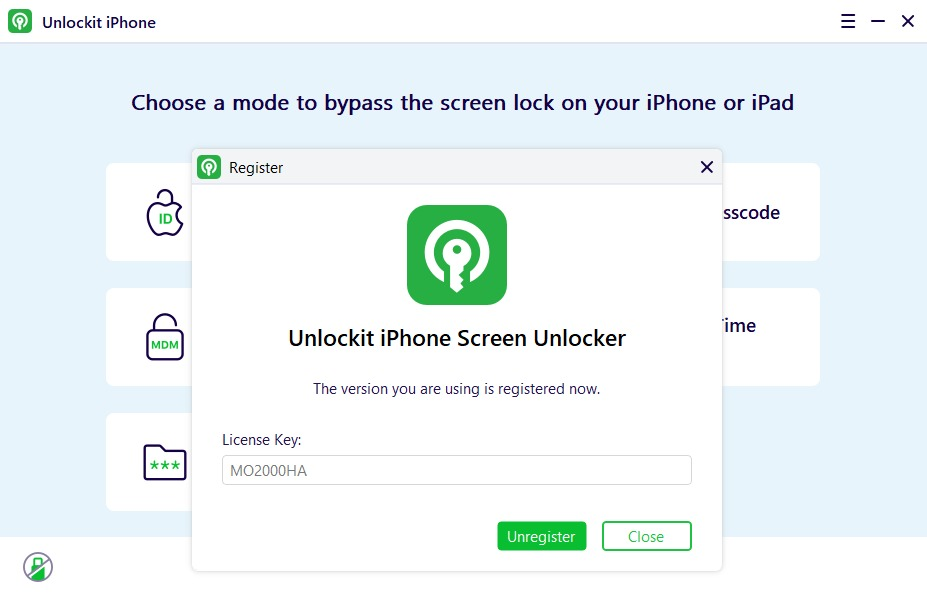
Screenshot
Key Features of Foneazy Unlockit iPhone
The software is built around five core functionalities, each designed to solve a specific iOS access problem:
-
Unlock Screen Passcode: Bypass a forgotten 4-digit or 6-digit passcode, Touch ID, or Face ID to regain access to a disabled or locked iPhone, iPad, or iPod touch.
-
Unlock Apple ID without Password: Remove an Apple ID and iCloud account from a device without needing the password, allowing you to set up a new account.
-
Bypass MDM Lock: Remove a Mobile Device Management (MDM) or Remote Management profile, freeing a device from corporate or school restrictions.
-
Remove Screen Time Passcode: Erase the forgotten Screen Time passcode, allowing you to modify app limits and content restrictions without losing any personal data.
-
Remove iTunes Backup Encryption: Disable iTunes backup encryption to reset the backup password, enabling you to create new, unencrypted backups of your device.
What’s New in the Latest Version (v4.0.2)
The v4.0.2 update focuses on enhancing stability, speed, and compatibility with the latest iOS versions. Key improvements include:
-
Expanded iOS Compatibility: Full support for the latest iOS versions and iPhone/iPad models, ensuring the software remains effective on new hardware.
-
Optimized Unlocking Algorithms: The screen passcode removal process is now up to 20% faster, reducing wait times for firmware downloads and data processing.
-
Refined MDM Bypass Process: The workflow for bypassing MDM locks has been simplified, with clearer on-screen instructions to prevent common user errors during device setup.
-
Enhanced Driver Stability: Improved USB connection drivers reduce the frequency of “device not detected” errors, ensuring a more reliable connection.
System Requirements
To ensure optimal performance, verify that your computer meets the following requirements before downloading and installing Foneazy Unlockit iPhone.
For Windows:
-
Operating System: Windows 11, 10, 8, 7 (both 32-bit and 64-bit)
-
Processor: 1GHz (32-bit or 64-bit) or higher
-
RAM: 256 MB or more
-
Hard Disk Space: 200 MB of free space
-
Other: A USB port and an internet connection for downloading firmware
For macOS:
-
Operating System: macOS 10.12 (Sierra) or later
-
Processor: Intel-based or Apple Silicon (M1/M2/M3) Mac
-
RAM: 256 MB or more
-
Hard Disk Space: 200 MB of free space
-
Other: A USB-C or USB-A port and a stable internet connection
Supported iOS Devices:
All models of iPhone, iPad, and iPod touch running iOS 11.4 and later.
Installation Guide
Installing Foneazy Unlockit iPhone is a straightforward process. Follow these steps to set up the software on your computer.
-
Download the Installer: Visit the official Foneazy website and download the appropriate version for your operating system (Windows or macOS).
-
Run the Installer:
-
Windows: Locate the downloaded
.exefile and double-click it. Grant any necessary permissions to allow the installer to run. -
macOS: Open the downloaded
.dmgfile and drag the Unlockit iPhone application into yourApplicationsfolder.
-
-
Launch the Application: Open Foneazy Unlockit iPhone from your desktop or applications folder. You will be greeted by the main interface displaying the five core feature modules.
-
Connect Your Device: Use a compatible Apple-certified USB cable to connect your iPhone or iPad to the computer. The software will automatically detect the device when you select a function.
How to Use the Software
This section provides a detailed guide for using each of the five primary features of Foneazy Unlockit iPhone.
How to Bypass MDM Lock
If you encounter a “Remote Management” screen after resetting a device, use this method to bypass it.
-
Launch and Select Mode: Open Unlockit and select Bypass MDM Lock from the main interface.
-
Connect Your Device: Connect your iOS device to the computer via USB. If prompted on the device, tap Trust.
-
Initiate Bypass: Ensure your device displays the Remote Management login screen. Click Start on the software.
-
Disable Find My: Follow the on-screen instructions to turn off Find My iPhone if it is enabled.
-
Completion: Once the process finishes, the MDM lock will be bypassed.
-
Important: During device setup, select Don’t Transfer Apps & Data. The iTunes backup password will be reset to
a. Avoid factory resetting the device, as this will reinstate the MDM lock.
-
How to Unlock Screen Passcode
Use this feature if you are locked out of your device after forgetting the screen passcode.
-
Select Feature: Choose Unlock Screen Passcode from the main menu.
-
Connect and Start: Connect your device and click Start.
-
Enter Recovery/DFU Mode: The software will attempt to put your device into Recovery Mode automatically. If it fails, follow the on-screen manual instructions to enter Recovery Mode or DFU Mode.
-
Download Firmware: The software will detect your device model. Click Download to obtain the latest firmware package. If you have a pre-downloaded file, you can click Select to import it.
-
Remove Passcode: Once the firmware is verified, click Remove. The process will take a few minutes. After completion, your device will restart, and you can set it up with a new passcode.
How to Remove Screen Time Passcode
Regain control over Screen Time restrictions without losing personal data.
-
Select Feature: Click Remove Screen Time Passcode.
-
Connect Device: Connect your iOS device and ensure it is recognized.
-
Disable Find My: You will be prompted to turn off Find My iPhone. Follow the on-screen instructions to do so.
-
Start Removal: Click Start. The software will immediately begin removing the Screen Time passcode.
-
Complete Setup: After the device restarts, proceed with setup. Select Don’t Transfer Apps & Data and, when prompted to set up Screen Time, choose Set Up Later in Settings.
How to Unlock Apple ID without Password
Remove a forgotten Apple ID from a device running iOS 11.4 or later with two-factor authentication enabled.
-
Select Feature: Choose Unlock Apple ID.
-
Connect and Trust: Connect your device and tap Trust on the iOS screen.
-
Confirm Settings: Click Start. Verify that a screen passcode is set and two-factor authentication is enabled on your device. Click Yes to confirm.
-
Download Firmware: The software will auto-detect your device. Click Download to get the firmware.
-
Remove Apple ID: After the download, click Remove. The device will restart.
-
Final Setup: On the device, select Unlock with Passcode and then Use Device Passcode. Enter your screen passcode to finalize the removal. The old Apple ID will be removed, allowing you to sign in with a new one.
How to Remove iTunes Backup Encryption
Reset the encryption setting for iTunes backups if you have forgotten the password.
-
Select Feature: Choose Remove iTunes Backup Encryption.
-
Connect Device: Connect your iOS device to the computer.
-
Start Removal: Click Start. The software will process the removal, which may take a few minutes.
-
Completion: Once finished, the encryption will be removed. You can now create new, unencrypted backups of your device in iTunes or Finder.
Best Use Cases
Foneazy Unlockit iPhone is designed for several common scenarios where users find themselves locked out of their iOS devices.
-
Personal Lockouts: For individuals who have forgotten their screen passcode or Apple ID password after a device reset or software update.
-
Purchased Second-Hand Devices: For buyers who discover a used iPhone or iPad is still linked to the previous owner’s Apple ID or an MDM profile.
-
Corporate IT Management: For IT administrators needing to quickly repurpose devices or remove outdated management profiles without contacting a mobile carrier.
-
Parental Control Management: For parents who have set a Screen Time passcode to manage their child’s device and have since forgotten it.
-
Data Backup Issues: For users who are unable to back up their device to a computer due to a forgotten iTunes backup encryption password.
Advantages and Limitations
Advantages
-
All-in-One Solution: Combines multiple critical iOS unlock functions into a single, intuitive application.
-
High Success Rate: Employs reliable algorithms that effectively bypass locks without data loss (for most features).
-
User-Friendly Interface: Designed for non-technical users, with step-by-step prompts and automatic firmware detection.
-
Wide Compatibility: Supports a comprehensive range of iOS versions and device models.
-
Safety and Compliance: The software adheres to legal standards and does not engage in or promote illegal unlocking methods.
Limitations
-
Feature Restrictions: The Apple ID unlock feature requires iOS 11.4 or later and two-factor authentication to be enabled on the device.
-
MDM Bypass Permanence: The MDM bypass is not a permanent deletion. A factory reset will reapply the MDM lock.
-
Internet Dependency: A stable internet connection is required to download firmware packages, which can be large in size.
Alternatives to Foneazy Unlockit iPhone
While Foneazy Unlockit iPhone is a robust tool, other software solutions offer similar functionalities. Here’s a brief comparison.
| Software | Key Features | Platform | Key Consideration |
|---|---|---|---|
| Foneazy Unlockit iPhone | Screen Passcode, Apple ID, MDM, Screen Time, iTunes Encryption | Windows, macOS | Comprehensive, all-in-one toolkit. |
| Dr.Fone – Screen Unlock | Screen Passcode, Apple ID, MDM | Windows, macOS | Well-established brand with a strong reputation. |
| iMyFone LockWiper | Screen Passcode, Apple ID, MDM | Windows, macOS | Focuses primarily on unlocking and bypassing. |
| Tenorshare 4uKey | Screen Passcode, Apple ID, MDM | Windows, macOS | Known for a high success rate with passcode removal. |
Choosing the right tool depends on your specific needs. If you require a feature set that includes iTunes backup encryption removal and Screen Time passcode management in one package, Foneazy Unlockit iPhone is a competitive and comprehensive choice.
Frequently Asked Questions
1. Is Foneazy Unlockit iPhone safe to use?
Yes, it is a legitimate software tool developed by the experienced team at Foneazy. It uses secure, non-destructive methods to unlock devices and prioritizes data safety.
2. Will unlocking my screen passcode erase all my data?
Yes, the “Unlock Screen Passcode” feature will erase all data on the device to remove the security lock. This is a standard security protocol for all iOS devices. However, you can restore your data from an iCloud or iTunes backup after regaining access.
3. Can I bypass an MDM lock permanently?
The bypass is effective until the device is factory reset. The software removes the MDM profile from the device’s current session. If you reset the device, the MDM lock will reappear, and you will need to run the bypass again.
4. What happens to my data when I remove an Apple ID?
Removing an Apple ID without a password does not delete your personal data, such as photos or contacts. It only unlinks the Apple ID account from the device, allowing you to sign in with a different account.
5. Does the software work on the latest iPhone models?
Yes, Foneazy Unlockit iPhone v4.0.2 is updated to support the latest iPhone models and the most current iOS versions.
6. What if the software doesn’t recognize my device?
First, ensure your device is unlocked and you have tapped “Trust” on the connection prompt. Try using a different Apple-certified USB cable, restarting both the software and your computer, and ensuring you have the latest version of Unlockit installed. If the issue persists, contact Foneazy Support for assistance.
7. Is there a free trial available?
The software typically allows you to download and scan your device for free. However, to perform the actual unlocking or bypassing actions, you will need to purchase a license and upgrade to the pro version.
Final Thoughts
Foneazy Unlockit iPhone v4.0.2 stands out as a reliable and versatile solution for navigating common iOS access restrictions. Its combination of five critical features—from bypassing corporate MDM locks to removing forgotten Apple IDs—makes it a valuable tool for both personal users and IT professionals. By adhering to safe, legal unlocking methods and providing a clear, user-friendly interface, it empowers users to regain control of their iOS devices efficiently. Whether you’re locked out of your personal iPhone or managing a fleet of corporate iPads, this software offers a trustworthy path to resolution.
Premium Software Support Service
If you need professional help with software installation, setup, or technical configuration, our team is available to assist you.
Contact & Support
For quick assistance and latest updates, connect with us using the links below:
🔹 Direct Telegram Support
https://t.me/PlayoutKing
🔹 Official Telegram Updates Group
https://t.me/yourgroup
Service Policy
- Remote testing available through AnyDesk before confirmation.
• Verify the setup and performance before completing the order.
• Support available for single or multiple systems.
• Step-by-step guidance to ensure smooth installation and working environment.
Our goal is to provide reliable technical assistance so your software runs smoothly without interruptions.