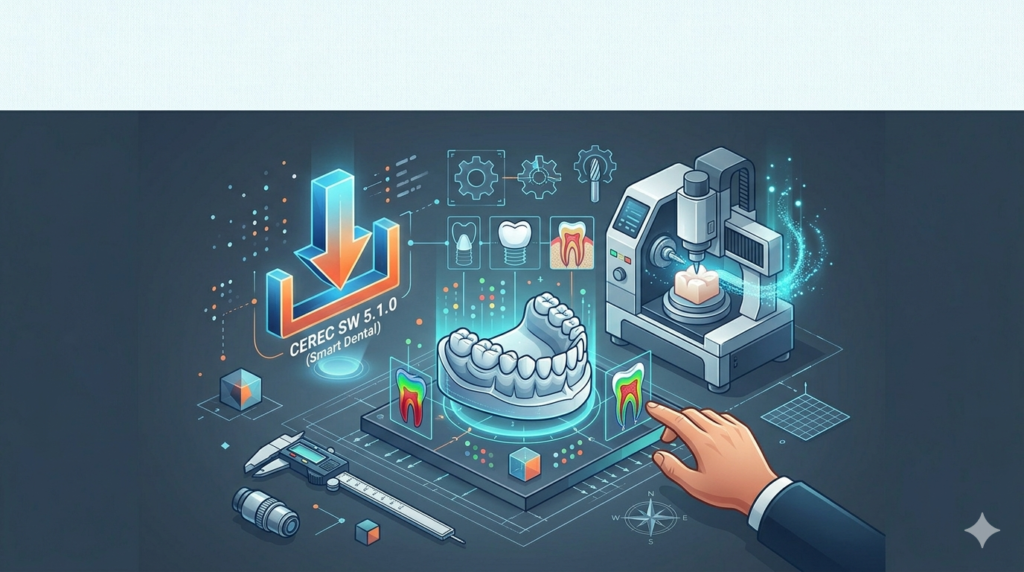


Download the Dentsply Sirona CEREC SW 5.1.0 (Smart Dental CAD/CAM Software for Chairside Dentistry) Software from this link…

Overview of CEREC SW 5.1.0
Table of Contents
Dentsply Sirona’s CEREC SW 5.1.0 (Computer-Aided Design and Computer-Aided Manufacturing) is the latest iteration of the industry-leading software powering the CEREC chairside system. This version builds on decades of digital dentistry innovation, allowing clinicians to perform the entire restorative workflow—scanning, design, and production—in a single patient visit.
Unlike traditional workflows that rely on physical impressions and external dental labs, CEREC SW 5.1.0 enables dentists to create precise restorations such as crowns, inlays, onlays, veneers, and even implant-supported prostheses. The software integrates seamlessly with CEREC hardware, including Primescan and Omnicam intraoral scanners, as well as in-office milling units like the CEREC Primemill.
This version emphasizes intelligent automation, biogeneric design, and enhanced connectivity, making it a cornerstone of modern digital dentistry for both general practitioners and specialists.
Key Features of CEREC SW 5.1.0
The software offers a comprehensive toolset optimized for speed, accuracy, and ease of use.
-
Biogeneric Design Algorithm: Uses statistical shape modeling and AI to automatically propose patient-specific restoration shapes based on the surrounding dentition, reducing manual adjustments.
-
Intelligent Workflow Guidance: The step-by-step interface (Administration → Acquisition → Model → Design → Mill) ensures predictable results, even for users new to CAD/CAM.
-
High-Resolution Virtual Model Management: Processes dense mesh data from Primescan to create highly accurate 3D digital impressions with true-to-life color and texture.
-
Implant & Surgical Guide Module: Supports the design of implant-borne restorations and surgical guides, expanding clinical applications beyond natural tooth restorations.
-
Orthodontic Appliance Design: Enables the creation of clear aligner setups and night guards within the same ecosystem.
-
Dynamic Margin Detection: Automatically identifies preparation margins with sub-millimeter precision, reducing manual tracing time.
-
Export Flexibility: Saves designs in proprietary (.rst) and open formats (STL) for seamless collaboration with external labs or third-party milling centers.
What’s New in CEREC SW 5.1.0
This version introduces several enhancements over previous releases:
-
Improved AI-Assisted Proposal Engine: Faster biogeneric calculations that better predict occlusal morphology and contact points.
-
Enhanced Primescan Integration: Reduced scan processing time and improved rendering of deep margins and sulcus areas.
-
Cloud Connectivity: Direct case sharing via Sirona Connect for remote collaboration or lab handoff without leaving the software interface.
-
Updated Material Library: Expanded support for new multilayer zirconia and hybrid ceramic blocks from Dentsply Sirona and third-party suppliers.
-
User Interface Refinements: Touch-optimized controls and a more adaptive toolbar that hides infrequently used tools to reduce cognitive load.
System Requirements
To run CEREC SW 5.1.0 effectively, your dental practice IT infrastructure should meet or exceed the following specifications:
| Component | Minimum Requirement | Recommended |
|---|---|---|
| Operating System | Windows 10 Pro (64-bit) | Windows 11 Pro (64-bit) |
| Processor | Intel Core i5 (8th gen) | Intel Core i7 (11th gen or newer) |
| RAM | 16 GB | 32 GB |
| GPU | Dedicated NVIDIA GeForce GTX 1050 | NVIDIA RTX 3060 or higher |
| Storage | 256 GB SSD | 512 GB NVMe SSD |
| Display | 1920 x 1080 (touch optional) | 2560 x 1440 (touch-enabled) |
| Network | 1 Gbps LAN for milling unit communication | Dedicated internal network |
Note: CEREC SW does not support macOS or Linux. Virtualized environments are not certified for clinical use.
Installation Guide
Follow these steps for a compliant, safe installation:
-
Pre-Installation Check: Verify that your CEREC scanner (Primescan or Omnicam) and milling unit firmware are up to date.
-
Backup Existing Data: Export all patient cases and restoration designs from your current CEREC version.
-
Disable Antivirus Temporarily: Some security software may interfere with hardware driver installation. Re-enable immediately after.
-
Run Installer as Administrator: Insert the USB license dongle (if applicable) or ensure your network license server is accessible.
-
Follow Wizard Prompts: Select “Full Installation” for chairside use or “Lab Edition” for design-only workflows.
-
Connect Hardware: After installation, pair the software with your intraoral scanner and milling unit via USB or network.
-
Activate License: Use the license key provided by Dentsply Sirona. Do not use unauthorized activation tools—this violates software terms and may introduce malware.
How to Use the Software (Step-by-Step)
The clinical workflow in CEREC SW 5.1.0 follows five logical phases:
1. Patient Administration
Create or select a patient record. Import previous scans or start a new case.
2. Digital Acquisition
-
Scan the prepared tooth and adjacent teeth using Primescan.
-
Capture bite registration and opposing arch.
-
The software automatically stitches individual images into a full-arch 3D model.
3. Model Preparation
-
Define the restoration margin line (automatic detection available).
-
Block out undercuts and adjust the die for milling clearance.
4. Design (Biogeneric)
-
Select restoration type (crown, inlay, etc.) and material.
-
Click “Biogeneric Proposal” – the AI generates a first-fit design.
-
Fine-tune occlusion, contact points, and emergence profile using sliders and sculpting tools.
5. Mill & Finish
-
Export the design to the CEREC milling unit.
-
Select a ceramic or composite block.
-
After milling (approx. 8–15 minutes), sinter or polish as needed, then bond.
Best Use Cases
CEREC SW 5.1.0 excels in several clinical scenarios:
-
Same-Day Single Crowns: Most common use case – from scan to cementation in under 90 minutes.
-
Inlay/Onlay Restorations: Ideal for large carious lesions where direct composite is insufficient.
-
Implant-Supported Restorations: Design custom abutments and screw-retained crowns.
-
Surgical Guide Fabrication: Print or mill guides for implant placement.
-
Orthodontic Retainers & Night Guards: Simple design workflow for vacuum-formed appliances.
-
Veneer Cases: Layer-by-layer design control for aesthetic anterior restorations.
Advantages and Limitations
Advantages
-
Reduced Patient Visits: Eliminates temporaries and second appointments.
-
No Messy Impressions: Digital scanning improves patient comfort and accuracy.
-
High Predictability: Biogeneric designs reduce clinical remakes.
-
Integrated Ecosystem: Hardware and software from a single vendor minimize compatibility issues.
Limitations
-
Steep Learning Curve: Mastering biogeneric adjustments requires 20–30 cases.
-
Hardware Dependency: Requires Sirona scanners and mills for full functionality (STL export possible but workflow slows).
-
Material Restrictions: Some high-translucency zirconias require sintering furnaces not included in basic setups.
-
Cost: Entry-level CEREC systems exceed $40,000, limiting access for small practices.
Alternatives to CEREC SW
| Software | Developer | Key Difference | Best For |
|---|---|---|---|
| 3Shape Dental System | 3Shape | Open architecture; works with many scanners/mills | Labs & multi-vendor clinics |
| exocad | exocad | Highly customizable; used by many lab technicians | Complex implant cases |
| Medit Link | Medit | Free design module with Medit scanners; cloud-based | Budget-conscious clinics |
| Planmeca Romexis | Planmeca | Integrated with Planmeca units; strong in implant planning | Full-planmeca clinics |
Note: Unlike CEREC, most alternatives require separate CAD and CAM modules. CEREC remains the most integrated chairside solution.
Frequently Asked Questions
1. Can CEREC SW 5.1.0 work with non-Sirona scanners?
No. The software is optimized exclusively for Dentsply Sirona’s Omnicam and Primescan. STL imports from other scanners are not supported for primary design.
2. Is an internet connection required to run CEREC SW?
No, but an internet connection is needed for software updates, cloud case sharing (Sirona Connect), and license validation every 30 days.
3. Can I export designs to a third-party milling center?
Yes. Export as STL or .rst files and send them to any lab that accepts open-format CAD files. However, the chairside workflow is disrupted.
4. Does CEREC SW support implant planning?
Yes, through the optional Implant Module. It allows surgical guide design and implant-borne restoration planning but does not replace dedicated implant planning software like coDiagnostiX.
5. How often does Dentsply Sirona release updates?
Major version updates (e.g., 5.0 to 5.1) arrive annually. Service packs and material library updates are released quarterly. A valid Software Maintenance Agreement (SMA) is required.
6. Can I use CEREC SW for orthodontic clear aligner design?
Basic aligner setup is possible, but complex orthodontic cases require dedicated software like SureSmile.
7. What patient data security features are included?
The software supports encrypted local storage, user role-based access controls, and audit logs. Dentsply Sirona recommends following HIPAA-compliant IT practices, including regular backups and antivirus protection.
Final Thoughts
Dentsply Sirona CEREC SW 5.1.0 remains a gold standard for chairside CAD/CAM dentistry. Its combination of biogeneric AI, seamless hardware integration, and structured workflow delivers tangible benefits: fewer patient appointments, higher precision, and greater practice efficiency.
While the upfront investment and learning curve are significant, practices committed to digital dentistry will find that CEREC SW 5.1.0 pays dividends through increased case acceptance and reduced lab fees. For clinicians already using Sirona scanners and mills, updating to version 5.1.0 is a logical step toward faster, more predictable same-day restorations.
Premium Software Support Service
If you need professional help with software installation, setup, or technical configuration, our team is available to assist you.
Contact & Support
For quick assistance and latest updates, connect with us using the links below:
🔹 Direct Telegram Support
https://t.me/PlayoutKing
🔹 Official Telegram Updates Group
https://t.me/yourgroup
Service Policy
- Remote testing available through AnyDesk before confirmation.
• Verify the setup and performance before completing the order.
• Support available for single or multiple systems.
• Step-by-step guidance to ensure smooth installation and working environment.
Our goal is to provide reliable technical assistance so your software runs smoothly without interruptions.