

Download Autot0vmix V2.6 (The Ultimate Guide to Automating Your vMix Live Production Workflow) from this link…

Overview of Autotvmix V2.6.0
Table of Contents
Autotvmix is a specialized automation plugin engineered to function as a “robotic production assistant” for vMix. Unlike basic macro tools, Autotvmix V2.6.0 provides a robust scheduling engine and intelligent control system that manages your broadcast elements based on time, triggers, and pre-defined sequences. It is particularly tailored for environments that require consistent, repeatable programming, such as regional television channels, online broadcast studios, and live event streaming services.
Version 2.6.0 refines this experience, focusing on stability, broader input support, and enhanced scheduling accuracy. It acts as a bridge between your creative content and the technical execution, allowing you to program your broadcast hours in advance and let the software handle the rest.
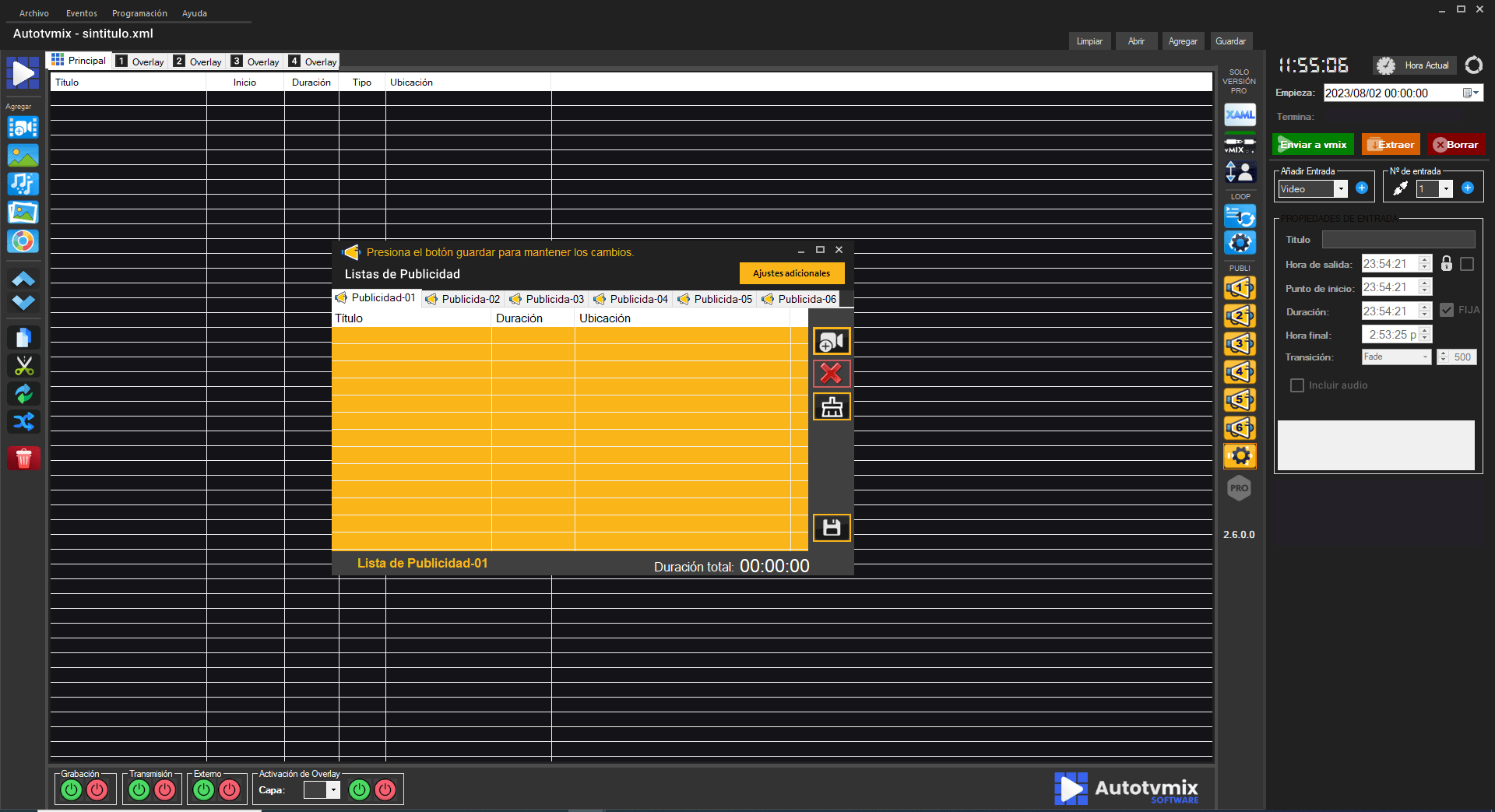
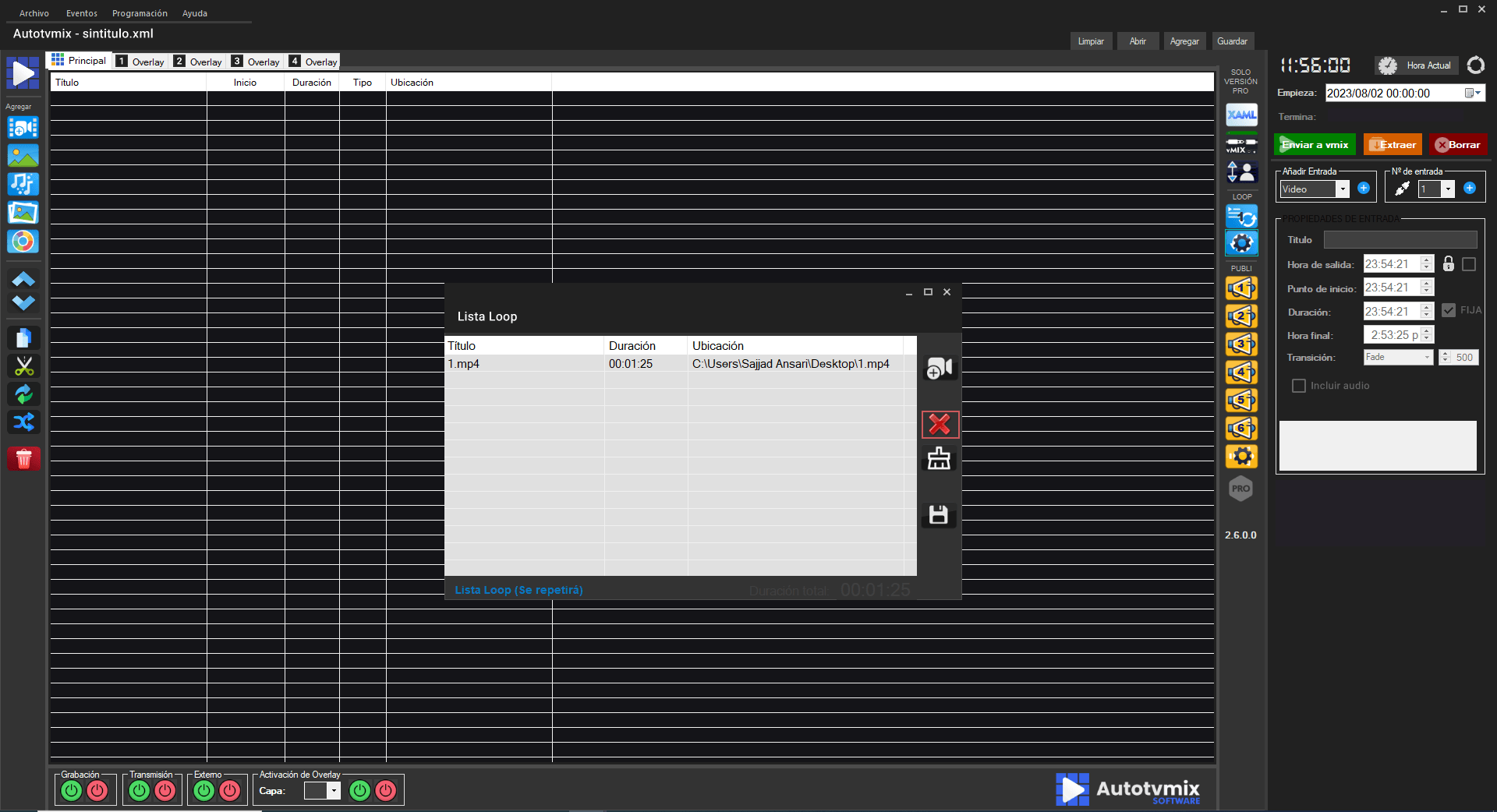
Screenshots of Autotvmix V2.6.0:

Key Features of Autotvmix V2.6.0
Autotvmix V2.6.0 transforms vMix from a manual mixing board into an automated broadcast server. Here are the core functionalities that define its utility:
-
Multi-Layer Scheduling: The software excels at programming up to four vMix layers simultaneously. You can schedule video, audio, images, and titles to appear on different layers at specific times, creating complex compositions automatically.
-
Dynamic XAML Title Support: For broadcasters using animated graphics, Autotvmix supports XAML (Extensible Application Markup Language) titles. It can dynamically schedule text changes within these titles based on the date and time, perfect for updating “Today’s Schedule” or “Current Weather” graphics without manual edits.
-
Automated Startup and Recovery: To ensure true “hands-off” operation, Autotvmix can be configured to launch automatically with Windows. In the event of a system restart, it intelligently resumes your programming schedule and re-establishes the connection with vMix, minimizing downtime.
-
Smart Input Management: The system handles five core input types—XAML titles, video files, audio files, images, and pre-cut video clips. This allows for a fully automated show run-down, from opening video to closing credits.
-
Intelligent Resource Handling: Autotvmix optimizes vMix performance by loading video files only at the exact moment they are scheduled to play. This “just-in-time” loading conserves system memory and processing power, leading to smoother performance during long broadcasts.
-
Project Portability and Backup: You can save your complex schedules and automation projects for later reuse. This feature is invaluable for recurring shows or daily programs that follow a similar structural template.
-
Network Compatibility: Autotvmix is compatible with local network workflows, allowing you to schedule and play media files stored on shared network drives or NAS devices.
What’s New in Version 2.6.0
While the core mission of Autotvmix remains consistent, version 2.6.0 brings critical refinements that enhance its reliability and usability for professional broadcasters:
-
Enhanced File Relinking: The “Find moved files or replace” feature has been improved. If you relocate your media assets, Autotvmix V2.6.0 provides more robust tools to scan and re-link the files to your schedule, preventing broken playlists.
-
Improved Playback Stability: The update includes optimizations to how the software communicates with vMix, resulting in smoother transitions and more reliable triggering of scheduled events, especially during extended broadcast periods.
-
Refined User Interface: While functionally consistent, the scheduling interface has received subtle tweaks for better clarity, making it easier to manage complex, multi-layer timelines at a glance.
System Requirements of Autotvmix V2.6.0
Before integrating Autotvmix V2.6.0 into your production environment, ensure your system meets the following specifications to guarantee stable performance:
-
Operating System: Windows 8.1 or Windows 10 (64-bit recommended for larger productions).
-
Framework: Microsoft .NET Framework 4.5.2 (or higher). This is essential as the software is built upon this Microsoft technology.
-
Storage: 100 MB of free space for the application files (additional space required for your media library).
-
Compatible vMix Version: vMix 21 or higher.
Installation Guide of Autotvmix V2.6.0
Installing Autotvmix V2.6.0 is a straightforward process designed to integrate seamlessly with your existing vMix setup.
-
Pre-Installation Check: Ensure that vMix is installed and functioning correctly on your system. Verify that your Windows version and .NET Framework meet the requirements listed above.
-
Run the Installer: Locate the downloaded Autotvmix V2.6.0 setup file. Right-click the file and select “Run as administrator” to ensure it has the necessary permissions to configure itself and communicate with vMix.
-
Follow the Setup Wizard: The installer will guide you through the process. It is generally recommended to accept the default installation path unless you have a specific organizational structure for your software.
-
Launch and Connect: After installation, open Autotvmix. It should automatically detect a running instance of vMix. If vMix is not open, launch it first, then Autotvmix will establish the connection, ready for you to build your first automation schedule.
How to Use Autotvmix for Live Production
Autotvmix is designed for powerful automation. Here is a basic workflow to get you started:
1. Creating a Basic Automation Schedule:
-
Open vMix and set up your inputs (video files, cameras, etc.).
-
Open Autotvmix. The main interface will present a timeline or scheduling grid.
-
To schedule a video, select the desired vMix input from a dropdown menu within Autotvmix.
-
Set the exact start time for the video to play. You can schedule events down to the second.
2. Managing Overlays and Titles:
-
To automate a lower-third, you would typically have a dedicated vMix input (e.g., an XAML title). In Autotvmix, schedule this input to activate at a specific time.
-
For dynamic text, configure the “Schedule text” option within the XAML event. Input the text you want to appear, and Autotvmix will feed it to the vMix title at the scheduled moment.
3. Automating a Full Show Rundown:
-
Use Autotvmix to build a playlist. List all your segments in order: Intro video -> Camera 1 -> Interview video -> Camera 2 -> Closing titles.
-
For each line item, assign the correct vMix input and a start time or duration.
-
Activate the scheduler. Autotvmix will now execute the entire show, switching inputs, rolling videos, and displaying titles according to your script.
Best Use Cases for Autotvmix V2.6.0
Autotvmix shines brightest in scenarios where consistency and time-based programming are critical. Its ideal applications include:
-
Regional and Online Television Channels: Perfect for automated playout, where scheduled programming, commercials, and station IDs must run uninterrupted 24/7.
-
Corporate Webcasting: Automate the repetitive elements of internal communications, such as looping company announcements, scheduled training videos, and branded lower-thirds for executive speakers.
-
House of Worship Streaming: Manage the complex mix of worship lyrics (via titles), camera angles, and sermon slides automatically, allowing the technical team to focus on audio and spiritual engagement.
-
Educational Lecture Capture: Schedule the recording and streaming of classes based on a fixed timetable, automatically switching between the lecturer, presentation slides, and document cameras.
Advantages and Limitations
Understanding the strengths and constraints of Autotvmix V2.6.0 will help you decide if it is the right tool for your workflow.
Advantages
-
Significant Time Savings: Reduces the need for a dedicated technical director for repetitive programming.
-
Enhanced Consistency: Eliminates human error in timing, ensuring transitions and graphics occur exactly as planned.
-
Resource Optimization: The “just-in-time” loading of videos improves vMix performance, especially on less powerful machines.
-
Spanish Language Support: It is a rare tool offering full support and documentation in Spanish, catering to a large demographic of broadcasters.
Limitations
-
Windows Exclusivity: As a plugin for vMix (which is Windows-native), Autotvmix is not compatible with macOS or Linux environments.
-
Learning Curve for Complex Schedules: While basic scheduling is easy, mastering the full potential of multi-layer, conditional automation requires dedicated practice and experimentation.
-
Dependency on vMix Version: It requires vMix 21 or higher, so users with legacy versions of vMix will need to upgrade.
Alternatives to Autotvmix
While Autotvmix is a robust solution for vMix automation, other tools can achieve similar results, depending on your technical expertise and needs:
-
vMix Native Macros: vMix itself includes a built-in Macro system. This is a good free alternative for simple, trigger-based automation (e.g., a keyboard shortcut to activate an overlay). However, it lacks the advanced time-based scheduling engine of Autotvmix.
-
Bitfocus Companion: A popular, open-source hardware/software controller. Companion is incredibly powerful for creating complex button panels and logic. It can control vMix via its API, but it requires more technical setup than Autotvmix’s dedicated scheduler.
-
Node-RED: A flow-based programming tool that can connect to the vMix API. It offers limitless automation possibilities but requires significant programming knowledge, making it unsuitable for non-technical users.
Frequently Asked Questions
1. Is Autotvmix V2.6.0 an official vMix product?
No, Autotvmix is a third-party plugin developed specifically to extend the functionality of vMix. It is not developed or officially endorsed by StudioCoast, the makers of vMix.
2. Do I need to be a programmer to use Autotvmix?
No. Autotvmix is designed with a user-friendly interface focused on scheduling. While advanced logic can be applied, most users can achieve powerful automation simply by setting up times and inputs.
3. Can Autotvmix run a full 24-hour broadcast channel?
Yes. This is one of its primary use cases. With features like automatic startup and schedule recovery, it is well-suited for continuous, unattended operation.
4. Will Autotvmix slow down my computer?
On the contrary, it is designed to optimize performance. Its intelligent loading of video resources helps prevent vMix from consuming excessive memory, contributing to a more stable system overall.
5. Can I control Autotvmix remotely?
Yes, version 2.6.0 includes remote control and monitoring capabilities. This allows you to manage your broadcast automation from a different location on your local network, adding a layer of flexibility.
6. What happens if a scheduled video file is missing?
Autotvmix features a “Find moved files or replace” tool. If a file path breaks, you can use this feature to manually or automatically redirect the schedule to the file’s new location.
7. Does it support animated graphics like lower-thirds?
Absolutely. It fully supports XAML titles, which are the standard for creating animated graphics in vMix. You can even schedule dynamic text changes within these titles.
Final Thoughts
Autotvmix V2.6.0 is more than just a plugin; it is a strategic tool for broadcasters looking to scale their operations without proportionally increasing their workload. By automating the repetitive, time-sensitive tasks of live production, it frees creative and technical staff to focus on content quality and audience engagement.
Whether you are running a 24/7 online channel or managing a complex live event, Autotvmix provides the reliability and precision needed to ensure your vMix broadcast runs flawlessly. It successfully bridges the gap between the creative vision of a show and the technical execution, making it a valuable asset for any serious vMix user looking to embrace the power of automation.
Premium Software Support Service
If you need professional help with software installation, setup, or technical configuration, our team is available to assist you.
Contact & Support
For quick assistance and latest updates, connect with us using the links below:
🔹 Direct Telegram Support
https://t.me/PlayoutKing
🔹 Official Telegram Updates Group
https://t.me/yourgroup
🔹 WhatsApp Community Group
https://chat.whatsapp.com/yourlink
Service Policy
- Remote testing available through AnyDesk before confirmation.
• Verify the setup and performance before completing the order.
• Support available for single or multiple systems.
• Step-by-step guidance to ensure smooth installation and working environment.
Our goal is to provide reliable technical assistance so your software runs smoothly without interruptions.