
Download the AmiBroker V7.00.1 (Advanced Trading Software for Technical Analysis & Automated Trading) from this link…

Overview of the Software
Table of Contents
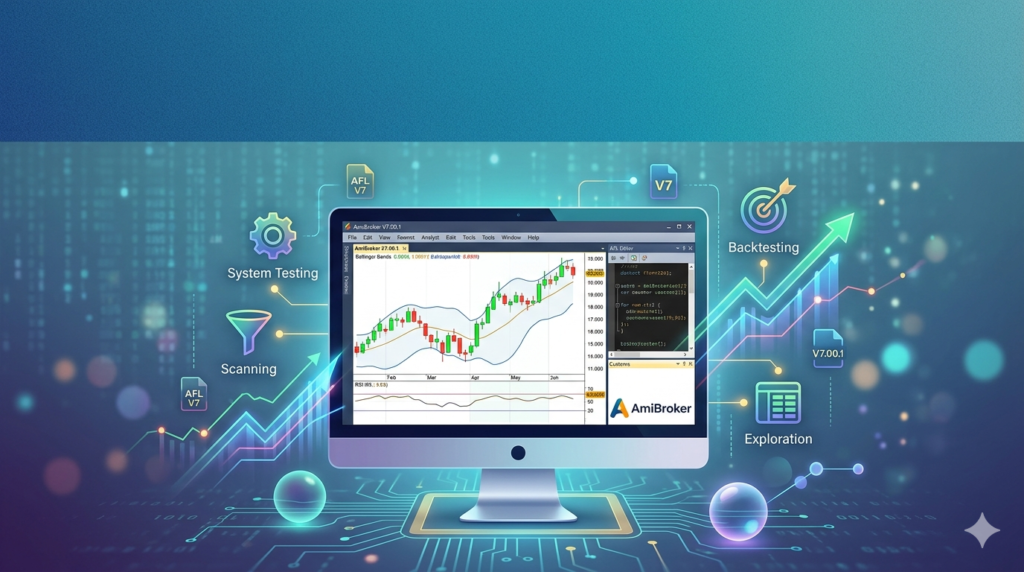
AmiBroker V7.00.1 is a professional-grade trading software platform designed for technical analysis, backtesting, and automated trading system development. Widely recognized for its exceptional speed and flexibility, AmiBroker allows traders, quantitative analysts, and investment firms to analyze market data, develop custom trading strategies using its proprietary AFL (AmiBroker Formula Language), and test those strategies against historical data with high precision.
This latest version, V7.00.1, builds on the software’s reputation for robust portfolio-level backtesting and real-time data analysis, introducing key enhancements to its batch scheduling, AFL scripting capabilities, and core stability. The platform supports multiple asset classes including stocks, futures, forex, and cryptocurrencies, making it a versatile tool for traders across global markets.
Key Features
AmiBroker provides a comprehensive suite of tools for both novice traders and experienced quantitative developers. Below are its core functionalities:
-
High-Performance Backtesting Engine: Run complex backtests on thousands of symbols with decades of tick data in seconds. Supports portfolio-level backtesting, walk-forward optimization, and Monte Carlo analysis.
-
AmiBroker Formula Language (AFL): A powerful, C-style scripting language that allows users to create custom indicators, scans, explorations, and trading systems. Includes over 1,200 built-in functions.
-
Automated Trading & Real-Time Scanning: Connect to brokerage accounts via plugins to execute automated strategies. The “New Analysis” window enables real-time scanning of the entire market to find trade setups.
-
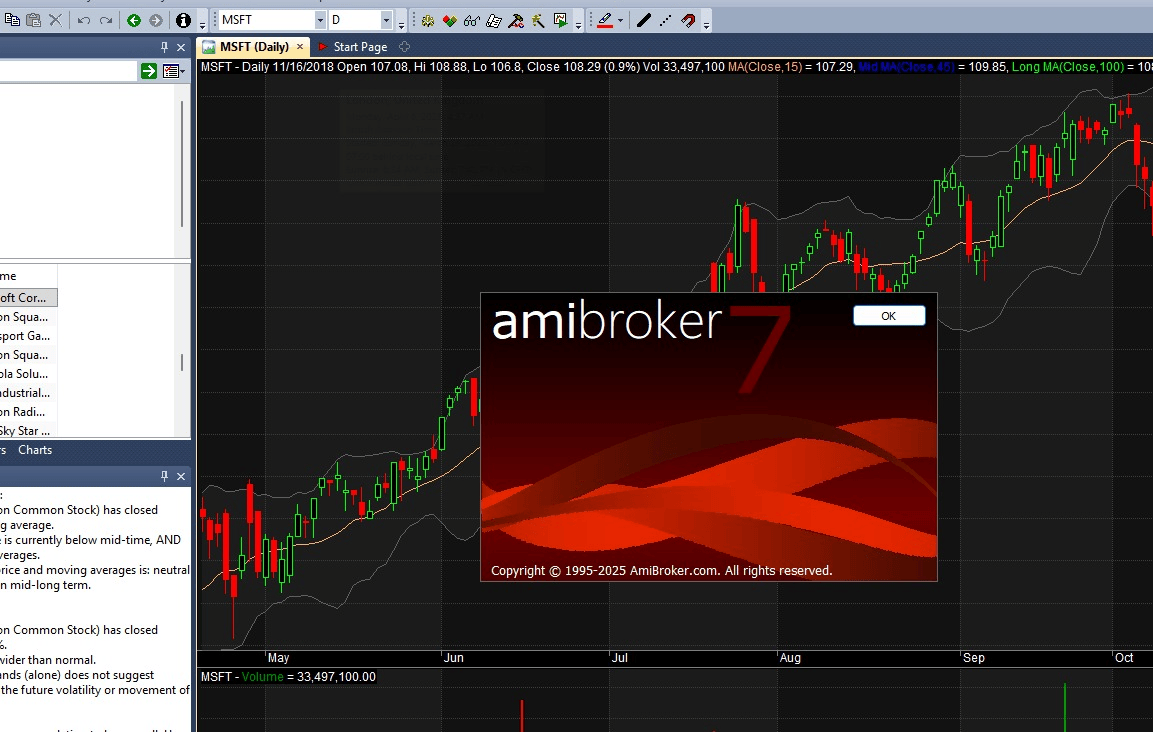
Advanced Charting & Visualization: Create multi-timeframe, multi-pane charts with over 80 built-in indicators (RSI, MACD, Bollinger Bands). Fully customizable chart styles including candlestick, bar line, and area charts.
-
Data Import & Management: Supports ASCII, CSV, MetaStock, and QP data formats. Includes AmiQuote 4.19 for downloading historical and end-of-day data from Yahoo Finance and other free sources.
-
Portfolio & Position Sizing: Advanced money management rules with support for pyramiding, position scoring, and dynamic position sizing based on portfolio equity or risk.
What’s New in AmiBroker V7.00.1
This release (V7.00.1) focuses on refining existing features and fixing minor issues from V7.00.0. Key changes include:
-
AFL: StrToDateTime(“”) Fix: Resolved a regression where passing an empty string to
StrToDateTimeproduced an error. Now it correctly returns a Null result, matching behavior from pre-7.00 versions. -
Batch Scheduler Enhancements:
-
Weekday filtering now applies to hourly and N-minute repeat schedules, giving finer control over automated tasks.
-
Users can schedule batch files at custom N-minute intervals (e.g., every 3 minutes, every 7 minutes), not just divisors of 60.
-
-
New Analysis “Run Every” Logic: The period now counts from the start of a scan/exploration rather than the end. This ensures tasks run at precise intervals (e.g., every 1 second) regardless of how long the previous scan took.
-
Updated AmiQuote 4.19: Includes fixes and improvements for downloading data from external web sources.
-
Documentation Cleanup: Various help files and user guides have been updated for accuracy and clarity.
Notable Features from V7.00.0 (Included in V7.00.1)
-
AI-Driven AFL Code Assistant: Integrated directly into the AFL Editor, this tool helps users write, debug, and optimize AFL code using natural language prompts.
-
Extended AddSummaryRows: New flags (
asrAlways) allow summary statistics (sum, average, min, max, count, standard deviation) to appear in backtest and optimization reports, not just explorations. -
Programmable Tags: New AFL functions (
CategoryAddSymbol,CategoryGetSymbols,CategoryRemoveSymbol) allow scripts to dynamically assign and query color tags and categories to symbols for better organization. -
File Append Function:
fappend( filename, text )provides a thread-safe, atomic way to write log files from multiple simultaneous threads without data loss. -
Improved Chart Opacity & Rendering: Full alpha blending support for all plot styles (line, bar, candle, histogram, area) using
SetOpacity().
System Requirements
Before installing AmiBroker V7.00.1, ensure your system meets the following requirements:
| Component | Minimum Requirement | Recommended |
|---|---|---|
| Operating System | Windows 7, 8, 10, 11 | Windows 10/11 (64-bit) |
| Processor | 1 GHz (x86 or x64) | 2 GHz Dual-Core or higher |
| RAM | 1 GB | 4 GB or more (for large databases) |
| Hard Disk Space | 200 MB for software; additional for data | 1 GB SSD |
| Display | 1024 x 768 resolution | 1920 x 1080 or higher |
| Internet Connection | Required for data download & updates | Broadband |
| Database Engine | Built-in (no external DB required) | N/A |
Installation Guide
Follow these steps to safely install AmiBroker V7.00.1:
-
Download the Installer: Obtain the official setup file from the AmiBroker website or using the built-in updater (
Help -> Check for and Install Updates). -
Run as Administrator: Right-click the downloaded
.exefile and select “Run as Administrator” to ensure proper registry and file access. -
Accept License: Read and accept the End-User License Agreement (EULA).
-
Choose Installation Directory: The default path is
C:\Program Files\AmiBroker. You may change it, but note the location for future reference. -
Select Components: Choose to install AmiBroker core, AmiQuote, and documentation. Ensure the AFL Code Assistant component is selected if you plan to use AI features.
-
Complete Installation: Click “Install” and wait for the process to finish. Launch AmiBroker from the desktop shortcut.
-
Enter License Key: On first run, enter your valid license key (purchased separately). There is no free version; unlicensed use is not permitted.
How to Use the Software
AmiBroker has a moderate learning curve. Here is a basic workflow for new users:
-
Create a New Database:
File -> New -> Database. Choose a name and location. Set the base time interval (e.g., Daily, 1-minute). -
Import Data: Use AmiQuote (Tools -> AmiQuote) to download ticker data from Yahoo Finance. Alternatively, use
File -> Import ASCIIfor CSV files. -
Open a Chart: Double-click a symbol in the Symbol list. A default price chart will appear.
-
Apply an Indicator: Right-click on the chart ->
Insert -> Indicator. Select a built-in formula like RSI or MACD. -
Write an AFL Scan: Press
Ctrl+Eto open the AFL Editor. Write a simple exploration:// Scan for RSI below 30 Filter = RSI(14) < 30; AddColumn( C, "Close", 1.2 ); AddColumn( RSI(14), "RSI", 1.2 );
-
Run the Scan: Go to
Analysis -> New Analysis. Select “Exploration” mode, choose your formula, and click “Scan”. Results appear in a table. -
Run a Backtest: Write a buy/sell rule in AFL. Go to
Analysis -> Backtest. Select the formula, set your initial equity ($100,000), and click “Backtest”. Review the detailed report with metrics like Sharpe ratio, max drawdown, and profit factor.
Best Use Cases
AmiBroker excels in several specific trading scenarios:
-
Systematic Trading Strategy Development: Quantitative traders use AFL to code, optimize, and validate mean-reversion, momentum, or trend-following strategies before deploying real capital.
-
Portfolio-Level Risk Management: The platform’s backtester can analyze how multiple strategies interact within a single portfolio, calculating correlated risk and optimal position sizing.
-
High-Frequency Tick Data Analysis: For professionals, AmiBroker can import and analyze tick-level data to identify micro-structure opportunities.
-
Educational & Research: University finance programs use AmiBroker to teach algorithmic trading and technical analysis due to its transparent AFL language and low cost relative to institutional software.
Advantages and Limitations
Advantages
-
Exceptional Speed: Backtests that take hours on other platforms finish in minutes on AmiBroker.
-
Unlimited Customization: AFL allows creation of any indicator or logic imaginable.
-
Low Cost: One-time purchase (with maintenance) vs. monthly subscriptions of competitors like TradeStation or MultiCharts.
-
Active Community: Thousands of user-contributed formulas and scripts available on the official forum and AmiBroker.com.
-
Lightweight: Runs efficiently on older hardware.
Limitations
-
Steep Learning Curve: AFL requires programming logic. Non-coders may struggle initially.
-
User Interface: The UI appears dated compared to modern web-based platforms (e.g., TradingView).
-
No Built-in Brokerage: Requires third-party plugins for live order execution (e.g., IB TWS plugin).
-
Limited Cloud Features: No native cloud backup or multi-device sync.
Alternatives to the Software
Depending on your needs, consider these legitimate alternatives:
| Software | Best For | Pricing Model | Key Difference |
|---|---|---|---|
| TradeStation | Integrated brokerage + advanced backtesting | Commission-free trading + platform fees | Built-in broker, easier for equities |
| MultiCharts | Professional futures/forex traders | Annual subscription | More modern UI, .NET/PowerLanguage support |
| MetaStock | Fundamental & technical analysis | Monthly subscription | Strong fundamental data integration |
| TradingView | Charting & social trading | Freemium (subscription) | Cloud-native, Pine Script language |
| Python (Backtrader/Zipline) | Coders & data scientists | Free (open source) | Full programming control, no GUI |
Frequently Asked Questions
1. Is AmiBroker V7.00.1 free?
No, AmiBroker is commercial software. You must purchase a license from the official website. There is no legal “free version” or trial that includes backtesting. A 30-day trial is available for evaluation.
2. What is AFL in AmiBroker?
AFL (AmiBroker Formula Language) is the proprietary scripting language used to create custom trading indicators, scans, and automated systems. It is case-sensitive, array-based, and similar to C in syntax.
3. Can AmiBroker trade automatically with my broker?
Yes, using third-party real-time data and trading plugins. Popular options include plugins for Interactive Brokers (IB), TD Ameritrade, and FXCM. The software generates buy/sell signals that the plugin executes.
4. What data sources work with AmiBroker?
AmiBroker supports ASCII, CSV, MetaStock, QP (Quote Provider), and DDE (Dynamic Data Exchange). With the included AmiQuote 4.19, you can download free EOD data from Yahoo Finance. Paid sources like Norgate Premium Data and eSignal are also compatible.
5. Does AmiBroker support cryptocurrency data?
Yes. You can import crypto data from CSV files downloaded from exchanges like Binance, Coinbase, or via third-party plugins that stream real-time crypto prices.
6. How do I update from an older version?
Use the built-in updater: Help -> Check for and Install Updates. This will download and install the latest version while preserving your settings, databases, and custom formulas. Always back up your AmiBroker folder before updating.
7. What is the difference between “Scan” and “Exploration”?
-
Scan: Tests a
Filtercondition across symbols. Used to find tradable setups quickly. -
Exploration: Generates a detailed report with multiple columns of data. It can output complex information about each bar of each symbol.
Final Thoughts
AmiBroker V7.00.1 remains a top-tier choice for serious traders who demand performance, flexibility, and control. The introduction of the AI-driven AFL Code Assistant significantly lowers the barrier to entry for new users, while advanced professionals will appreciate the refined batch scheduler and new atomic file functions for production-grade scripts.
Although the user interface lacks modern polish, the raw power of its backtesting engine and the expressiveness of AFL make it an indispensable tool for quantitative strategy development. For traders who are willing to invest time in learning its language, AmiBroker offers an unmatched price-to-performance ratio in the technical analysis software market.
Premium Software Support Service
If you need professional help with software installation, setup, or technical configuration, our team is available to assist you.
Contact & Support
For quick assistance and latest updates, connect with us using the links below:
🔹 Direct Telegram Support
https://t.me/PlayoutKing
🔹 Official Telegram Updates Group
https://t.me/yourgroup
Service Policy
- Remote testing available through AnyDesk before confirmation.
• Verify the setup and performance before completing the order.
• Support available for single or multiple systems.
• Step-by-step guidance to ensure smooth installation and working environment.
Our goal is to provide reliable technical assistance so your software runs smoothly without interruptions.